

20 Best AI App Marketing Tools In 2026
Boost app growth with the 20 best AI marketing tools of 2026. Master ASO, automate retention, and scale faster with expert picks for indie devs and growth teams
Published May 19, 2026
Create iPhone mockup in Photoshop with 10 easy steps, plus explore iPhone mockup PSD templates and top iPhone mockup generator tools for fast results.
11 min

Create iPhone mockup in Photoshop by opening an iPhone mockup PSD template, inserting your app screen using Smart Objects or a clipping mask, aligning it with the Transform tools, and refining shadows and blending for a realistic result.
This approach offers full control and is ideal for custom visuals, but it requires design skills, manual editing, and software installation. Because of these limitations, many teams switch to an iPhone mockup generator for faster output.
AppLaunchpad is a strong Photoshop alternative for non-designers, offering 400+ trendy iPhone mockups (including 3D styles), a drag-and-drop interface, and a fully browser-based workflow with a free plan.
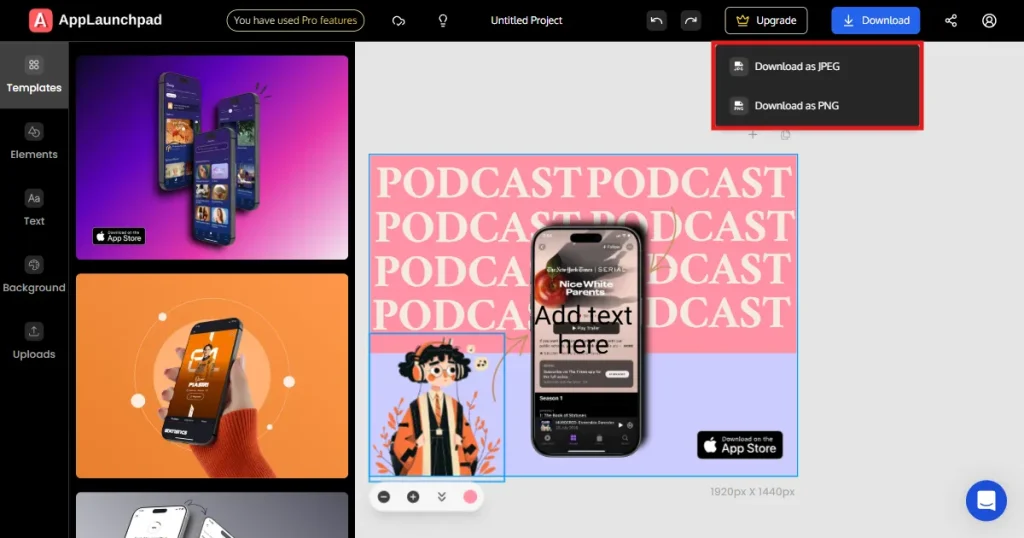
Unlike Photoshop, you simply pick a template, add your app screens, customize the design, and download high-resolution mockups in JPG or PNG format, watermark-free.
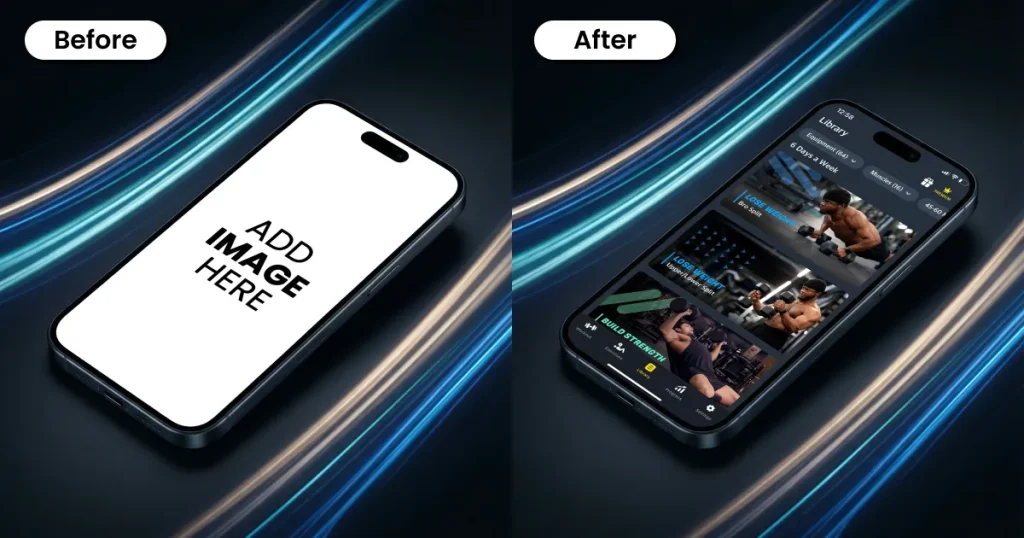
An iPhone mockup shows your app’s interface inside an iPhone frame. People use these for App Store screenshots, social media ads, landing pages, and product pages. They help people quickly see how your app works without having to read longer texts.
An iPhone mockup acts as both a design and marketing asset. Data shows that apps with optimized visuals, including high-quality iPhone mockups, can see up to a 30% increase in install conversion rates. This makes them a key factor in boosting your app’s popularity and discoverability.
There are multiple ways to create an iPhone mockup, and the right choice depends on your budget, how much time you have, and your design skills.
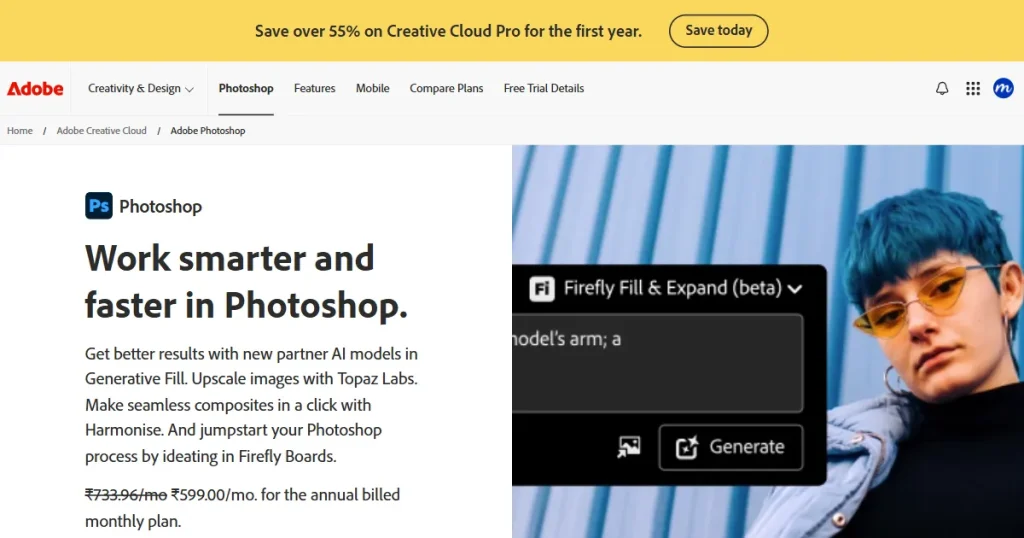
Adobe Photoshop is a popular design tool for creating high-quality visuals, such as app mockups, marketing images, and UI presentations. It lets you control every mockup detail, so you can create very realistic iPhone mockups.
Photoshop gives you complete control when you create iPhone mockup in Photoshop. However, it comes with a learning curve and can be time-consuming.
It’s best suited for designers, agencies, or growing startups looking for advanced customization.
AppLaunchpad
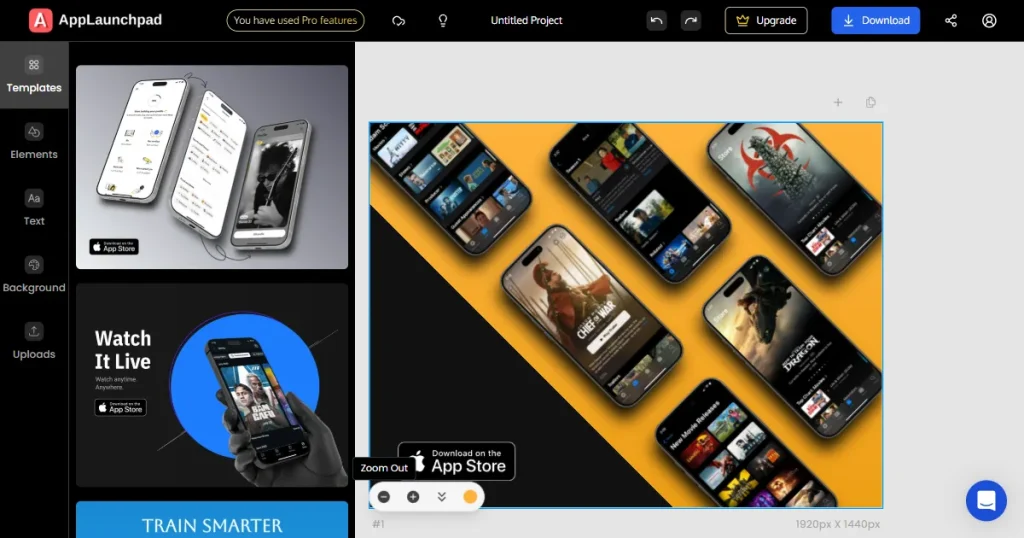
AppLaunchpad is one of the best mockup tools for iPhone mockups. It offers a specialized iPhone mockup generator to create high-quality, photorealistic mockups. Unlike Photoshop, AppLaunchpad is entirely browser-based. You need no setup, and it offers an easy-to-use, drag-and-drop interface.
You get over 400 templates, including 3D, hand-held, and clay styles. It supports the latest devices, such as the iPhone 17 Pro max and iPhone 16 Pro Max, and lets you localize for more than 80 languages. There’s a free plan, and the Pro plan starts at $29 per month.
Canva (Smartmockups)
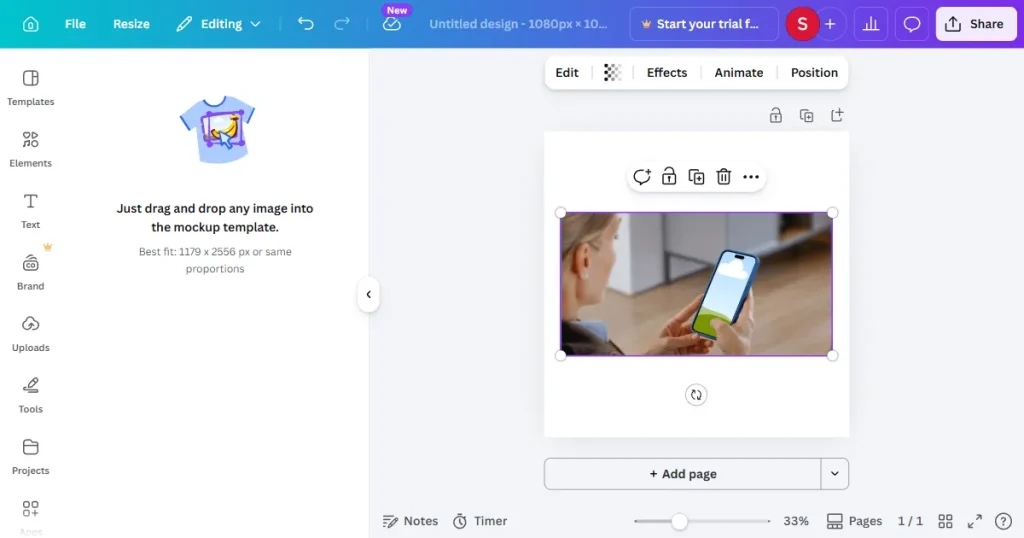
Canva bought Smartmockups in 2021, and you can use it right inside Canva by going to Apps and choosing Smartmockups. It has a drag-and-drop editor that’s easy to use, even if you have no design experience. You can make both static and animated mockups for different devices. There’s a free plan, and Pro starts at $15 per month.
Mockuuups Studio
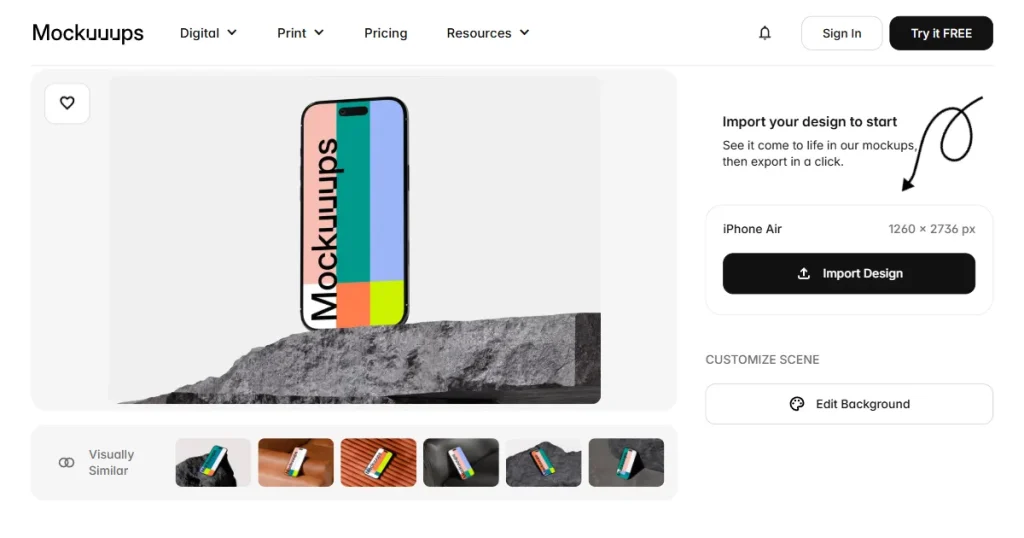
Mockuuups Studio is a dedicated mockup generation tool designed to help teams quickly create realistic device mockups without manual editing. It features 4800+ high-quality, in-house-photographed mockups covering devices up to the iPhone 17 Pro. It integrates directly with Figma, Sketch, and Adobe XD. Paid plans start at $20/month.
MockUPhone
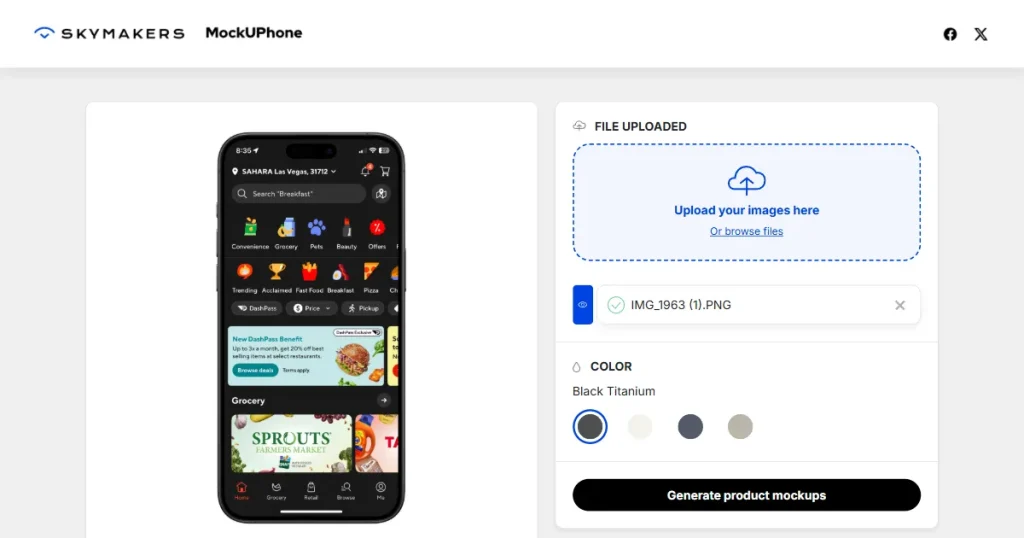
MockUPhone, made by Skymakers, is a free online tool. You can add your app screens to device frames without installing anything. It works with popular iPhone models from the SE to the iPhone 16, lets you do basic customizations, and exports images in PNG or JPEG with no watermarks.
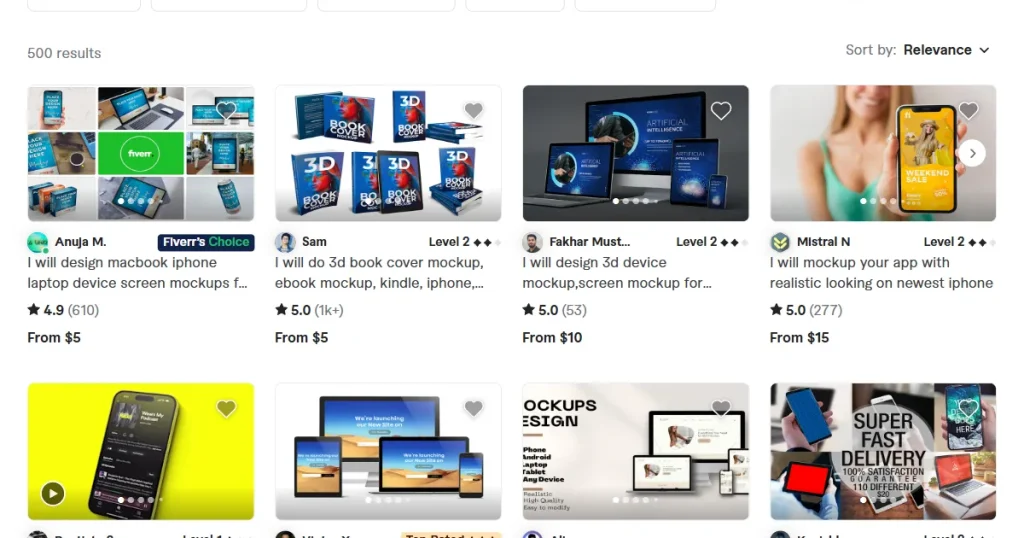
If you have a bigger budget or want premium branding, hiring a professional designer is a good choice. You’ll get polished visuals that help drive conversions. Just keep in mind it can get expensive, especially if your project is complex or needs many changes.
Here is a detailed step-by-step guide on how to create iPhone mockup in Photoshop.
Step 1: Open the PSD mockup file
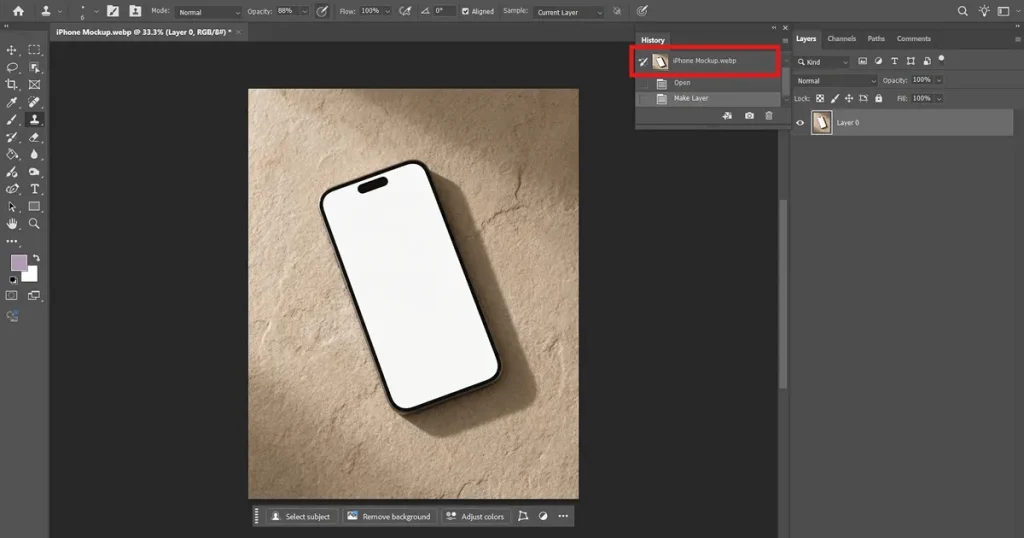
To create iPhone mockup in Photoshop, you first need to set up Photoshop. Open Adobe Photoshop and load a high-resolution iPhone mockup PSD. Choose files that have organized layers and an editable screen area. Make sure the mockup matches the device size you want, like an iPhone 15 or 16.
Step 2: Select the iPhone screen area accurately
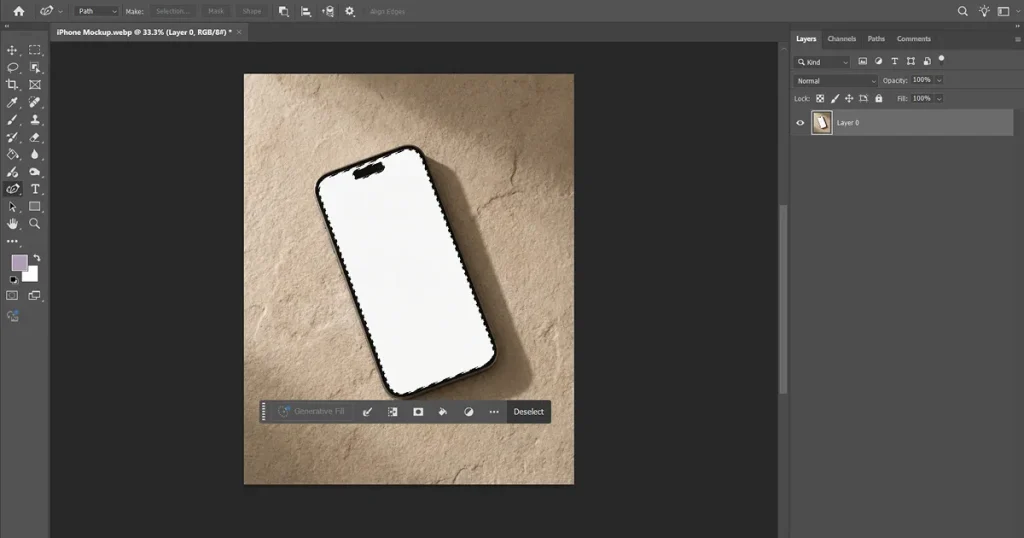
Use the Object Selection Tool to quickly find the screen area. You can also try the Quick Selection Tool for a semi-automatic approach, or the Pen Tool for precise work on tricky angles. Zoom in to avoid accidentally selecting the bezels or edges.
Step 3: Create a dedicated screen layer
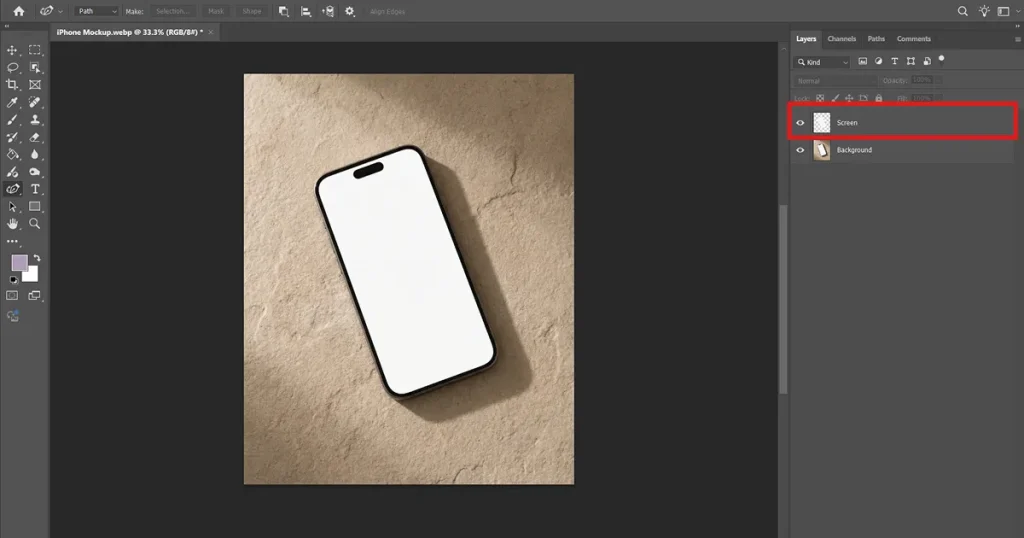
Press Ctrl + J to copy just the selected screen area. Give the new layer a clear name, like Screen Base. This layer will serve as the boundary for your screenshot.
Step 4: Import your app screenshot
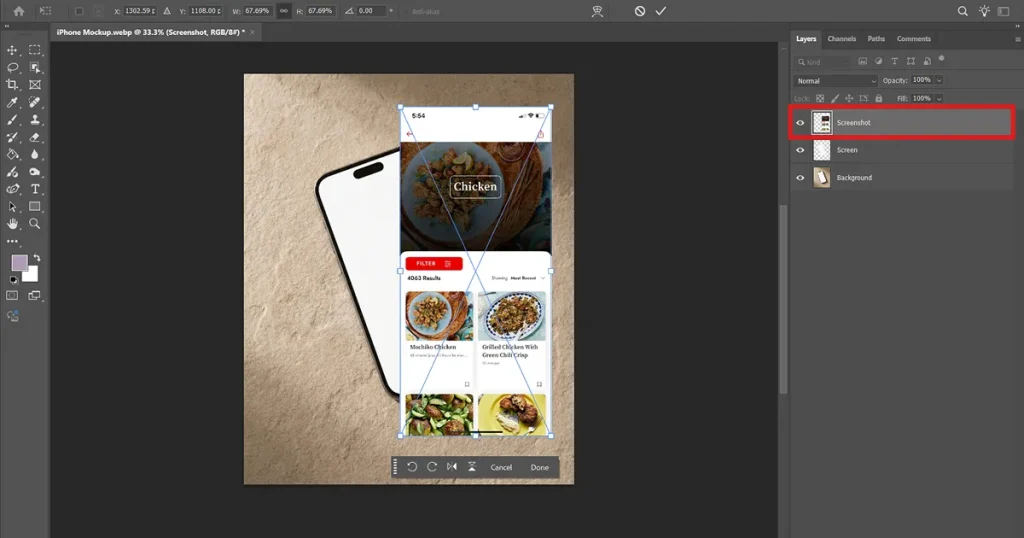
Open your app screenshot in a separate window. Copy it (Ctrl + C) and paste it (Ctrl + V) into your mockup file. Make sure your screenshot is at least as large as the mockup, and use PNG format to keep it sharp.
Step 5: Reduce opacity for alignment
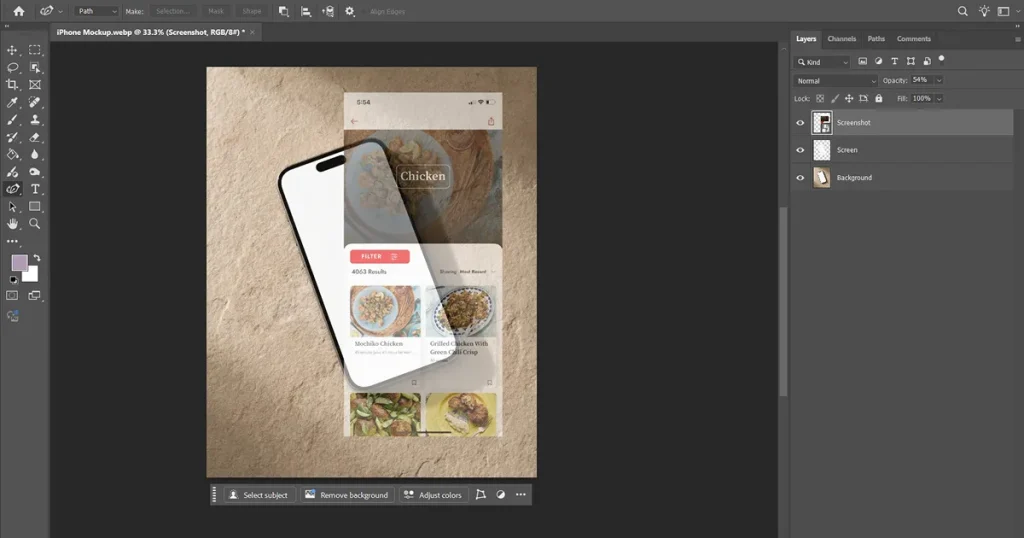
Reduce the screenshot’s opacity to about 40-60%. This makes it easier to line up your app’s UI with the screen underneath, which is especially important for angled mockups.
Step 6: Transform and fit the screenshot
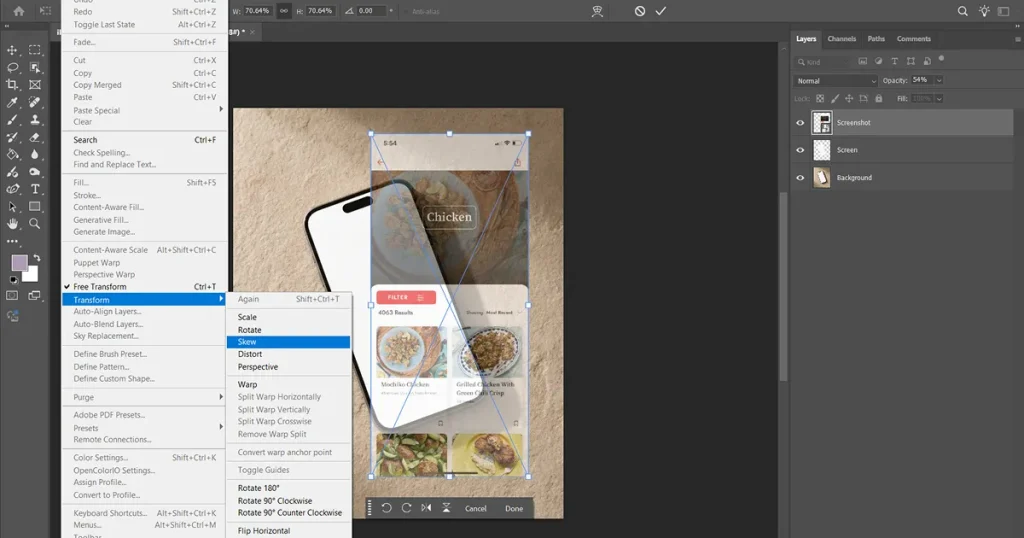
Press Ctrl + T, then right-click and choose Skew or Distort. Move the corners so the screenshot fits the screen’s perspective.
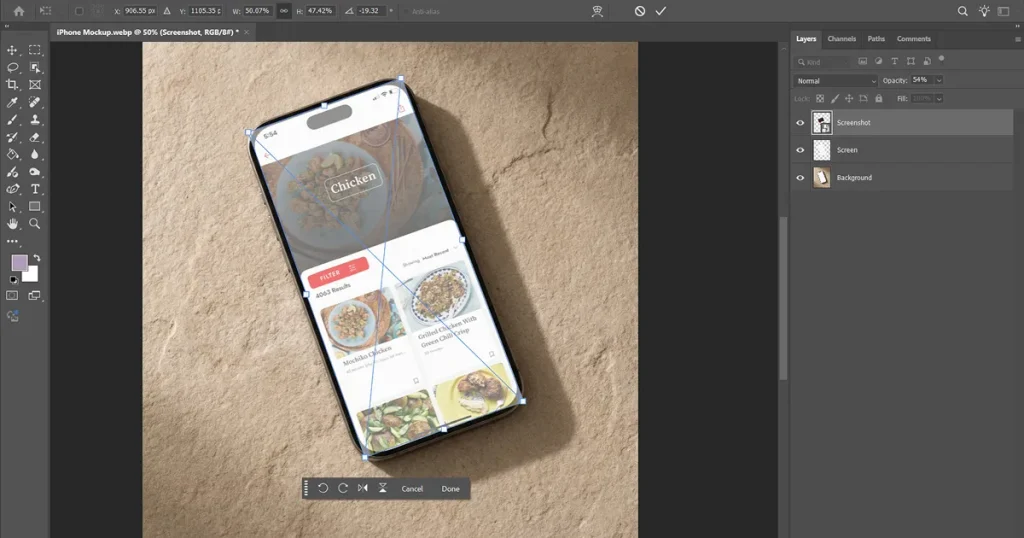
Hold Shift if you need to keep things in proportion, and try not to stretch the UI too much.
Step 7: Clip the screenshot inside the screen
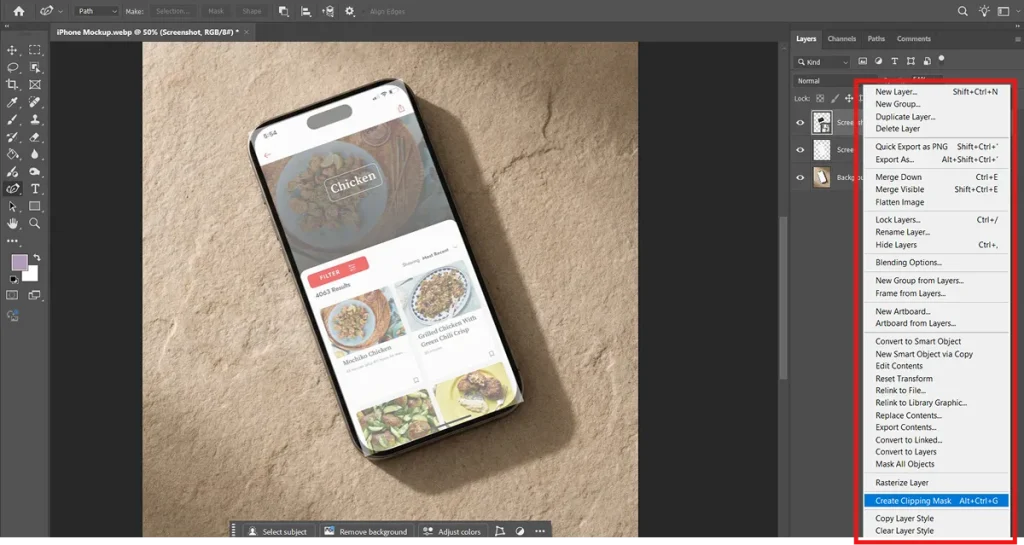
Put the screenshot layer right above the screen base layer. Right-click it and choose Create Clipping Mask.
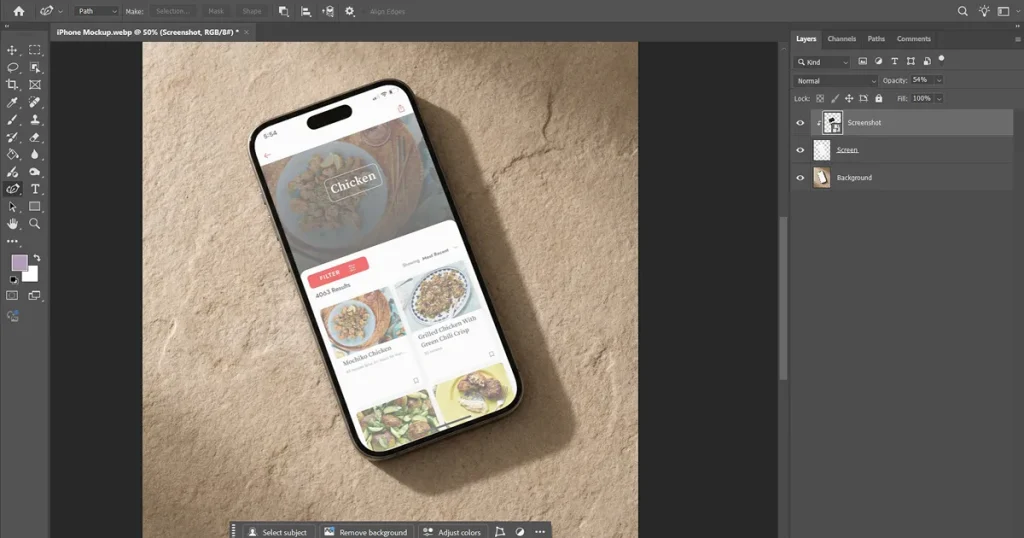
This keeps your screenshot inside the screen area and stops it from spilling over when you edit.
Step 8: Restore opacity and refine placement
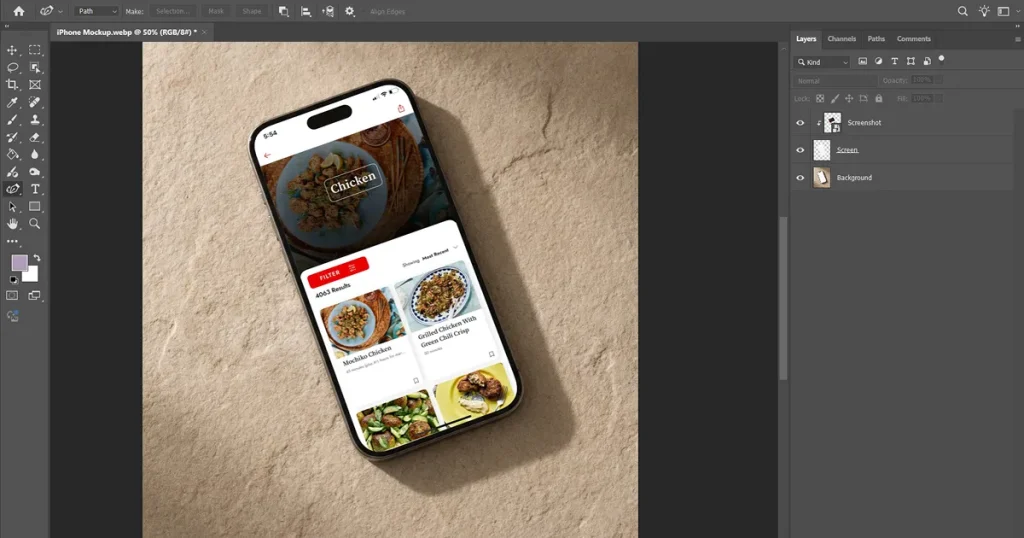
Set the opacity back to 100 percent. Check the alignment at different zoom levels, like 100% and 200%, to ensure the edges are sharp and nothing extends beyond the frame.
Step 9: Apply blending for realism
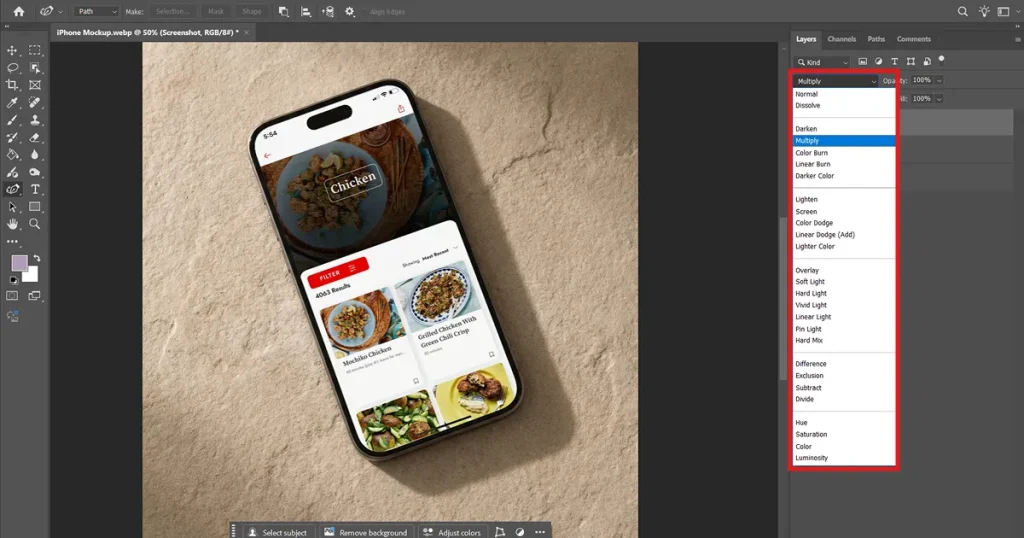
Try different blending modes, such as Multiply, Overlay, or Soft Light. This helps your app’s UI pick up the mockup’s natural reflections and lighting.
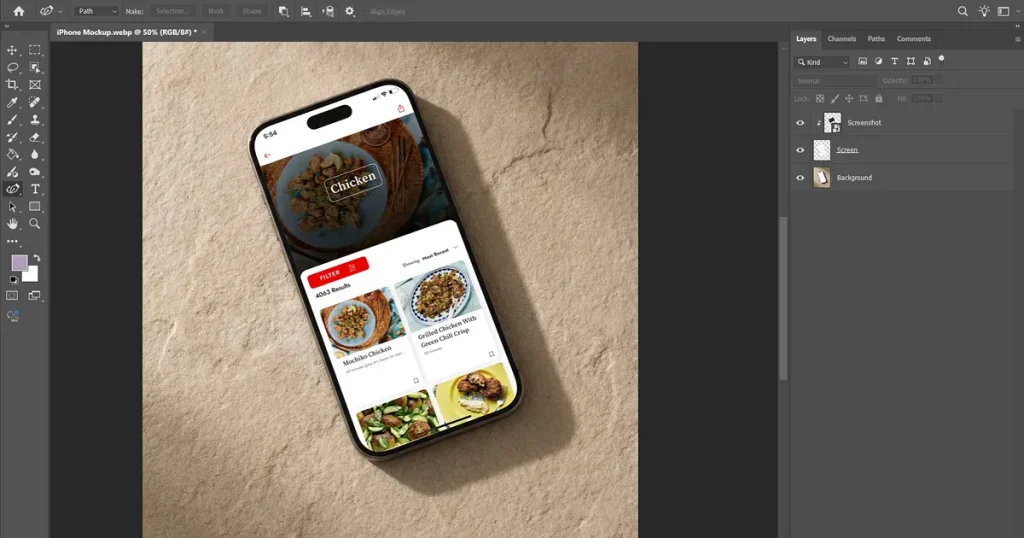
Adjust the opacity so the screen doesn’t get too dark.
Step 10: Add finishing touches for premium output
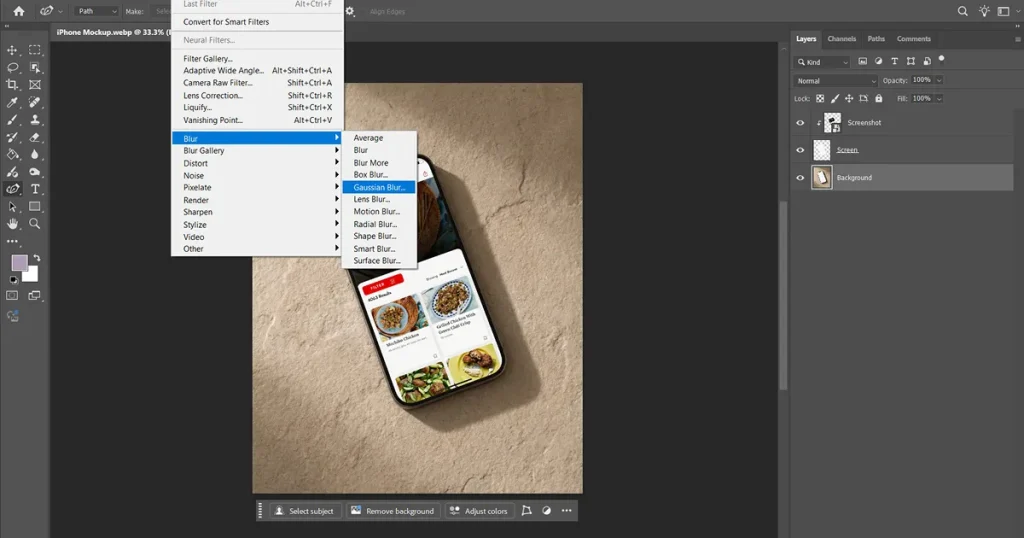
Add soft shadows with Gaussian Blur and adjust the opacity as needed. Use gradient backgrounds to add depth. If you’re making several mockups, keep the spacing consistent, group your layers, and make templates you can reuse to save time.
Photoshop and iPhone mockup generators can both create high-quality iPhone mockups. The only difference is whether the process is easy and whether the results are worth it.
Below are the main differences to create iPhone mockup in Photoshop and using iPhone mockup generators.
| Feature | Adobe Photoshop | AppLaunchpad |
| Primary Focus | Complete design control and deep customization. | Speed, scalability, and App Store marketing workflows. |
| Workflow | Manual edits using Smart Objects and clipping masks. | Browser-based, drag-and-drop, automated resizing. |
| Visual Quality | Advanced control over lighting, shadows, and perspective. | 400+ high-quality, App Store-ready templates. |
| Time Investment | Time-consuming for variations and multi-device sets. | Extremely fast; features clone tools for instant replication. |
| Scaling & Localization | No built-in support for bulk generation or translation. | AI-powered localization for translating text across regions. |
| Skill Level | Requires design expertise to create iPhone mockup in Photoshop. | No design skills required. |
Key Differences That Actually Matter
Create iPhone mockup in Photoshop if you want full customization and unique, high-quality visuals. AppLaunchpad is better for speed, scaling, and creating better and visually appealing marketing visuals. With Photoshop, you do each version by hand, but AppLaunchpad can automate the process.
The best way is to use Photoshop for custom hero images, and AppLaunchpad for making lots of App Store screenshots quickly.
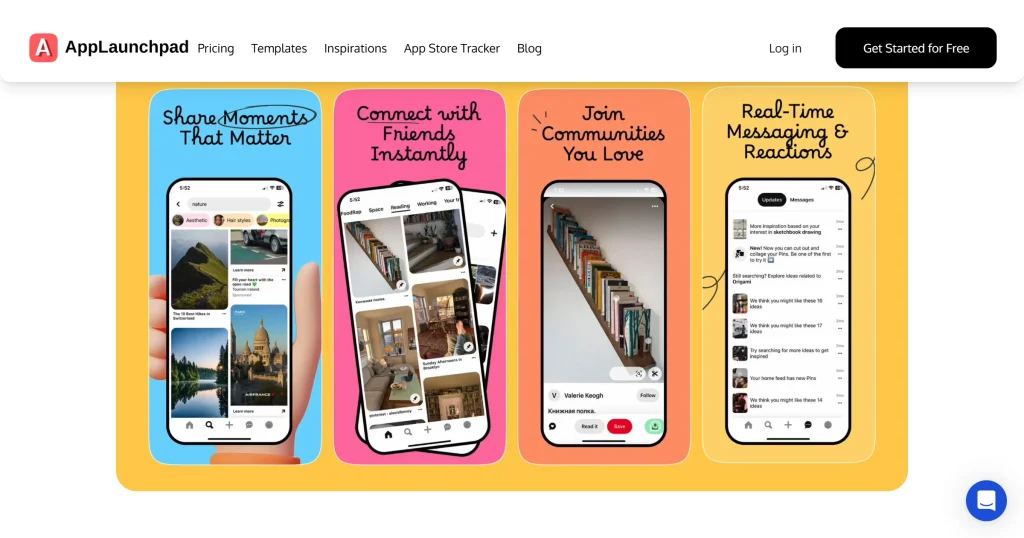
AppLaunchpad is a top tool for making App Store visuals. Its iPhone mockup generator is made for creating screenshots, with templates designed to boost conversions. It supports many device sizes, including iPhone 17 Pro Max, Pixel 10 Pro, and iPad Air, and has AI-powered localization in over 80+ languages.
If your workflow prioritizes speed, scalability, and ease of use over manual design control, AppLaunchpad is a strong fit. Below are a few more reasons why you should use AppLaunchpad for iPhone mockups.
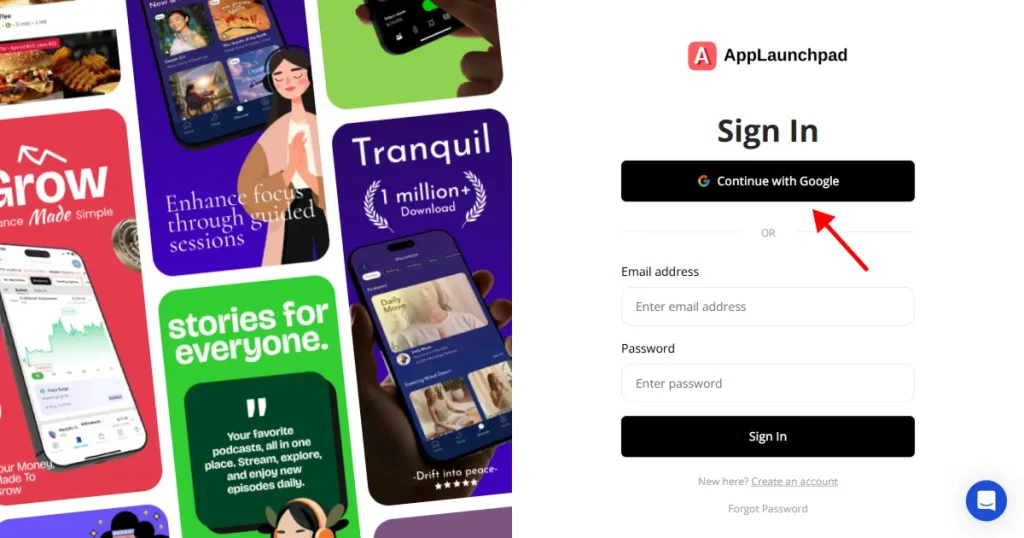
Step 1: Go to AppLaunchpad, and create an account or log in using Google/email
Step 2: Navigate to Mockups from the dashboard.
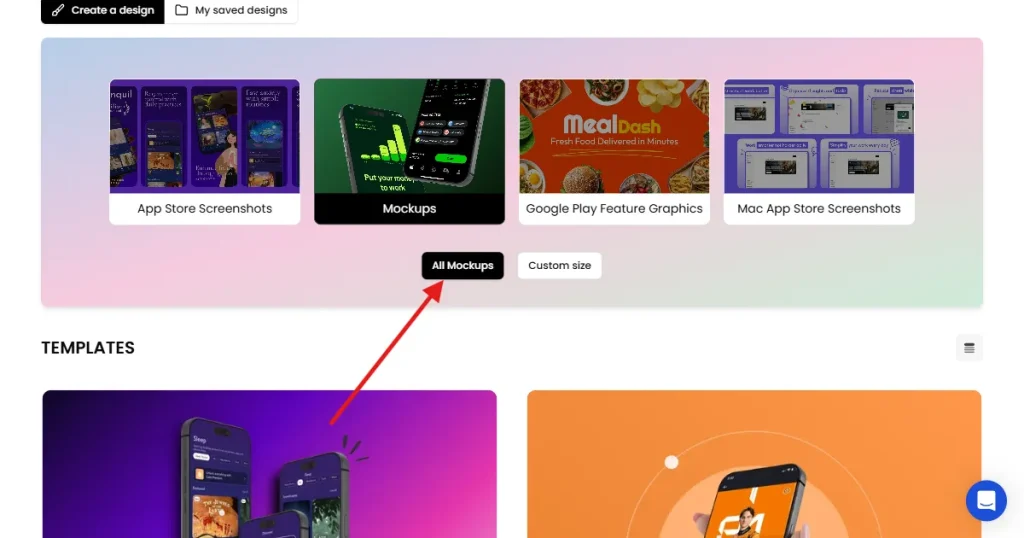
Step 3: Choose between template-based or custom-size mockups.
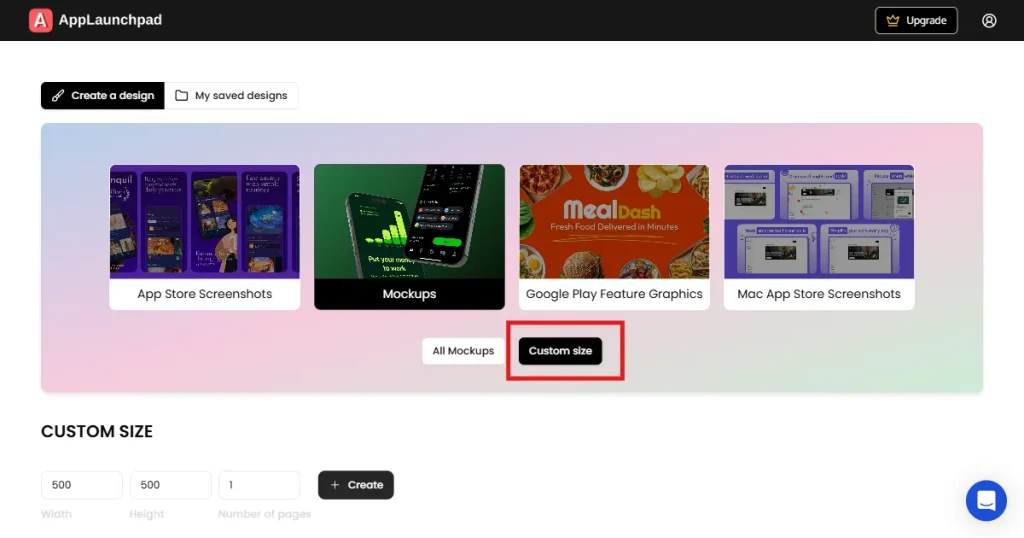
Step 4: Select an iPhone mockup from the template library.
Step 5: Upload your app screens.
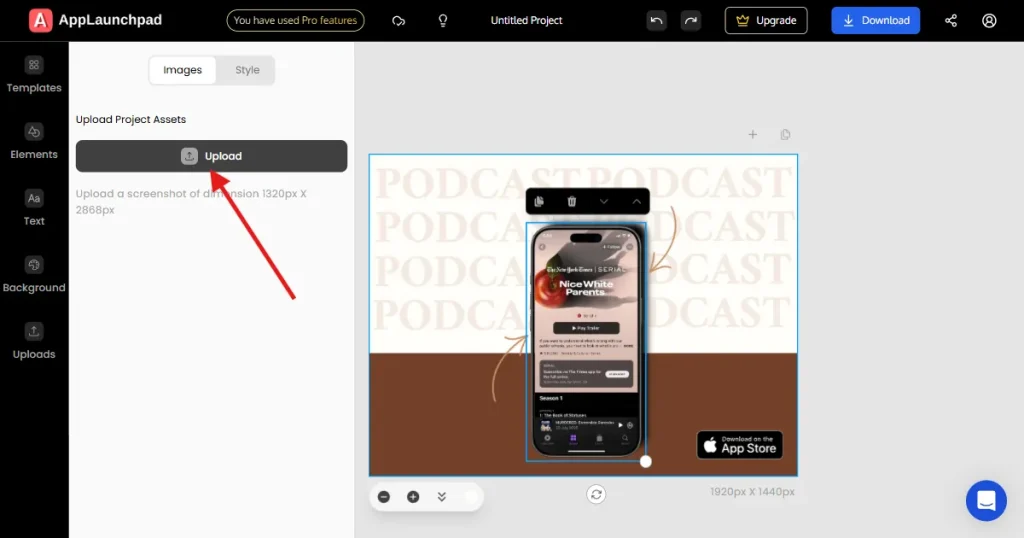
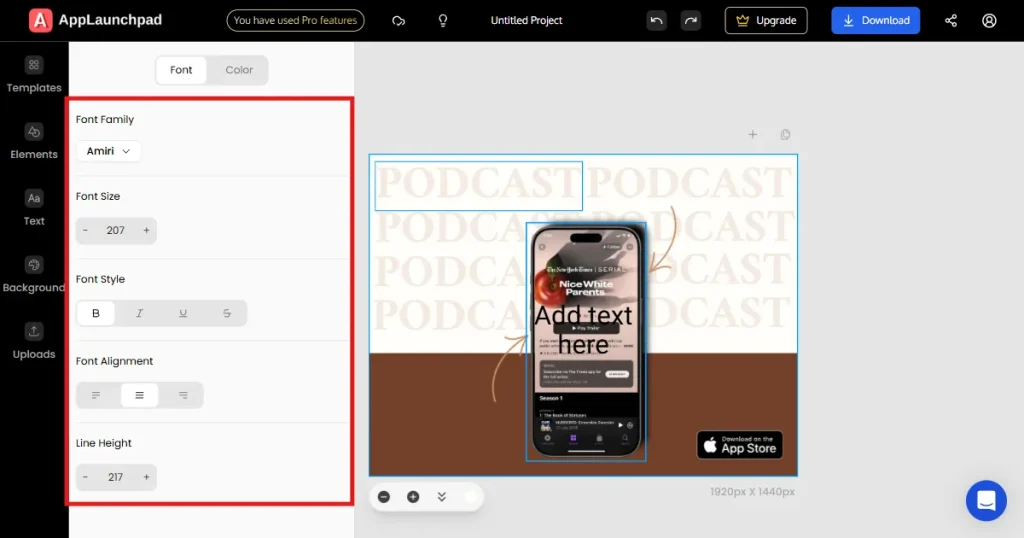
Step 6: Add text captions to highlight features or value propositions.
Step 7: Customize background colors to match your branding.
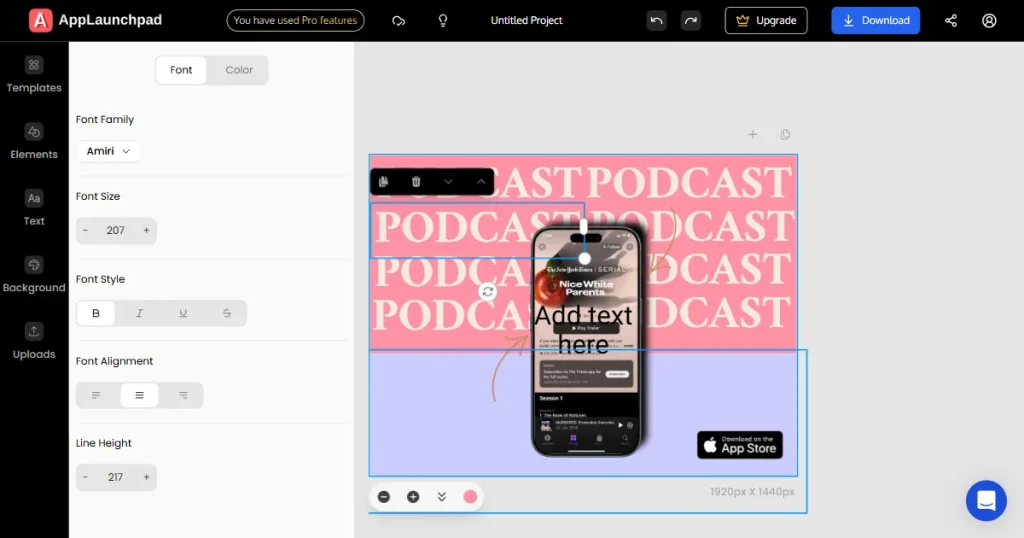
Step 8: Add illustrations, design elements, and brand logos.
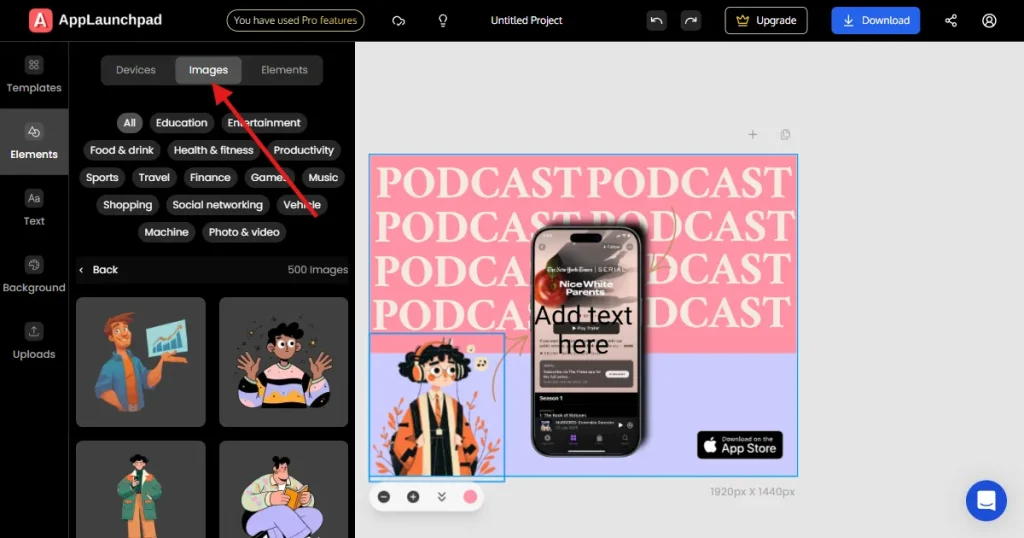
Step 9: Download in PNG or JPG format based on your use case.
Choosing the right iPhone mockup PSD templates is important for achieving your marketing goals when creating visual assets.
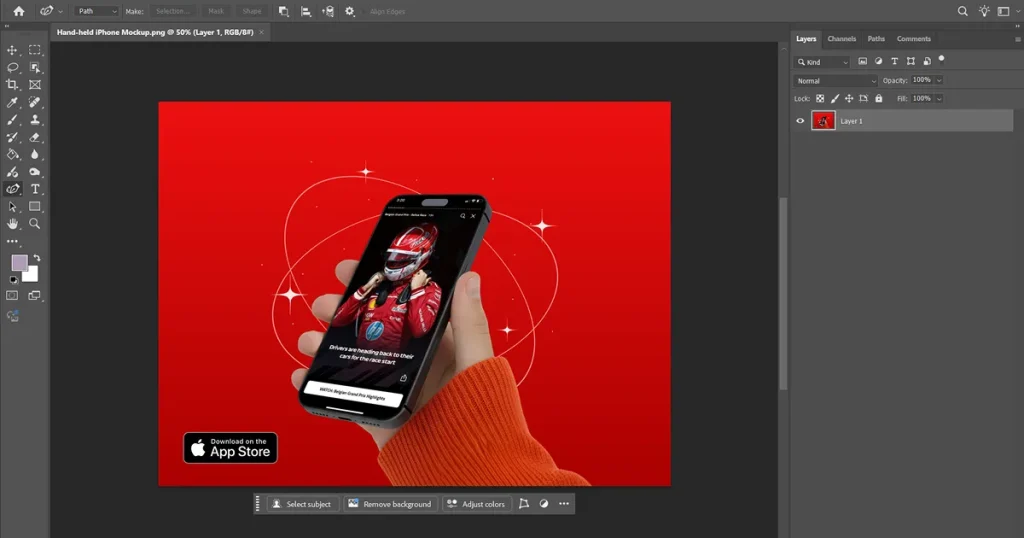
Hand-held iPhone mockup PSD templates show the device in someone’s hand, as if it’s being used in real life. It adds a human element and helps people see how the app fits into everyday life. It works best for social media ads, paid campaigns, and lifestyle apps.
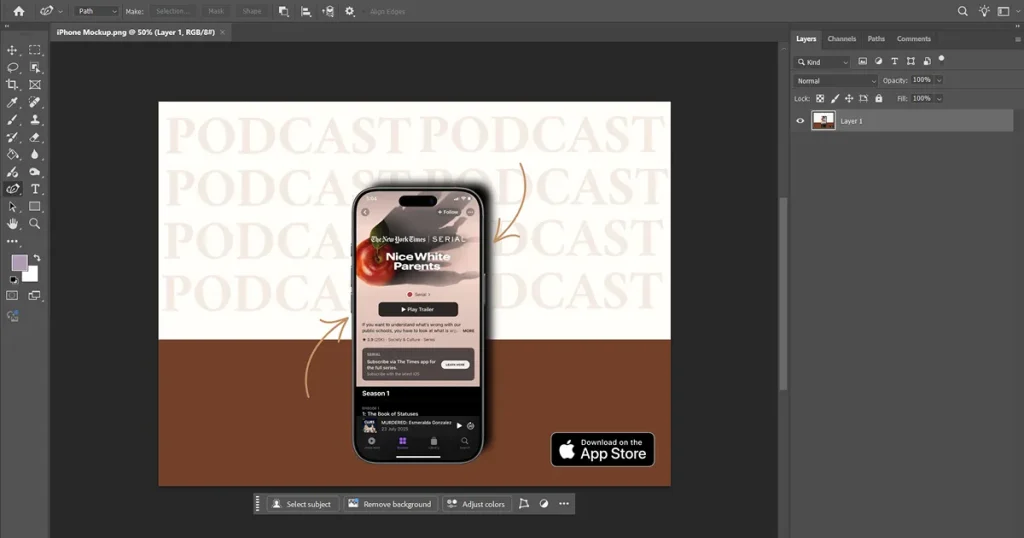
The device-only iPhone mockup PSD templates are simple, focusing solely on the iPhone with no background distractions. It keeps all the attention on your app’s interface. It’s best for App Store screenshots and product pages where clarity matters most.
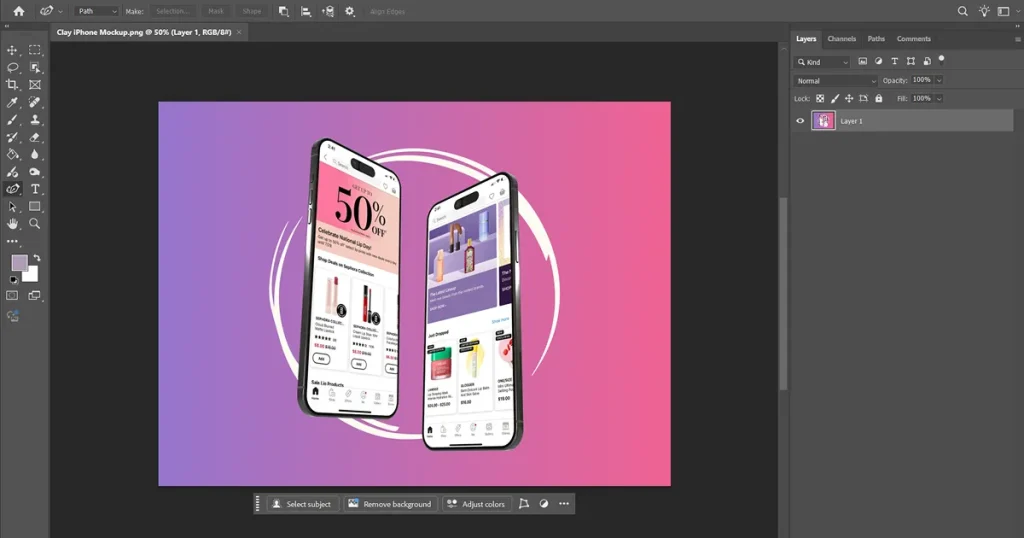
The clay iPhone mockup PSD templates have a minimal, soft look with smooth edges and lighter colors. It’s more about style and layout than realism. It’s great for landing pages and SaaS branding, especially with simple UIs and gradient backgrounds.
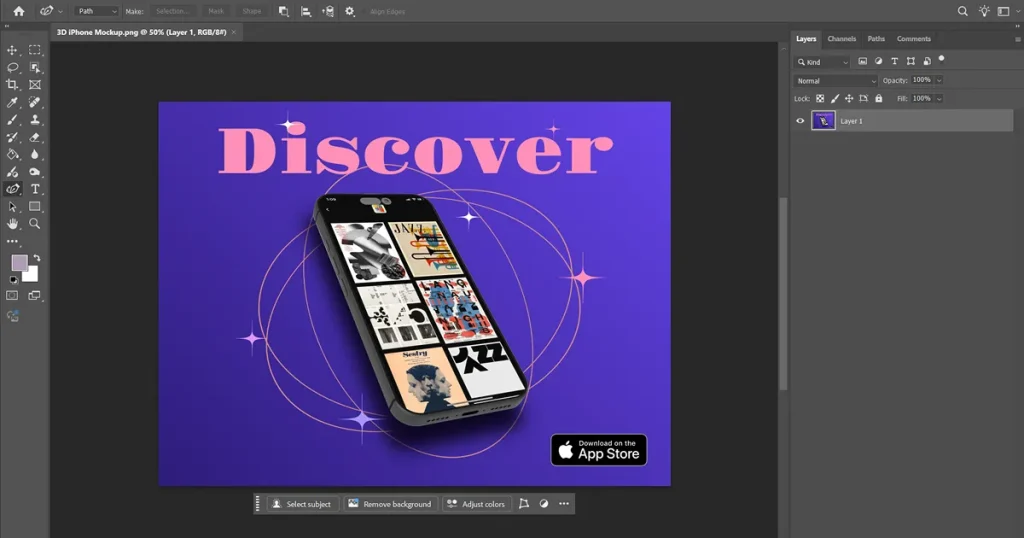
3D iPhone mockup style shows the iPhone in 3D, with depth, angles, and lighting that make it stand out. 3D iPhone mockup PSD templates add energy and work well for hero sections, eye-catching ads, and product launches.
Now that brings us to the end of our how-to create iPhone mockup in Photoshop article. Photoshop remains the most powerful tool for granular design work, but specialized generators offer massive advantages in production speed. Choose your tools based on your need for speed versus customization.
Focus on making your visuals clear, consistent, and engaging. Try different versions to see what works best, and always adjust your designs for each platform’s needs.
To create iPhone mockup in Photoshop, first download free iPhone mockup PSD templates from Freepik or PSD Repo. Open it in Photoshop, locate the Smart Object screen layer, double-click, paste your screenshot, and save. If no Smart Object exists, use the Transform tool and a Clipping Mask.
AppLaunchpad, Canva, and Mockuuups Studio are top choices. AppLaunchpad is ideal for scalable App Store optimization, Canva offers simple editing for non-designers, and Mockuuups Studio provides premium, realistic mockups that integrate with Figma.
To use iPhone mockup in Photoshop, open your mockup file and find the screen layer. Paste your app UI into the Smart Object or use a clipping mask. Adjust the perspective using the Distort tool, and tweak lighting to blend it naturally.
The best iPhone mockups feature high resolutions, realistic lighting, and accurate device proportions. They minimize distortion and fit their context: device-only styles for App Store listings, lifestyle shots for social ads, and 3D perspectives for landing pages.
You can find free iPhone mockup PSD templates on Freepik, PSD Repo, and LS Graphics. Alternatively, AppLaunchpad offers customizable, browser-based templates requiring no PSD files. Always verify the licensing terms before using them in commercial projects.


