Apple App Store Rejection Reasons and How to Prevent Them
The most common Apple App Store rejection reasons are app crashes and bugs, privacy violations, metadata violations, and apps lacking […]
Published Jul 24, 2026
18 min
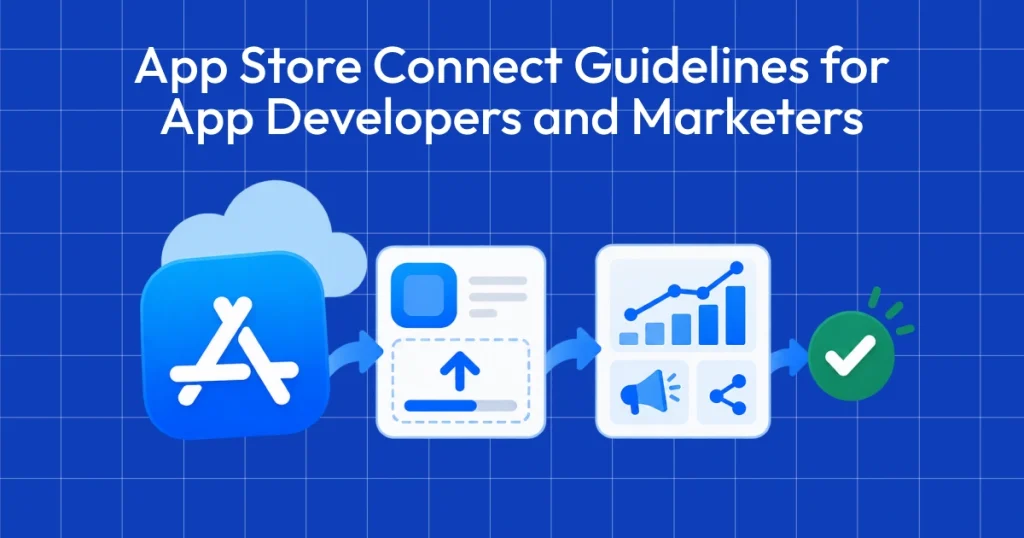
App Store Connect is the platform that lets you upload your app and manage all updates, including metadata, revenue details, and more. Failing to follow App Store Connect guidelines can also lead to app rejection.
Thus, it is crucial for App Developers and Marketers to know about the App Store Connect guidelines to properly utilize the tool and maximize app downloads.
That’s why in today’s guide, we will be covering what is App Store Connect, walk you through the Apple App Store guidelines, explain how to publish your app using App Store Connect, and share best practices, so you have a clear understanding of the platform before launching your first app.
If you are wondering what is App Store Connect, it is a web-based tool developed by Apple to help developers manage and publish apps on the App Store.
Through App Store Connect, developers can submit apps for review, release updates, manage app listings, track downloads and revenue, monitor app performance, and run beta tests through TestFlight, all from a single dashboard.
Apple App Store Connect is essentially the control panel where you can manage all aspects of your app. You can also add app screenshots, descriptions, and pricing information before publishing an app.
Before we talk about App Store Connect Guidelines, let’s first look at how to set up an App Store Connect account.
Step 1: Enroll in the Apple Developer Program
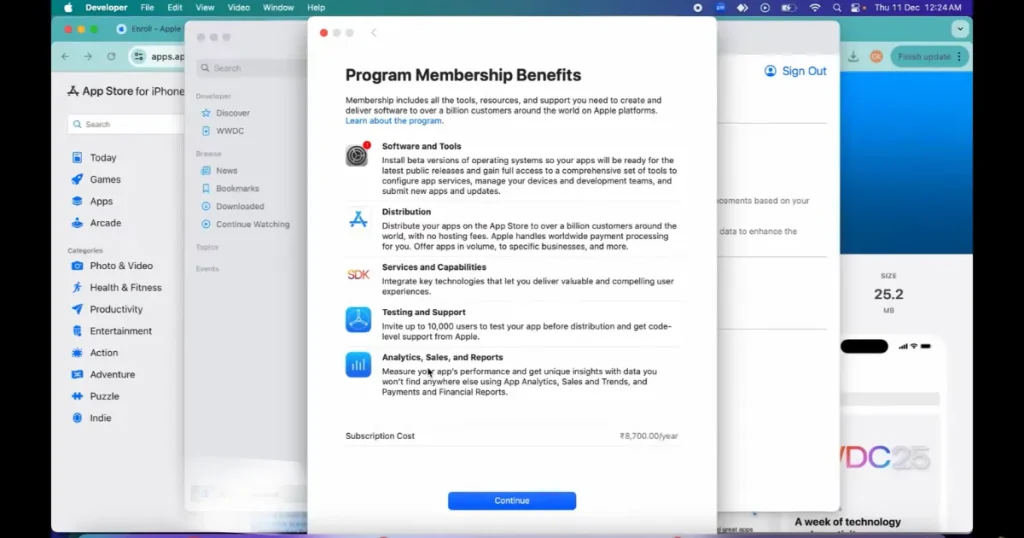
Sign up for the Apple Developer Program using your Apple ID and choose whether you want an Individual or Organization account.
Step 2: Get a D-U-N-S Number for Organizations
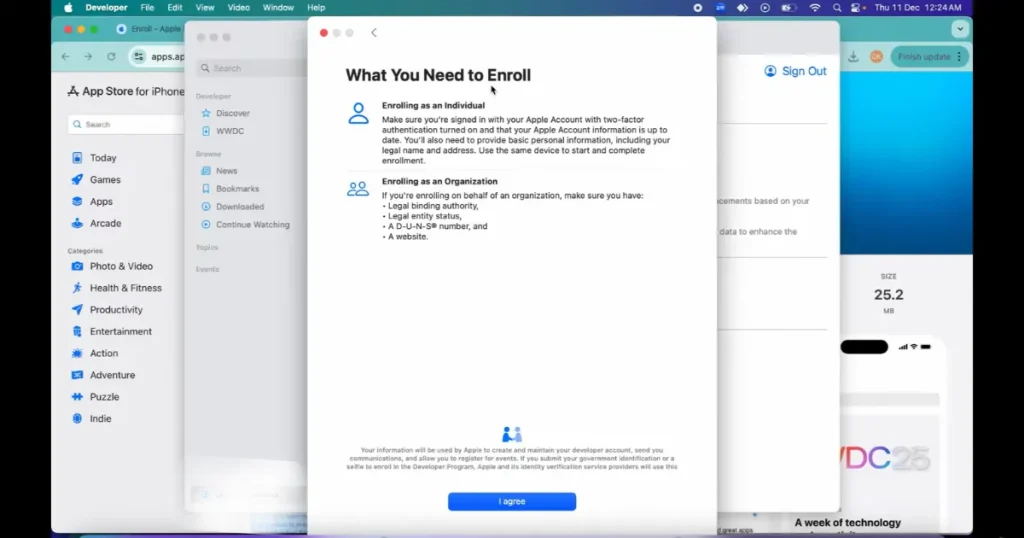
If you are registering as a company, request a D-U-N-S Number so Apple can verify your business identity.
Step 3: Complete Your Developer Account Setup
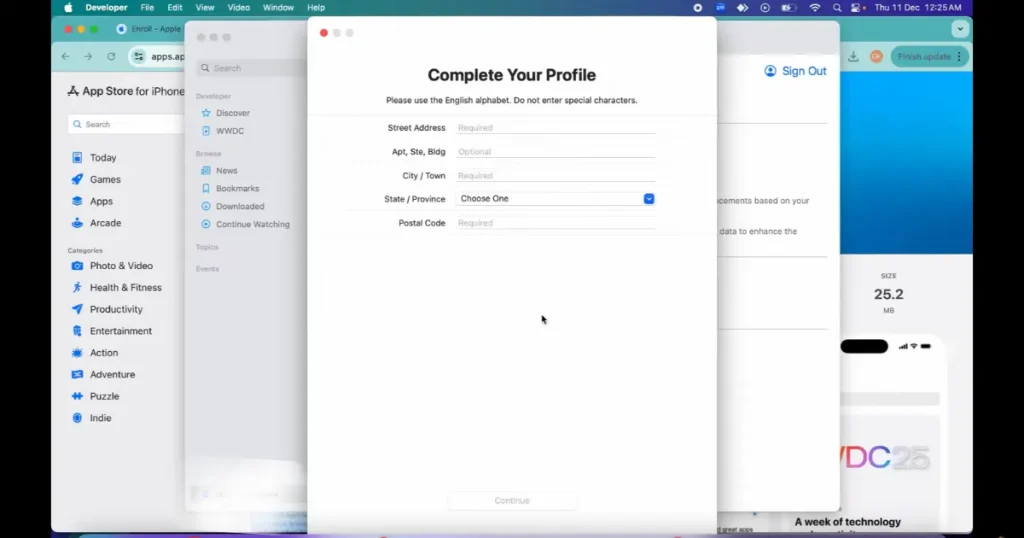
Enter your personal or company details, then pay the annual Apple Developer Program fee to activate your account.
Step 4: Accept the Program License Agreement
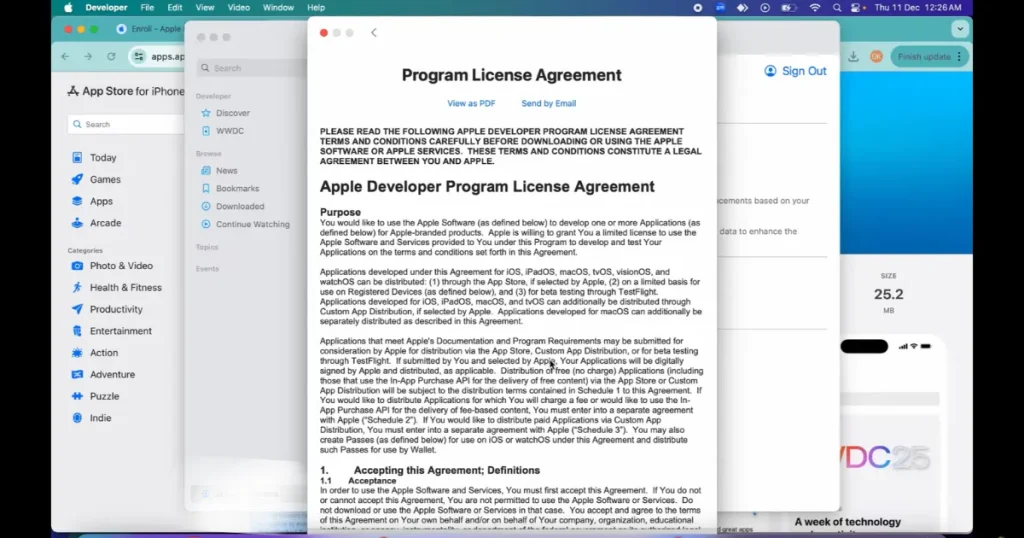
Go to the Agreements, Tax and Banking section in Apple App Store Connect and accept the required agreements.
Step 5: Add Banking Information
Enter your bank account details so Apple can send payments from app sales and subscriptions.
Step 6: Submit Tax Information
Complete the necessary tax forms for the countries where your app will be available.
To follow the App Store Connect Guidelines properly, you will need to learn about each section and subsection available within App Store Connect.
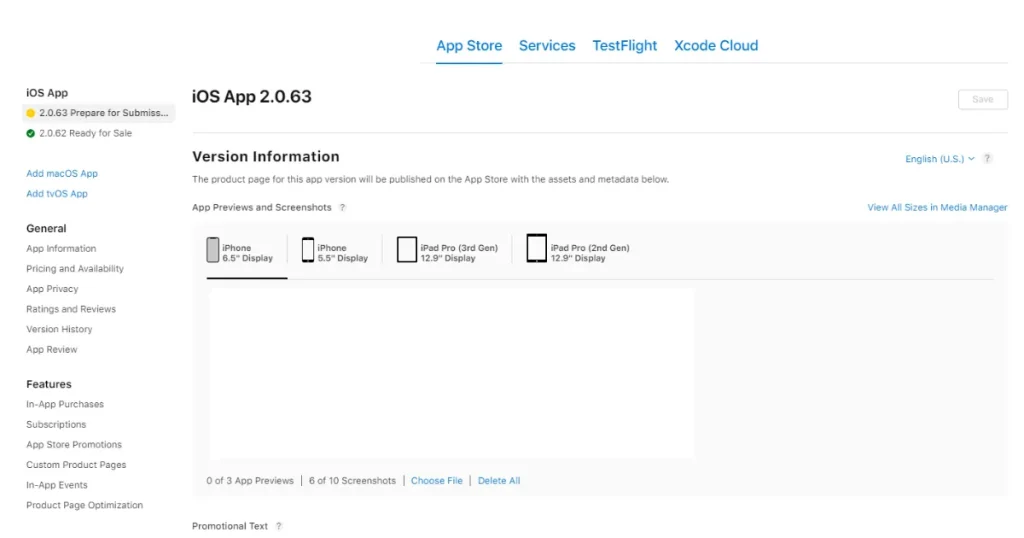
Version Information
Using version information, you can add app store screenshots, an app icon, a meta description, a title, keywords, localization, and publish your apps.
App Information
This section includes your app name and subscription details, which help your app rank in the App Store. You also need to add basic details such as language, app category, age rating, and license agreement for each region you target.
Pricing and Availability
In the Pricing tab, you can set your app’s price, choose where it will be available, and decide how users can download it. You also need to select the correct tax category for your app.
App Privacy
Apple App Store Connect guidelines place a strong emphasis on user privacy and safety. As part of the submission process, you must disclose what user data your app collects, how it is used, and whether your app tracks users across apps or websites.
Ratings and Reviews
In the Ratings and Reviews tab, you can also see the total number of ratings and reviews people leave on your app, and if you are a developer, you can also reply to those reviews.
In-app purchases
In the In-app purchases section, you can create and manage in-app purchases for different countries and languages.
Subscriptions
You can create and manage subscriptions, subscription groups, and auto-renewal plans. App Store Connect guidelines also allow you to offer multiple subscription plans for a single app, or include your app in a bundle with other apps.
App Store Promotions
App Store promotions help you highlight your in-app purchases on your app page and in search results. Apple can also feature these promotions in the App Store. So, App Store Connect guidelines allow you to promote up to 20 in-app purchases by adding promotional images.
Custom product pages
Custom product pages let developers create different versions of their app page by changing screenshots, videos, and promotional text. By following App Store Connect guidelines, you can create up to 35 custom pages and use separate links to promote them in ads and campaigns.
In app events
In-app events let developers promote live events, updates, competitions, or limited-time activities inside an app. In App Store Connect, you can create up to 10 in-app events at once, but only 5 can appear on your app page.
Product Page Optimization
Product Page Optimization is used to A/B test different versions of an app’s listings. You can create 3 different variations and test them side by side by splitting your audience.
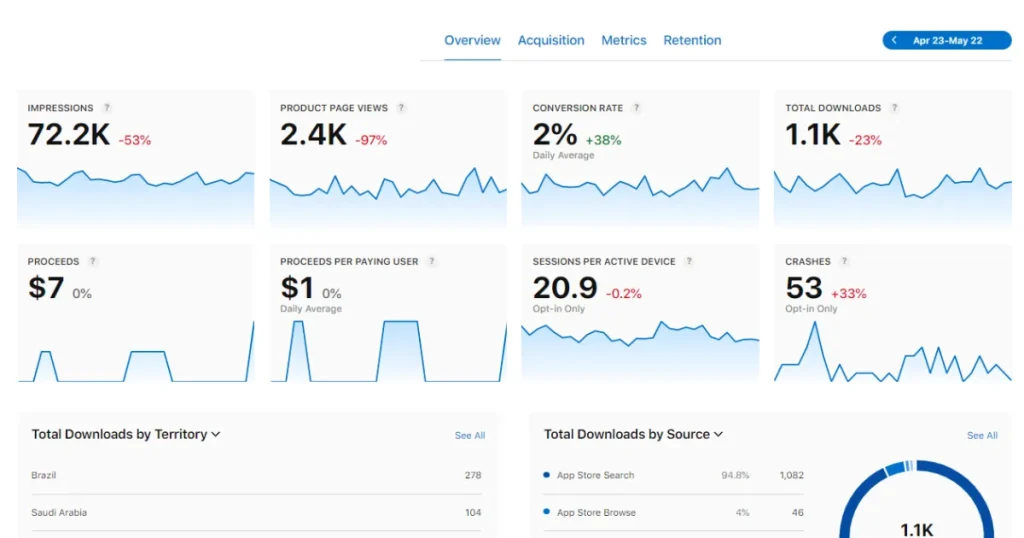
Overview Section
The overview section of App Store Connect shows key app performance metrics, including impressions, product page views, downloads, conversion rate, revenue, app usage, and crashes. It also provides detailed reports based on country, device type, traffic source, and user retention to help developers track app growth and performance.
Acquisition Tab
The acquisition sources report shows where your app users are coming from, such as App Store Search, App Store Browse, websites, ads, or referral links. This helps developers and ASO marketers understand which channels bring the most downloads, sales, and app activity.
Metrics Tab
The Metrics tab in App Store Connect lets you filter and analyze app data like downloads, revenue, impressions, app usage, and crashes. You can compare performance by country, device, app version, traffic source, and more to understand how your app is growing.
Retention Section
The Retention report in App Store Connect shows how many users keep using your app after downloading it. It helps developers understand user engagement, campaign performance, and how marketing or ASO changes affect retention.
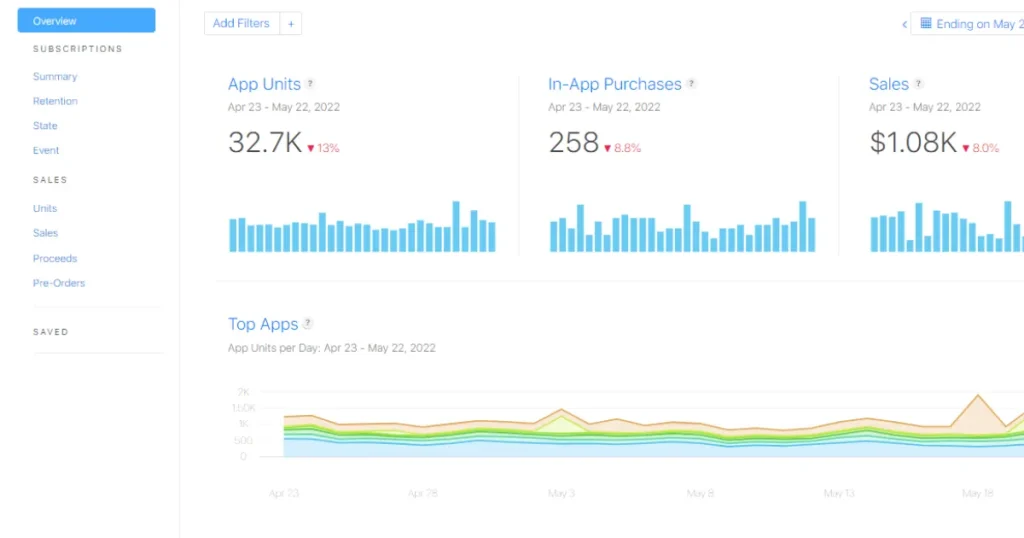
Overview
The Overview tab shows total downloads, in-app purchases, and sales data for all your apps in one place. It also shows your top-performing apps, the countries where they are popular, and the devices on which users install them.
Summary
The Summary tab gives a quick overview of your app subscriptions, including active subscribers, sales, renewals, cancellations, and retention rates.
Retention
The Retention tab shows how well your subscriptions keep users over time and displays overall retention trends.
Subscription State
This tab shows details about your current subscriptions, including active plans, subscription types, revenue, and the countries your subscribers come from. You can also filter the data by app, pricing, and promotional offers, and download reports for deeper analysis.
Subscription Event
The Events tab shows subscription activities like renewals, cancellations, refunds, activations, and reactivations. You can filter the data by app, subscription type, country, and time period, and also download reports for analysis.
For organizations, App Store Connect guidelines are clear about the different user roles it provides, with specific permissions and responsibilities. This allows you to delegate responsibilities regarding certain app activities.
For example, the Account Holder manages legal agreements, Admins handle overall app management, Developers manage app development, and Marketing teams handle promotions and App Store featuring.
Step 1: Join the Apple Developer Program
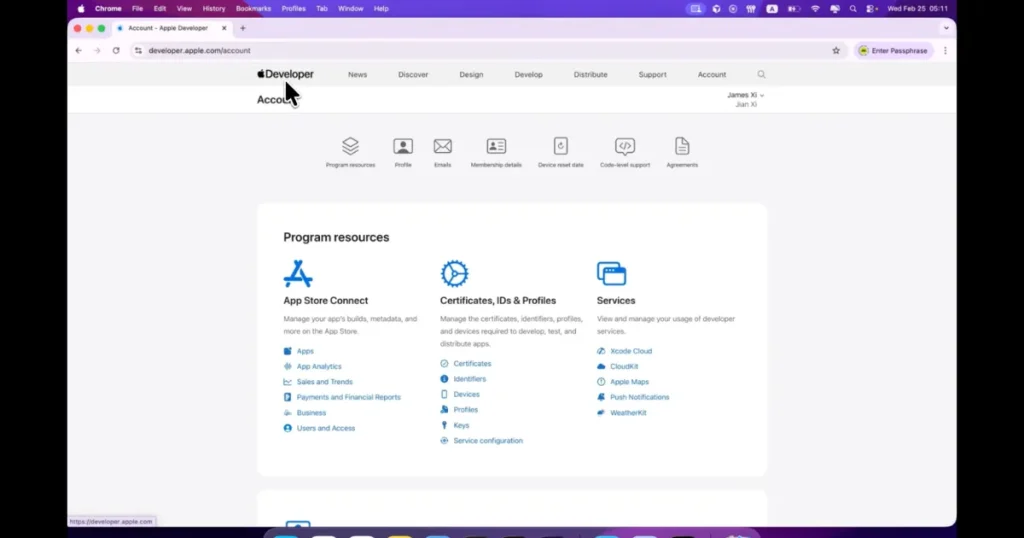
First, create an Apple Developer Account and purchase the Apple Developer membership, which costs around $99 per year. This account is required to upload and publish apps on the App Store.
Step 2: Use Xcode to Build and Publish the App
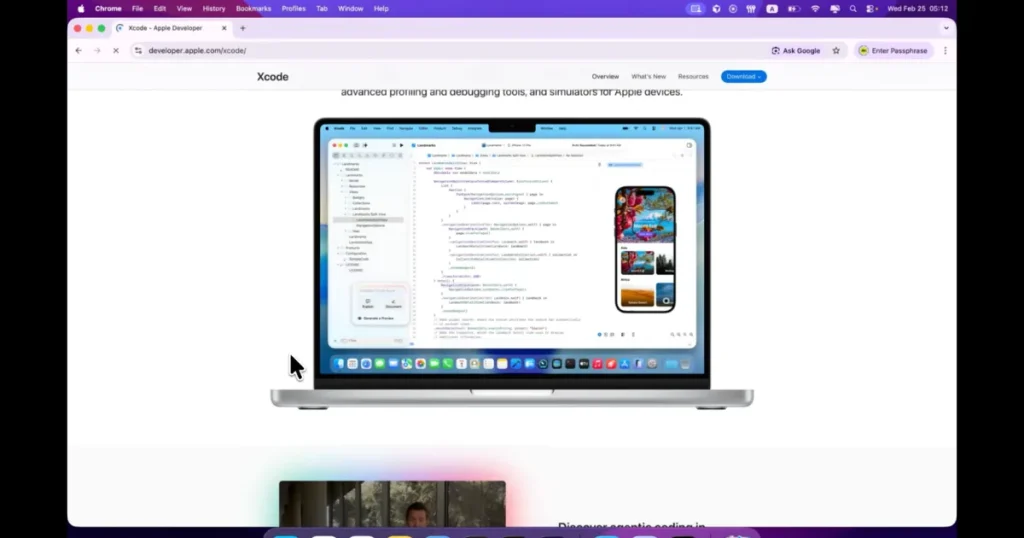
Xcode is used to build and publish iOS apps, write your own code, or use AI tools to create apps using AI prompts.
Step 3: Test the App in Xcode
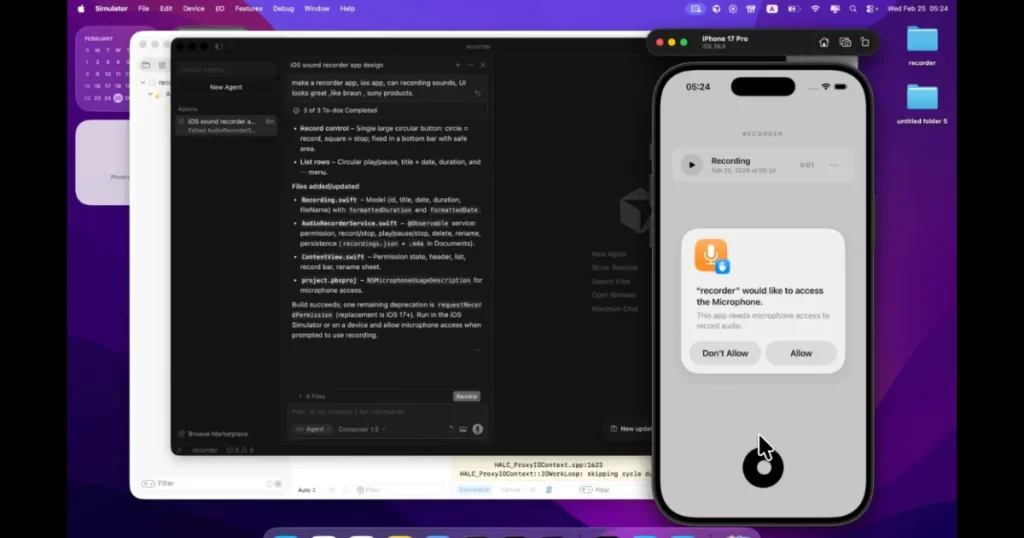
Go back to Xcode and run the app using an iPhone simulator or a real device. Check for bugs, test permissions, and make sure all features work properly.
Step 4: Improve and Finalize the App
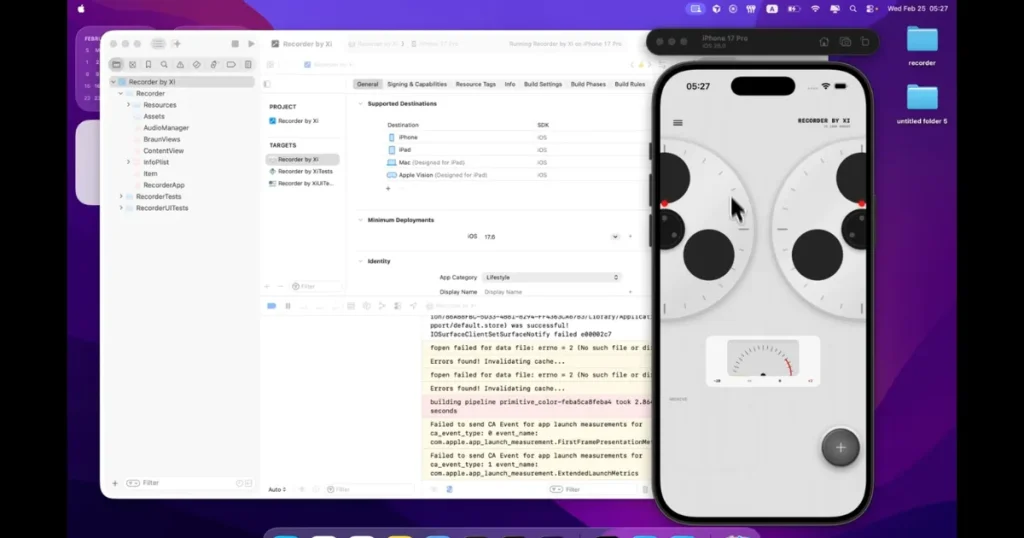
Keep refining the app by fixing bugs, adding new features, and better UI elements. Test everything carefully before publishing.
Step 5: Archive the App in Xcode
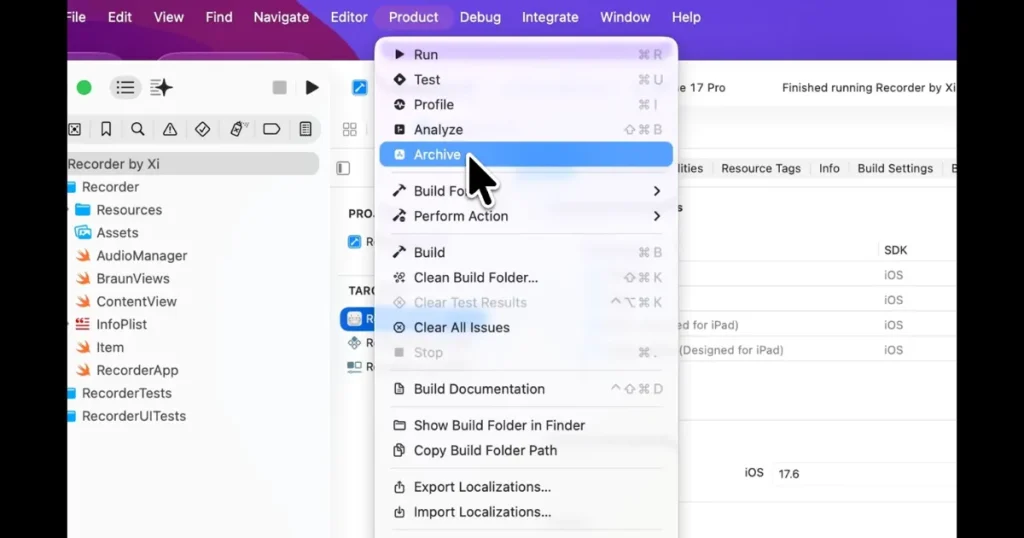
Once the app is ready, click Archive in Xcode. This creates the final build file that will be uploaded to App Store Connect.
Step 6: Upload the Build to App Store Connect
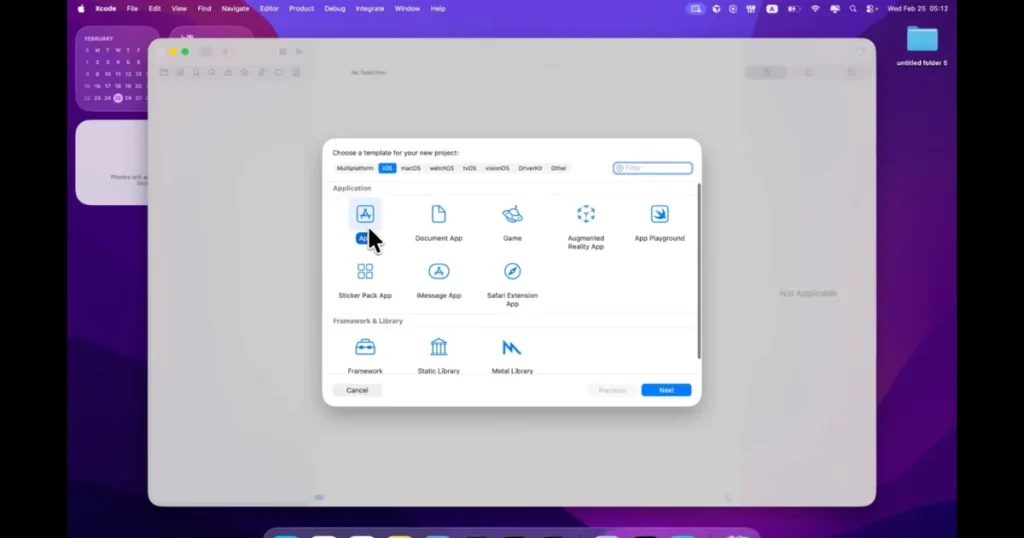
After archiving, click Distribute App and select App Store Connect. Xcode will upload the build to Apple, which may take around 10 minutes.
Step 7: Fill in App Store Connect Details
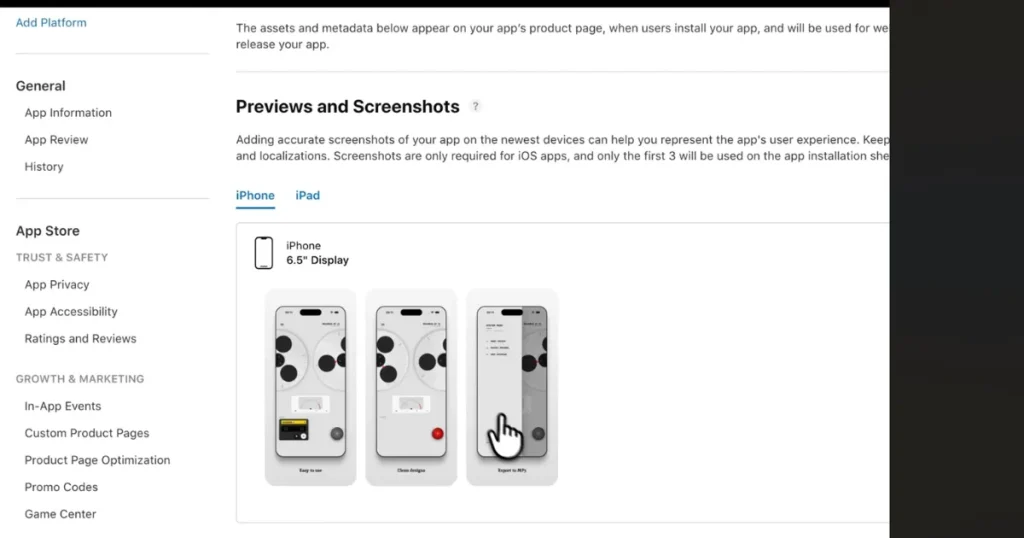
Open App Store Connect and complete your app information, including app name, subtitle, privacy policy, pricing, and screenshots. These details are required before submitting the app for review.
Step 8: Create App Screenshots
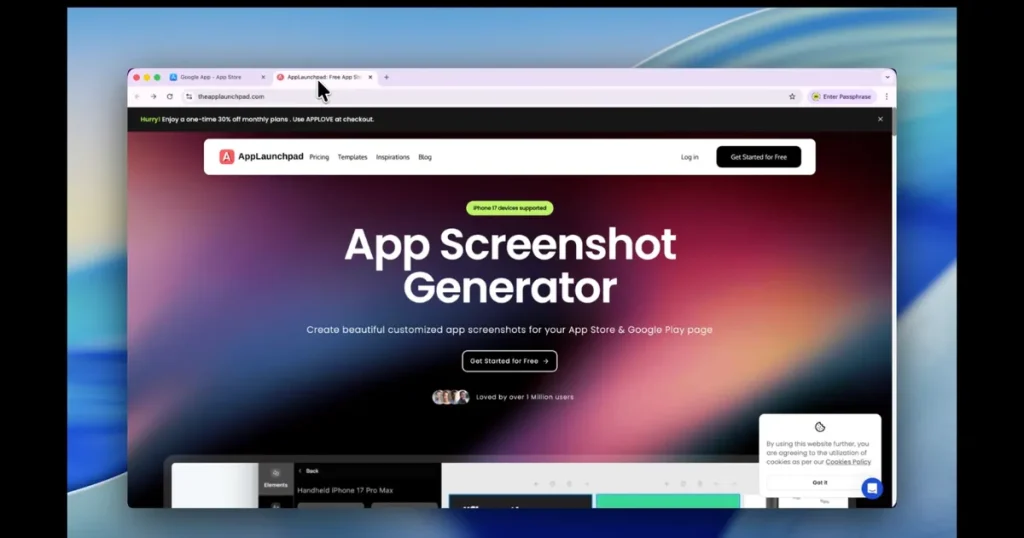
Use AppLaunchpad to design professional App Store screenshots. Upload your screenshots, edit text and colors, and download the final images in PNG or JPEG format.
Step 9: Submit the App for Review
Upload the final screenshots to App Store Connect and click Submit for Review.
After Apple reviews and approves your app, it will be published on the App Store.
App Store Optimization (ASO) is the process of improving your app’s visibility on the App Store to increase downloads and attract the right users. A strong ASO strategy helps your app rank higher in search results, improve conversion rates, and drive organic growth.
That’s why, when doing ASO for your app, here are a few App Store Connect guidelines you need to keep in mind.
Here are a few App Store Connect guidelines regarding your visual assets that can help you get your app reviewed fast.
You can also follow these App Store Connect Guidelines to promote your app.
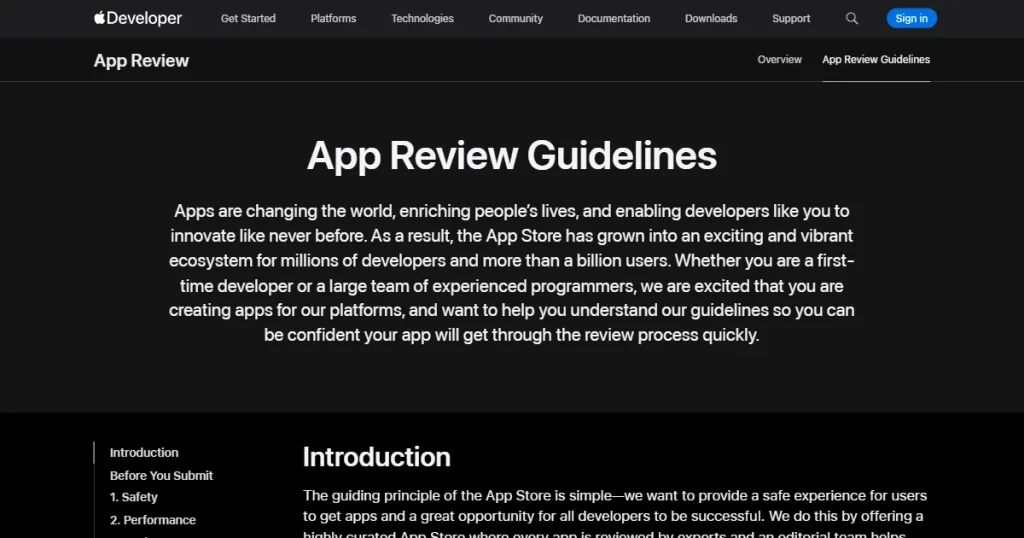
Not that we have gone through most of the App Store Connect guidelines, let’s have a look at Apple’s App Review guidelines.
Apple App Store Connect guidelines are very strict regarding user safety. It checks if the content on your app is offensive, harmful, or misleading. In such cases, your app gets automatically rejected.
Moreover, if your app contains pornographic content, misuses user data, promotes hate speech, or engages in illegal activities, the App Review team can also reject it.
Another key metric that helps you pass the review process is whether your app is functional and free of broken features or bugs. The team reviews your app directly on devices, without a simulator, so the issues they encounter will also be faced by your users.
So, you need to ensure your app complies with all App Store Connect guidelines and is fully stable and functional before launching it in the App Store. You can do that by testing your app in the TestFlight tab in the App Subsection in App Store Connect. This can help you find bugs, fix them fast, and get your app reviewed without any issues.
Apple wants your app to clearly explain the subscription it offers and the value it would add to the user’s life, so the user can decide whether to subscribe. If they find that your app has misleading pricing, contains fake reviews, or uses hidden payment systems, it can be instantly rejected from the review process.
The app store wants its users to have a good experience with UI and design. So, if your app directly copies another app without any improvements and offers a low-quality or buggy experience, the App Review team can reject it.
Always ensure you follow App Store Connect guidelines and create high-quality user experiences without violating Apple’s UI and privacy standards. This would increase the likelihood that your app will be approved quickly.
Apple checks whether apps comply with privacy laws, protect user data, and meet legal requirements in every region where the app is available.
So, your app can be rejected for collecting data without consent, lacking a privacy policy, misusing personal information, violating children’s privacy laws, or encouraging illegal activities.
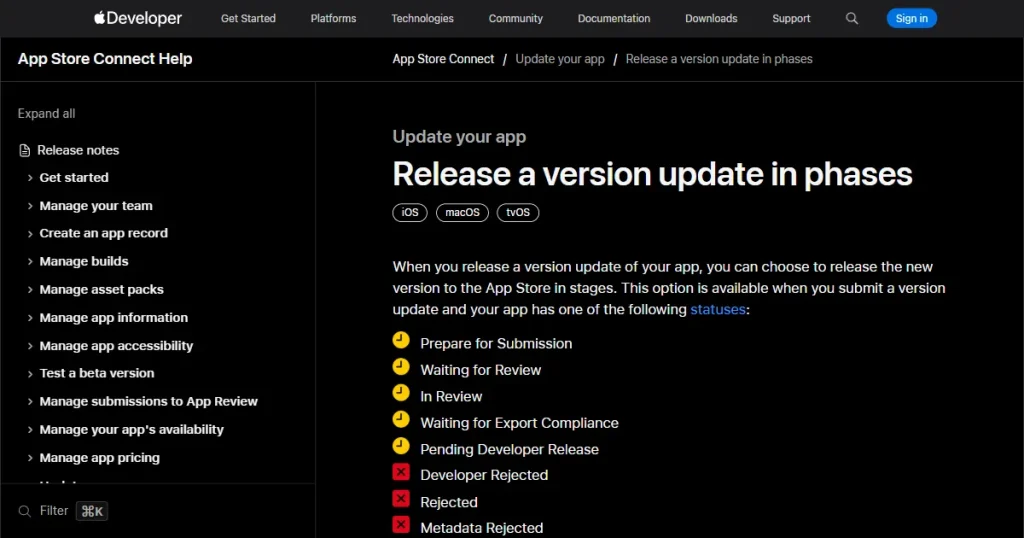
By following these App Store Connect guidelines, you can manage your app’s release, monitor its performance, and handle rejections and appeals.
Many developers have now moved to updating their apps in stages to test stability before releasing them worldwide. Selecting this option will roll out your updates gradually over 7 days. A percentage of your app users will be selected and receive the updates without any notification that they are part of a phased release.
During your phased release, you can pause and resume updates. You can pause a release for up to 30 days total. If you pause it for 10 days and resume it, you will still have 20 days left. When resumed, the phased release resumes from where it left off.
Publishing an update is only the beginning because the real work starts after users begin installing the app. To reduce the risk of negative reviews or low ratings, closely monitor crash reports, loading speed, retention rates, and feature usage to determine whether the update improved the app experience or introduced new issues.
Reviews on the App Store would be a major source to reveal bugs, confusing features, or performance problems that internal testing might have missed. Responding to reviews and tracking rating trends will help you build customer trust, as they are publicly available on your product page for anyone to see.
When you release a new app, the Apple Review team reviews it in 24 to 72 hrs. If you have followed the review guidelines strictly, there is a high likelihood that your app would pass the review process.
However, if your app fails the review process and you feel that the review team couldn’t understand your app’s functionality properly or mistreated your app, you have the option to appeal to the App Review Board.
The App Review would then go through an appeal and review your app again, passing it or upholding their decision. In that case, the App Review team can offer you a direct phone appointment to understand the issues and fix them before moving your app forward.
Here are a few App Store Connect guidelines that will help you use App Store Connect more effectively.
Understanding App Store Connect guidelines is important if you want to publish, manage, and grow your app successfully on the App Store.
And in this guide, we have covered everything you need to know about App Store Connect, from setting up your account and publishing apps to optimizing listings, handling reviews, and managing updates effectively.
By following these App Store Connect guidelines properly, you can publish your app, get it reviewed, and manage your app more efficiently without going back and forth through multiple guides and YouTube videos.
App Store Connect is used to upload, publish, manage, optimize, and monitor apps on the Apple App Store Connect platform.
No, App Store Connect is not free to use, you need to pay the Apple Developer Program fee, i.e., $99/year, to publish apps.
To set up an App Store Connect account, you need to join the Apple Developer Program, complete your account details, accept agreements, and add banking and tax information.
The most important App Store Connect guidelines for app approval focus on safety, performance, privacy, legal compliance, and high-quality app design.
Apple App Store Connect helps developers manage and publish apps by providing tools for app uploads, updates, analytics, subscriptions, reviews, ASO, and monetization in one dashboard.