
Apple App Store Rejection Reasons and How to Prevent Them
The most common Apple App Store rejection reasons are app crashes and bugs, privacy violations, metadata violations, and apps lacking […]
The Apple app review process is a thorough scan of your app by a human app reviewer to ensure your app meets the Apple app review guidelines. If your app meets the eligibility criteria, you can speed up the Apple app review process you can request an expedited review or a direct call with an app reviewer.
Apart from these, in this guide we will cover a few other ways to speed up the Apple app review process, how long the Apple app review process takes, common App Store rejection reasons, and how AppLaunchpad helps in creating store-compliant App Store screenshots.
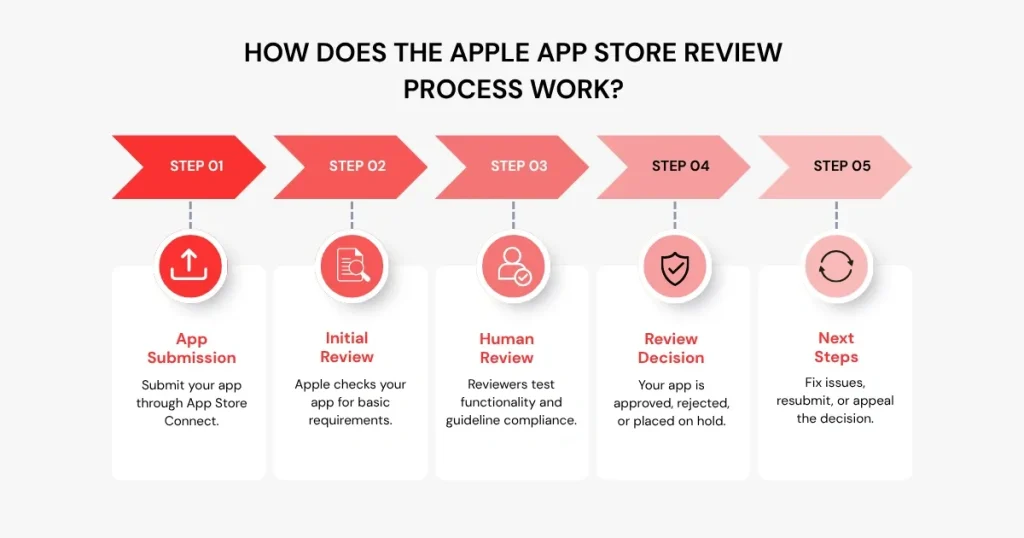
When you submit an app through App Store Connect, it’s reviewed by Apple’s team of human reviewers.
The standard Apple app review time is around 24 to 48 hours, during which reviewers download the app on supported devices like the iPhone and iPad, test functionality, and check for broken features like screens that don’t load or don’t have a destination page.
Apple checks whether your app’s requested permissions are necessary and valid. If your app follows the App Store Review Guidelines and clearly explains why it needs each permission, it’s more likely to get approved.
Otherwise, they will send you a message regarding why your app was rejected and what you must fix before resubmission. However, if you think they made a mistake or didn’t understand a feature, you can appeal against the review.
Once you submit an app, App Review can start within a few hours, and the standard timeline is 24 to 48 hours.
However, if your app has complex AI features that require sensitive permissions, such as access to the camera, microphone, or location, app reviewers may take longer because it could violate App Store guidelines.
Here is a brief overview of the timelines and what each status means.
| App Store Connect Status | What It Means | What You Should Do | When to Be Concerned |
| Waiting for Review | Apple has received your submission, but the review has not started yet. | Wait for Apple to begin the review. | Consider checking for an issue if it stays unchanged well beyond 48 hours. |
| In Review | An Apple reviewer is currently evaluating your app. | Usually, no action is needed unless Apple contacts you. | If a delay of 72 to 96 hours happens, especially for apps that need additional verification. |
| Pending Developer Release | Apple has approved your app, but you have chosen to release it manually. | Release the app from App Store Connect when you are ready. | No concern. The app is already approved. |
| Rejected | Apple found an issue that prevents the app from being approved. | Read the rejection details, fix the issue, and submit again when needed. | The app cannot move forward until the issue is resolved. |
| Unresolved Issues | One or more items in your submission were rejected. | Fix or remove the rejected items and resubmit them. | The submission cannot be completed until all rejected items are resolved. |
| Accepted | The submitted item was approved, but another item in the same submission may still be rejected. | Resolve any remaining rejected items. | The app cannot be published until all required items are accepted. |
There are multiple factors that affect the Apple app review timeline. Let’s have a look at a few of them.
Here are some of the most common Apple App Store rejection reasonse rejection reasons and what you can do to avoid them.
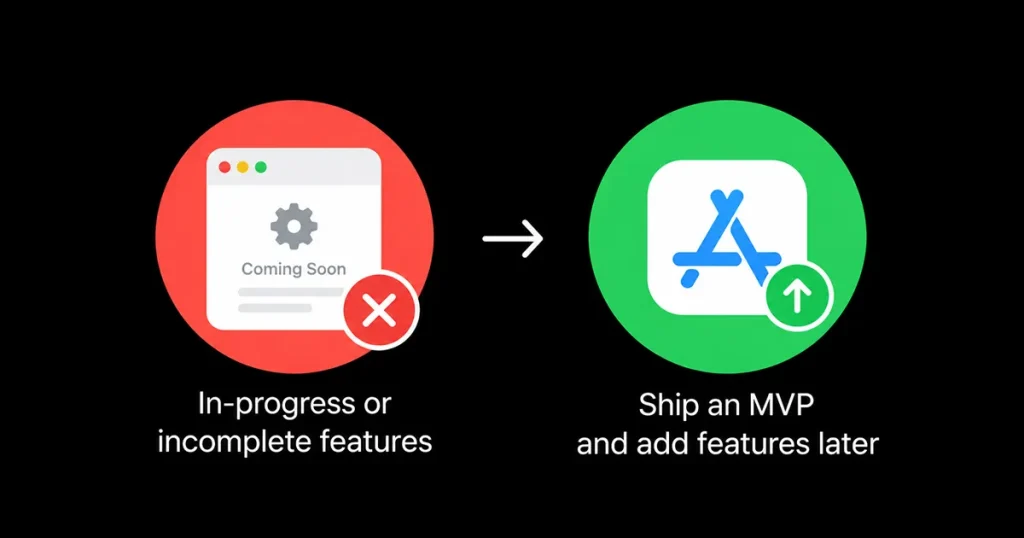
One major mistake most new app developers make is adding an in-progress page for a feature that isn’t in the app when you submit it for review. When Apple reviewers see these pages, it signals that your app is complete, and they reject it right away.
The fix: Ship an MVP for Apple review with only the minimum features, then add the additional features you want as updates. This makes sure your app gets reviewed fast without getting stuck in limbo.
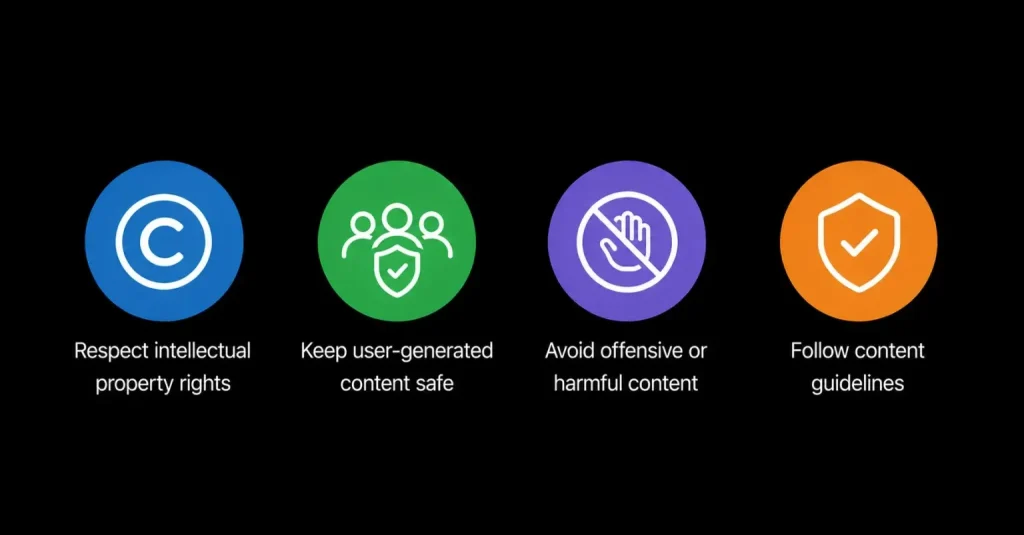
If your app contains copyrighted material like photos, videos, or music, your app is likely to be rejected.
Your app can also get rejected for Not Safe for Work (NSFW) content or for pushing content that profits from people during times of conflict, disaster, or public health emergencies.
The fix: Make sure you own all the content you use in your app, and if your app features user-generated content, include a way to filter out objectionable content like sexual content or hate speech, report offensive content, and block users.
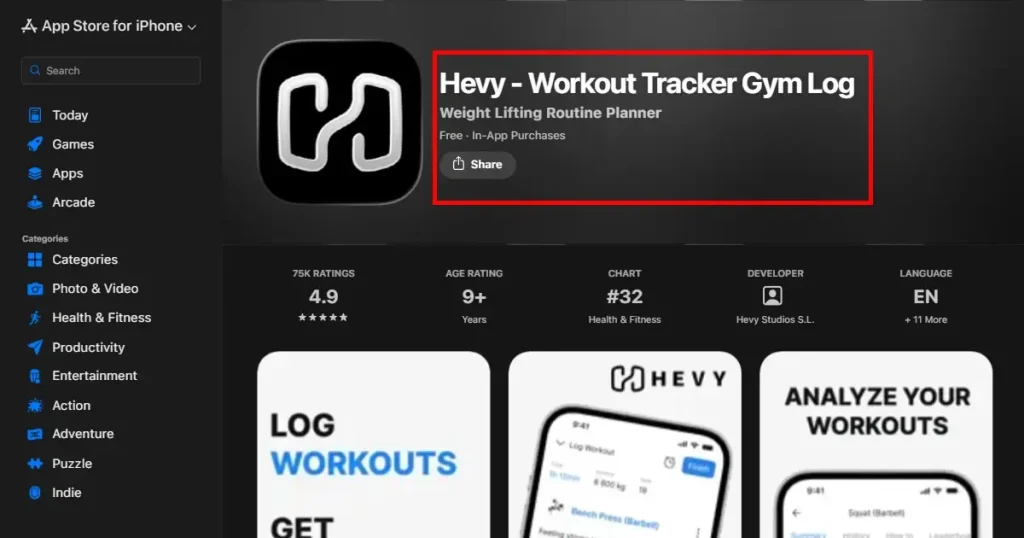
Most new apps try to use other app names in their metadata, like the title, subtitle, descriptions, or keywords, to rank higher in search results. However, the app review team finds this misleading and rejects your app before it reaches the app store.
The fix: When adding metadata, choose a unique app name, showcase what your app does in bullet points in the app descriptions, and add keywords that accurately describe your app.
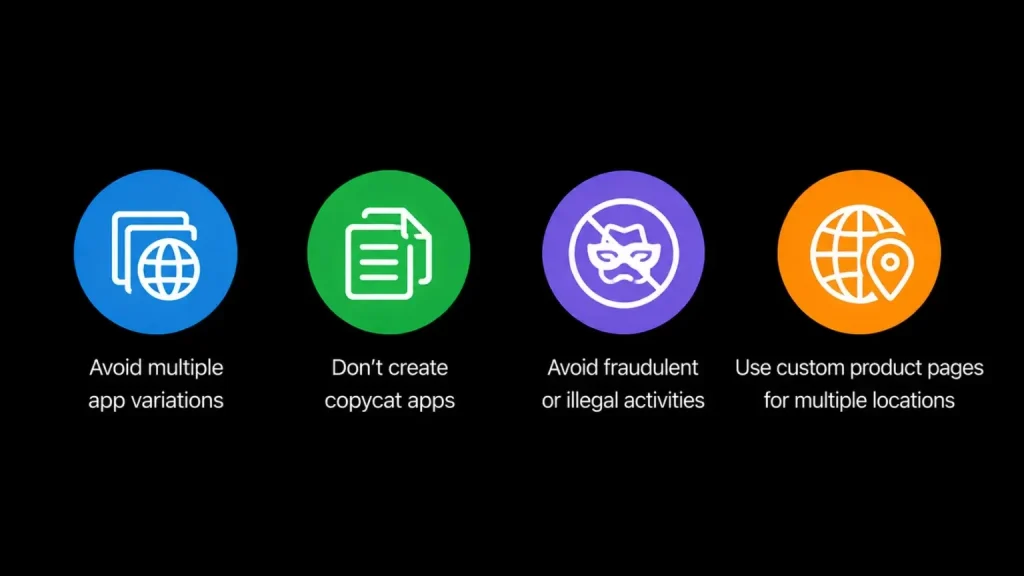
Apple may reject apps that appear to be spam. This includes submitting multiple versions of the same app with only localized content changes, or using multiple developer accounts or bundle IDs to publish the same app repeatedly or flood a specific app category.
The fix: Use App Store Connect’s Custom Product Pages to target different regions. Focus on creating unique user experiences and avoid practices that could be seen as fraudulent or misleading, like using misleading app screenshots, false claims, or copying competitors.
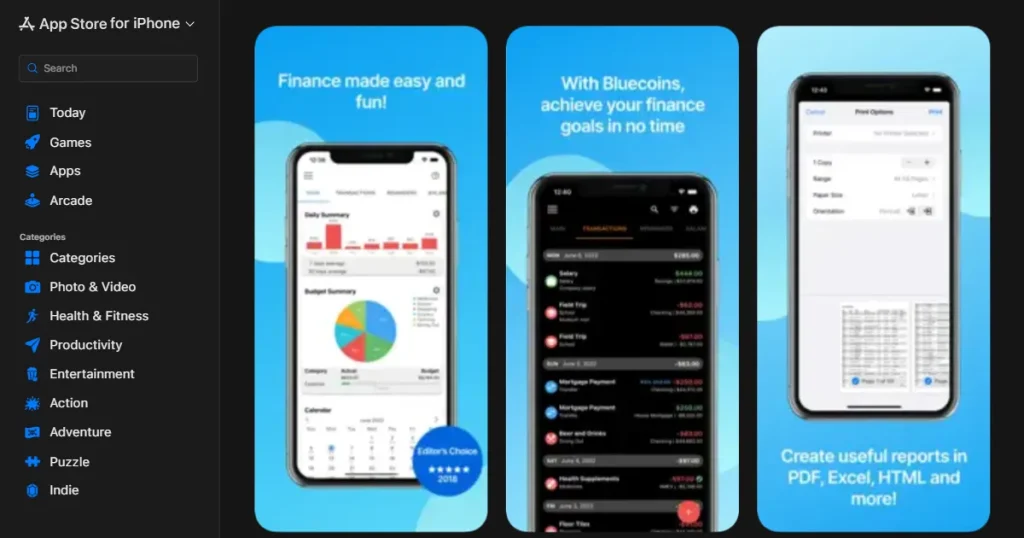
Your app may be rejected if your screenshots don’t follow Apple’s asset guidelines. Common mistakes include using incorrect canvas sizes, wrong device frames, improper scaling, or screenshots that misrepresent your app’s actual UI.
Avoid showing misleading or unreleased features, as Apple expects screenshots to accurately reflect the experience users will get when they download your app.
The fix: Use AppLaunchpad to create App Store screenshots with ready-made templates for the correct device sizes. Add your actual app screens, customize the layout, and export screenshots without manually building each design from scratch.
This helps you avoid common sizing and formatting mistakes while keeping your screenshots aligned with Apple’s guidelines.
Let’s explore a few methods to speed up the Apple app review process.
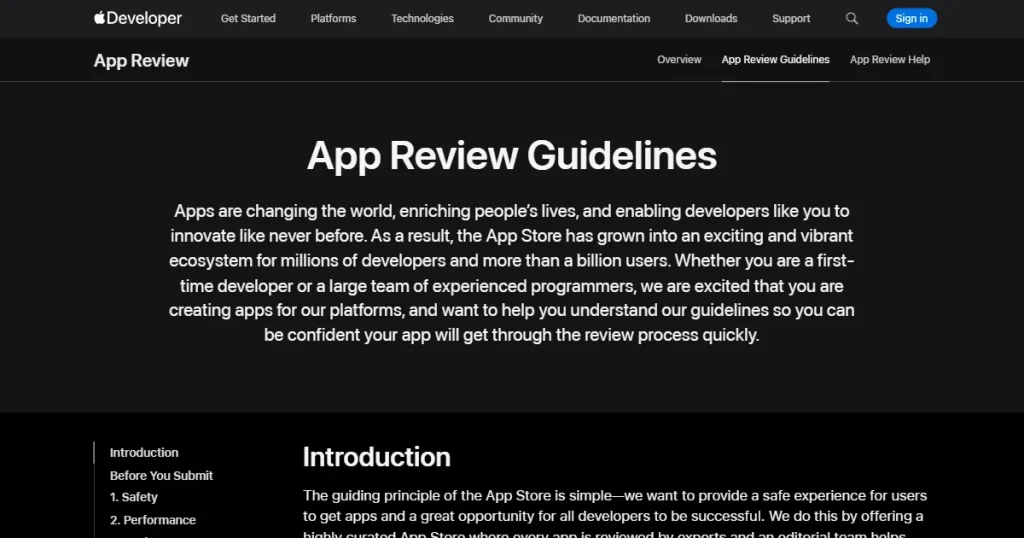
Following Apple App review guidelines is non-negotiable if you want to get your app reviewed fast. Most developers check these guidelines after they finish working on the app, but making changes later is the wrong part of the app review process.
That’s why you should keep the Apple app review guidelines in mind while building your app so you don’t spend extra time fixing compliance errors.
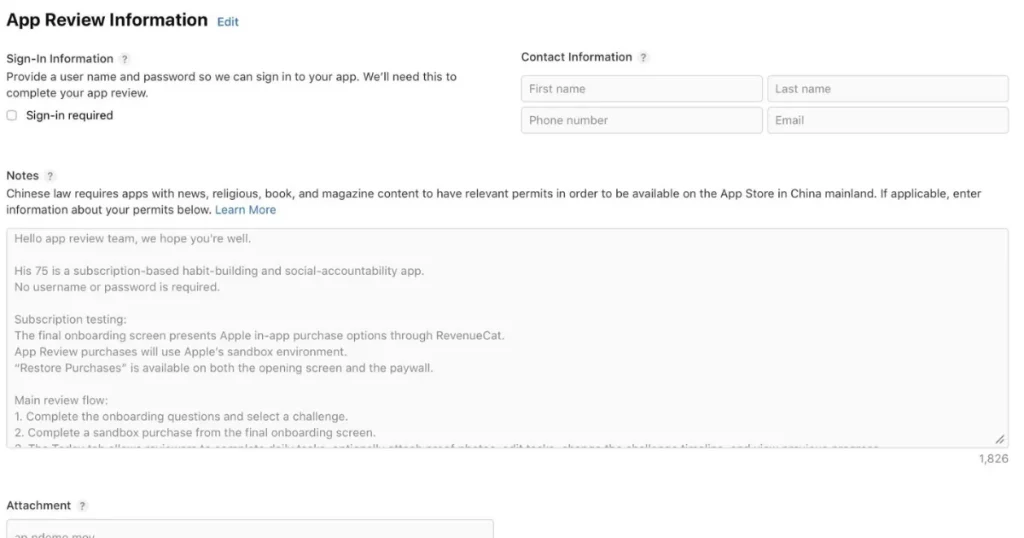
To speed up the Apple app review process, make it as easy as possible for the reviewer. You can do that by:
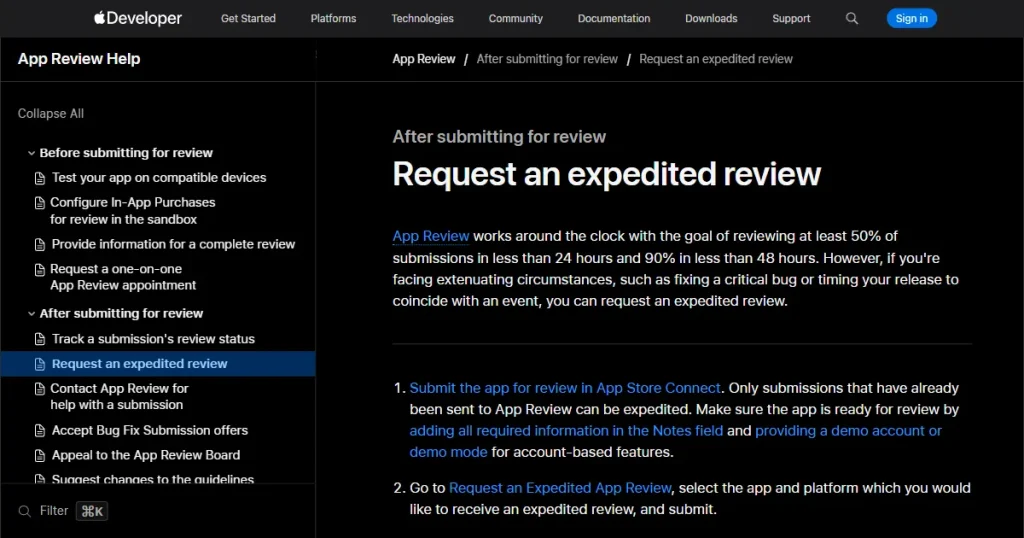
An expedited review is a review done by a single person to speed up the Apple app review process. You can request an expedited review in a few cases.
First, if your app has a critical bug and you are submitting a fix for that issue. Second, if your app is linked to an upcoming event like Shipaton and needs to be approved before it starts, you can request an expedited review.
To request an expedited review, follow these steps:
Most developers don’t know this, but getting on a call with an Apple app reviewer is the easiest way to get your app approved fast. You can directly contact the Apple team for details regarding the Apple app review process.
You can do that before submitting your app for review or after submitting your app. The process is different for both.
After submitting your app for review
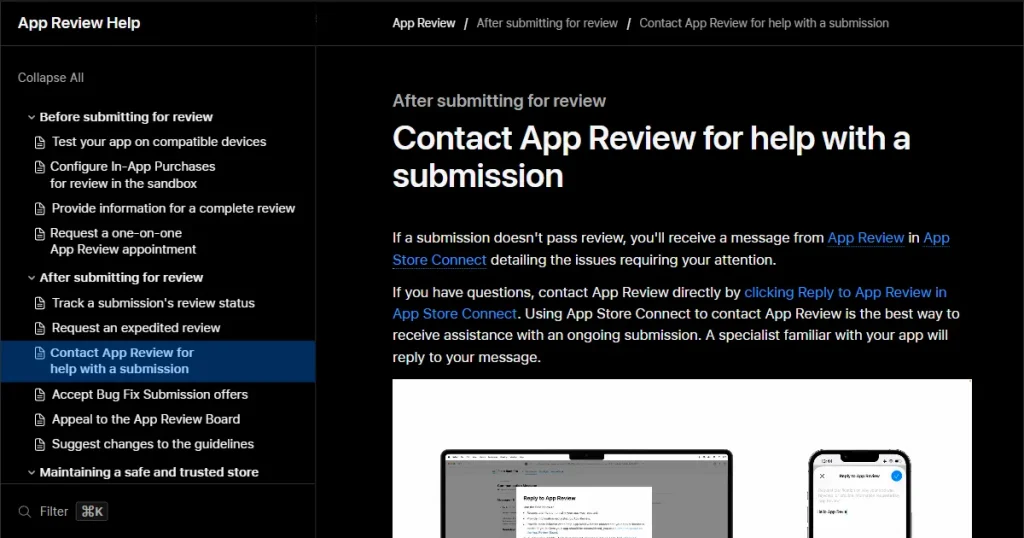
If you have already received a message or rejection from App Review inside App Store Connect, you can:
Before submitting your app for review
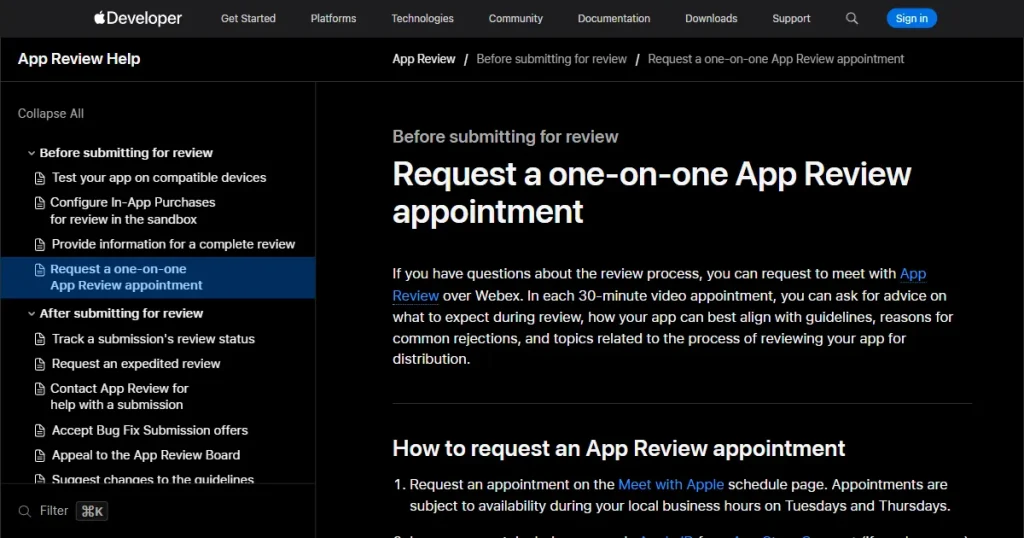
If you want to discuss guidelines, common rejections, or general submission questions before or after submitting, you can book a video appointment:
Another easy way to speed up the Apple app review process is to ship an MVP with minimal features. This makes sure the reviewer goes through very few app pages for compliance errors and gets your app approved fast.
You can add more features later through app updates. Instead of waiting for the full app to be ready, launch a basic version first and improve it with future updates.
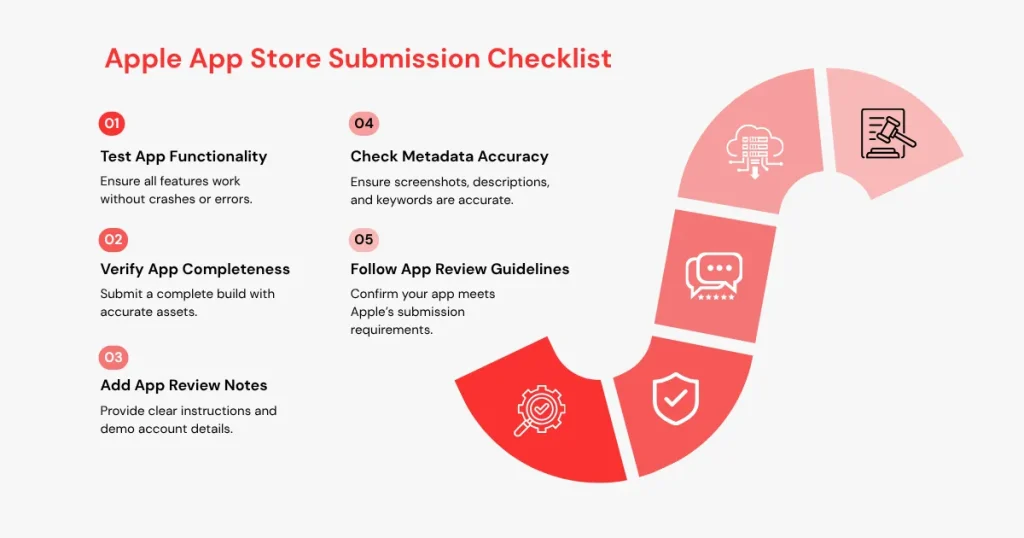
To get your app reviewed quickly, avoid going back and forth with the reviewer. To avoid that, follow these points.
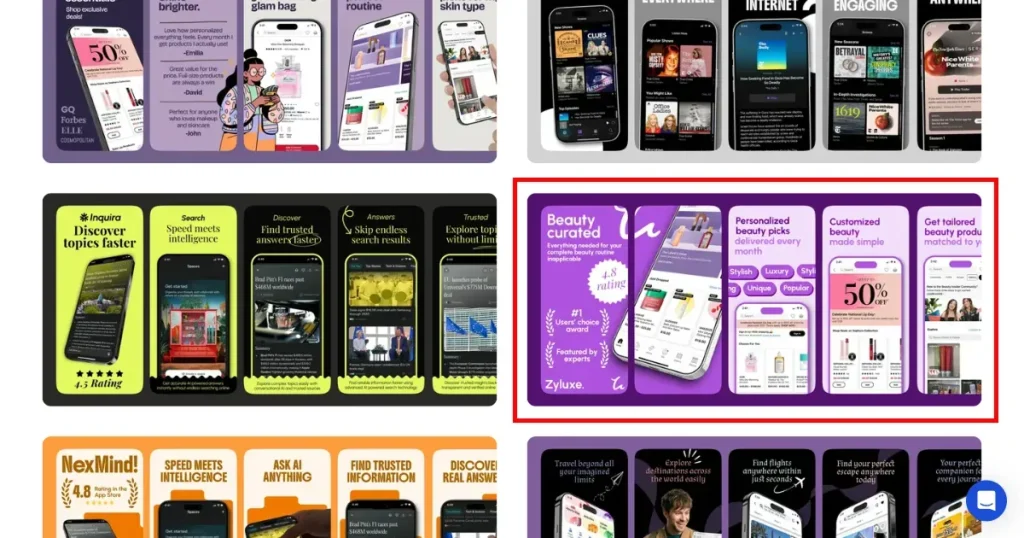
While apps can get rejected for many reasons, but app screenshots are one of the most common reasons.
Developers who manually design App Store screenshots often make mistakes, like using the wrong canvas size or an outdated iPhone model as a device mockup. These mistakes reduce your chances of getting your app approved on the first go.
So, you can use AppLaunchpad to design your app store screenshots by choosing from its library of store-compliant app store screenshot templates, ensuring you meet Apple App Store requirements.
Here are a few other features of the AppLaunchpad app store screenshot generator.
Ideally, the Apple app review process takes around 24-48 hours from the moment you submit your app. However, the timeline may vary if you submit the app during weekends.
To expedite an iOS app review, go to Apple’s Expedited Review Request form, sign in with your Apple Developer account, enter your app details and explain why the review is urgent, then submit the request.
Your app review can take longer time if your app has some complex features, asks for sensitive permissions, or it is a new app submission, then the Apple app review process can take some time.
Apple app review guidelines are a set of best practices and rules app developers must follow when creating apps to ensure compliance and faster app approval times.
App complexity, category, submission type, developer account history, sensitive permissions, and submission timing can affect Apple app review time.
You can track your submission status directly in App Store Connect, where Apple shows whether it is waiting for review, in review, accepted, or rejected.