App Store Connect Guidelines for App Developers and…
App Store Connect is the platform that lets you upload your app and manage all updates, including metadata, revenue details, […]
Custom Product Pages (CPPs) are an in-built feature of App Store Connect that allows you to create up to 70 alternate versions of your App Store Product Page by changing the screenshots, app preview videos, and promotional text. Leveraging the Apple Custom Product Page is crucial if you want to increase your app’s conversions and downloads.
That’s why in this guide to custom product pages, we will cover everything you need to know about App Store Custom Product Pages, including the new features added, elements you can and can’t customize, and the step-by-step process to set up a custom product page.
Before going further in this guide to custom product pages, let’s first understand what they are.
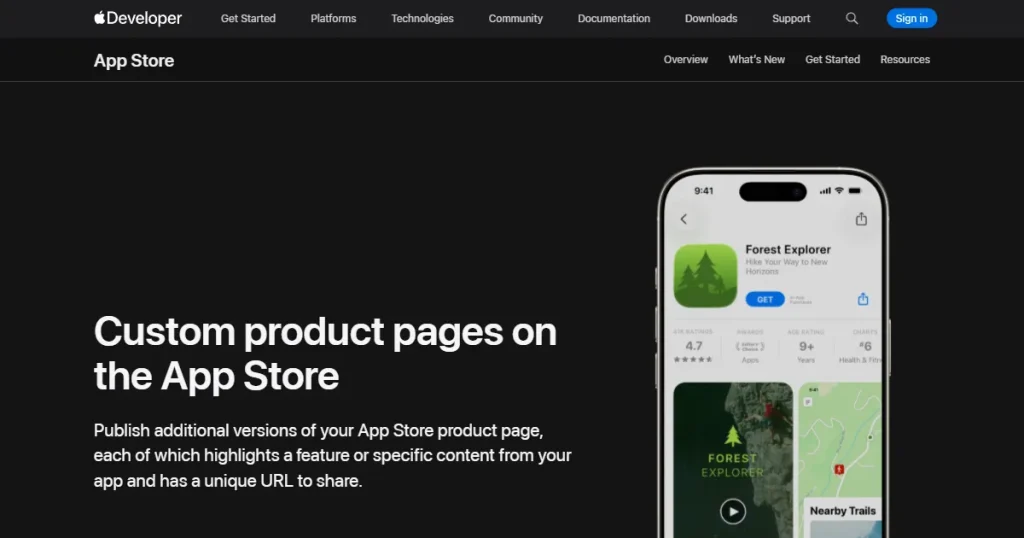
Custom product pages are a feature given by Apple in the App Store Connect that allows developers to create multiple versions of their app store listing with the goal of targeting individuals looking for certain features that their app offers.
For example, if you have a fitness app and want to target young individuals looking to build an aesthetic physique, you can do so by adjusting your app screenshots to highlight that feature.
Moreover, if you want to target women interested in home yoga and pilates, you can also create a separate custom product page tailored to their interests. This increases the likelihood that people will resonate with your app and download it.
With Custom product pages, you can create up to 70 different app store listings of your app by changing the app screenshots, preview videos, promotional text, and keywords. And with each custom product page, you get a unique URL that you can use in your marketing campaigns.
Before we dive deeper into this guide to custom product pages, let’s first understand why we need custom product pages for app growth.
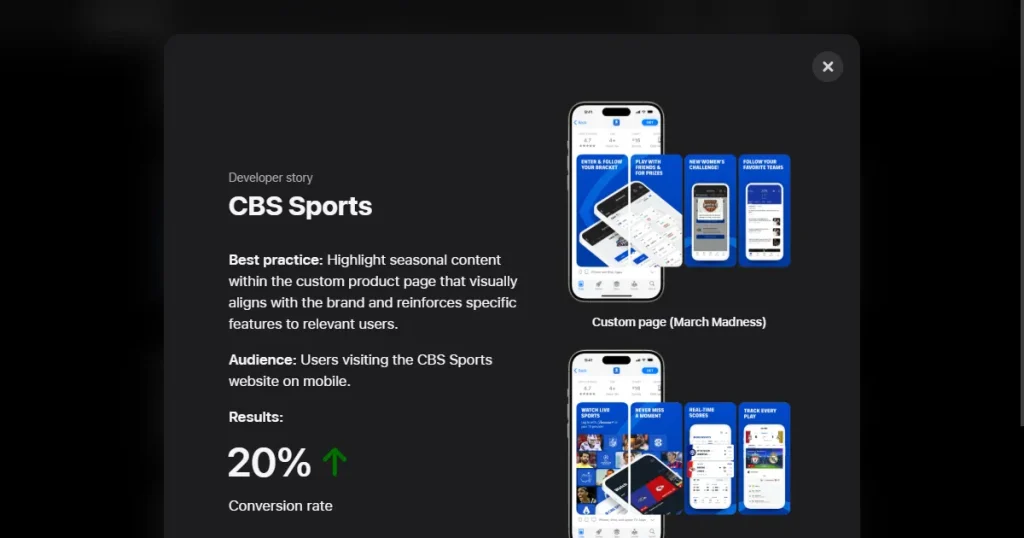
Since Apple custom product pages are tailored to the needs of a specific user group, they increase the likelihood that users will click on your app and actually download it. According to Apple, the conversion rate on custom product pages has increased by 156% compared to the average 1.6% on regular product pages.
Instead of sending all users to one generic app listing, CPPs allow developers to create deeply personalized App Store experiences for different audience segments. This makes the app feel more relevant to users, improving their overall browsing and decision-making ability.
Another great feature of the app store custom product pages is that you can use them to A/B test a specific element of your app store listing. Traditionally, we use Product Page Optimization for A/B testing, but it limits the number of pages you can test side by side.
Apple Custom product pages give you more flexibility to test multiple pages together and help you optimize your app store listing for more downloads.
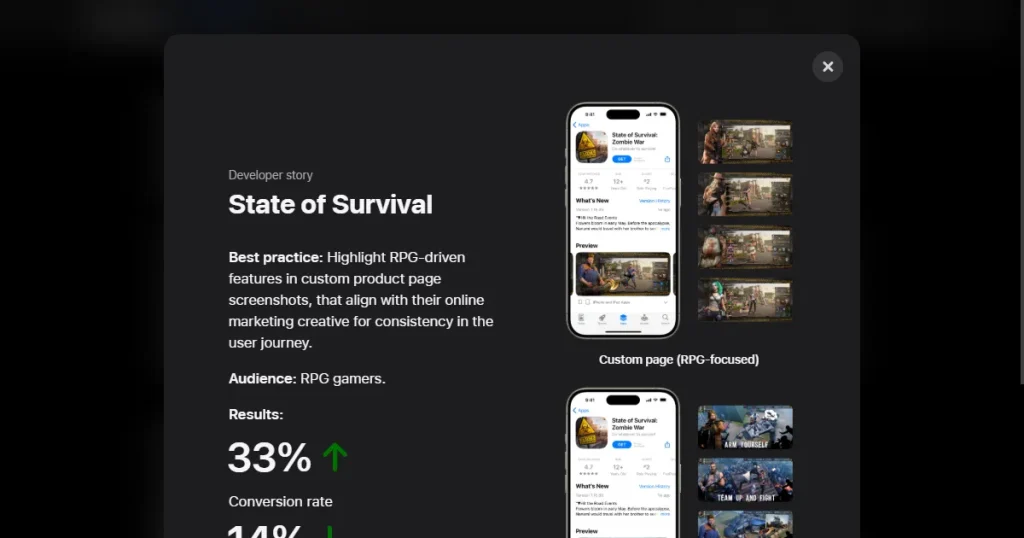
CPPs are fully compatible with Apple Ad campaigns by pairing ad creatives with highly relevant App Store landing pages through unique URLs. This increases campaign relevance, lowers the cost per install (CPI), and helps marketers get more value out of their ad spend.
With deep linking enabled, users visiting the custom product page will be directed to a specific feature or in-app experience upon installation. This minimizes post-download friction and helps users discover value more quickly, increasing the likelihood of long-term retention.

To make this guide to custom product pages more useful, let’s discuss the use cases where you can use CPPs.
When you want to target different user segments for your app, it is a good idea to create Custom Product Pages, as it allows you to create and experiment with different audience groups based on their preferences and interests.
Apps with multiple features mostly can’t showcase them in their app listings, since people only see 2-3 screenshots, which isn’t enough to show all your features.
That’s why create custom product pages with different features being highlighted in different product pages, as it gives you more chances to target the right user looking for that specific feature.
CPPs can help make your App Store page and your app feel more in tune with what users are looking for or expecting when they find that app.
For example, a language app has separate pages for those who want to learn Spanish, Japanese, or German, with images and text tailored to each language. Integrating culturally specific content personalizes the experience and increases the potential for conversion.
Apple Custom Product Pages are the perfect tool for keeping your app relevant for seasonal occasions and trending topics all year round.
You can now build holiday-themed pages, highlight limited-time seasonal updates, or cater to big events like the New Year, sports tournaments like FIFA, or holiday shopping seasons. This allows us to grab the user’s attention when interest is already high.
CPPs enable you to make App Store pages that are directly aligned with your marketing campaigns and promotions.
If you’re running campaigns on discounts, subscription offers, or limited-time deals, you can use the same messaging in your screenshots to create a more seamless journey from ad to App Store.
Before moving forward in this guide to custom product pages, let’s first discuss the new features that have been added to the Custom Product Pages.
To better understand this guide to custom product pages, let’s compare Custom Product Pages and Product Page Optimization and understand how their differences.
| Comparison Factor | Custom Product Pages (CPPs) | Product Page Optimization (PPO) |
| Purpose | Create personalized App Store pages for different audience segments and campaigns | Test different versions of the default App Store page to identify the best-performing variation |
| Primary Goal | Improve campaign targeting and conversion rates for specific user groups | Improve overall conversion rate through A/B testing |
| Audience Targeting | Designed for different audience segments based on intent, demographics, or acquisition source | Same audience sees randomly assigned variations for testing |
| Traffic Source | Used mainly for external traffic sources like ads, influencer campaigns, email marketing, and social media | Used for organic App Store traffic and default product page visitors |
| Number of Variations | 70 custom product pages can be created for different campaigns | Up to 3 test variations can be created against the default product page |
| Unique URL | Each custom product page gets its own unique URL for campaign attribution | No unique URL is generated since variations are tested internally |
| Personalization Level | Highly personalized for specific campaigns or audience segments | Limited personalization focused mainly on testing creative performance |
| Testing Capability | Not built specifically for A/B testing, but performance can be compared across pages | Designed specifically for A/B testing and conversion optimization |
| Integration with Apple Search Ads | Directly integrates with Apple Search Ads campaigns | Cannot be directly linked to Apple Search Ads campaigns |
| Best Use Case | Running targeted paid campaigns for different user segments | Testing which screenshots or app previews drive better conversion rates |
| Metrics to Track | Install rate, cost per install, retention rate, campaign ROI | Conversion rate uplift, winning creative variation, install performance |
| Example | A fitness app creates separate pages for weight loss users and yoga enthusiasts | A fitness app tests two different screenshot designs on its default App Store page |
| Ideal For | Growth marketers, ASO specialists, paid acquisition teams | ASO specialists focused on improving default App Store conversion performance |
To fully understand the value of CPP, in this guide to custom product pages, we will explore how CPPs affect ASO.
To better understand this guide to custom product pages, let’s break down the elements you can customize.
| Element | Customizable? | What you can do |
| Screenshots | ✅ Yes | Add up to 10 screenshots per custom page |
| App Preview Videos | ✅ Yes | Up to 3 videos can be customized |
| Promotional Text | ✅ Yes | Limited to 170 characters |
| Deep Links | ✅ Yes | Can direct users to specific in-app destinations |
| Screenshot Order | ✅ Yes | Rearrange screenshots based on campaign focus |
| Keyword Metadata | ✅ Yes | Improves organic search visibility |
| Localization | ✅ Yes | Create region-specific custom pages for different markets |
| Custom Page URL | ✅ Yes | Each CPP gets a unique URL for campaign tracking |
| App Name | ❌ No | Remains same across all product pages |
| App Icon | ❌ No | Cannot be changed for individual CPPs |
| Subtitle | ❌ No | Same subtitle across default and custom pages |
| App Description | ❌ No | Description remains identical across all pages |
| Ratings and Reviews | ❌ No | Pulled directly from default App Store listing |
| Category | ❌ No | App category stays fixed for every page |
| In-App Purchase Display | ❌ No | Same in-app purchase information across pages |
| Privacy Information | ❌ No | Privacy labels remain unchanged |
Now, let’s look at the step-by-step guide to custom product pages and understand how you can set one up in App Store Connect.
Before you create a Custom Product Page, first determine the specific audience segment that you want to target, be it gamers, fitness users, or productivity-focused users, so you can focus the page around what matters most to them.
Now open App Store Connect, go to My Apps, and select the app you want to create custom pages for. In the left sidebar, find the Custom Product Pages, click it, and create a new page.
You can start from scratch or duplicate your existing application page. Give the Custom Page a unique name so you can identify it later. This label is not shown to users, so you can put whatever you want.
Update your screenshots, app preview videos, and promotional text to better reflect user intent, and add a few relevant keywords to fine-tune your campaign targeting and boost your visibility in Campaigns and Search results.
Remember to follow the Apple App Store Guidelines for screenshots, preview videos, and general ASO guidelines, as each custom product page is also reviewed similarly to your default product page, and if it doesn’t meet the rules set by Apple, your page can get rejected.
Each Custom Product Page has its own URL, so you can send users directly to the relevant product page tailored to them.
If your app supports deep linking, set it up so users are directed to a specific feature or section within the app rather than the default home screen after installation.
If the audience you want to target is based in certain countries, it would be a good idea to localize your custom product pages, including translated text and country-specific images where applicable, to better connect with the local audience.
After making all changes, submit the Custom Product Page for Apple’s review, as CPPs need to be approved before they can be used in campaigns.
After you publish your custom product page, you can run ads on it by creating a relevant ad group in Apple Ads. Only one Custom Product Page can be linked to an Apple Search Ads ad group at a time, so pause the current one before switching.
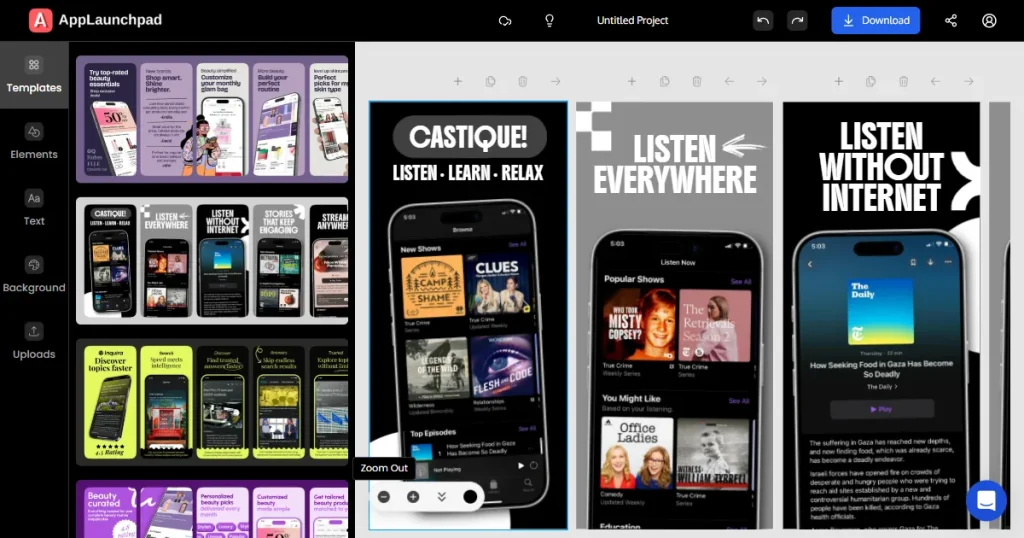
As discussed earlier in this guide to Custom Product Pages, Apple App Store now lets developers produce up to 70 Custom Product Pages per app. Developer teams might need to create dozens of screenshot variations for different campaigns, demographics, and locales. Producing all of these manually can become time-consuming and hard to manage.
That’s where AppLaunchpad comes in. Instead of recreating screenshots one by one, developers can generate several professional App Store screenshots for all the different CPP versions in a fraction of the time.
With AppLaunchpad, creating professional screenshots is easy, as it offers 1,000+ store-compliant screenshot templates, a drag-and-drop editor, one-click cloning to multiple devices, a screenshot inspiration gallery, localization support, and advanced design customization.
This means that it can be used effectively by developers and marketers alike to handle numerous Custom Product Pages seamlessly.
One of the best ways to use Custom Product Pages is by running Today Tab campaigns in Apple Ads. These ads appear on the App Store homepage, where the visuals from your selected Custom Product Page automatically animate in the background, creating a more engaging experience for users.
Another effective strategy is matching your App Store Custom Product Pages with specific keyword groups in search result campaigns. If users search for different intents, you can show separate CPPs with screenshots and messaging tailored to those keywords, helping improve both click-through rates and conversion rates.
To make this guide to Custom Product Pages more effective, let’s look at the difference between custom product pages and custom store listings.
| Feature | App Store (Custom Product Pages – CPPs) | Google Play (Custom Store Listings – CSLs) |
| Maximum Variants | 70 custom product pages per app | Up to 50 custom store listings per app |
| Platform | Available on Apple App Store | Available on the Google Play Store |
| Primary Purpose | Create personalized App Store pages for different audience segments and campaigns | Create alternative Play Store listings for different acquisition campaigns and user segments |
| Organic Search Visibility | Limited organic visibility, mainly used for campaign-specific traffic | Can appear for targeted audiences through country, language, and acquisition source targeting |
| Customizable Elements | Screenshots, app preview videos, promotional text, deep links | App name, short description, full description, screenshots, feature graphic, promo video |
| Unique URLs | Yes, each CPP gets a unique URL | Yes, each custom listing can have separate campaign tracking |
| Deep Linking Support | Yes (supported on iOS 18+) | Depends on app implementation and Android setup |
| Ad Platform Integration | Direct integration with Apple Search Ads | Works with Google Ads and Play campaign targeting |
| Audience Targeting Options | Keyword targeting, Apple Ads campaigns, unique URLs, audience-specific campaigns | Country, language, user acquisition source, ad campaign, install state |
| Localization Support | Supports localized custom pages for different regions | Supports country and language-specific store listings |
| Best Use Case | Personalized landing pages for Apple Search Ads and campaign-specific traffic | Personalized Play Store experiences for Google Ads and audience targeting |
| Analytics Tracking | App Store Connect analytics and Apple Ads performance tracking | Google Play Console analytics and campaign attribution |
| Ideal For | iOS app developers, ASO specialists, Apple Ads marketers | Android app developers, ASO specialists, Google Ads marketers |
This guide to custom product pages would be incomplete without discussing how to measure the success of your App Store custom product pages.
A custom product page is a personalized version of your App Store listing designed for specific audiences, campaigns, or keywords.
Custom product pages let developers create alternative App Store listings with unique visuals, URLs, and messaging for targeted users.
Using deep links with custom product pages helps users land directly on a relevant in-app screen after installing the app.
App developers, ASO specialists, and mobile marketers should follow a guide to Custom Product Pages to improve app growth.
You can create an App Storee custom product page by using App Store Connect to customize visuals, assign keywords, and submit the page for review.
You should use an Apple custom product page when targeting different audiences, running paid campaigns, or promoting specific app features.