

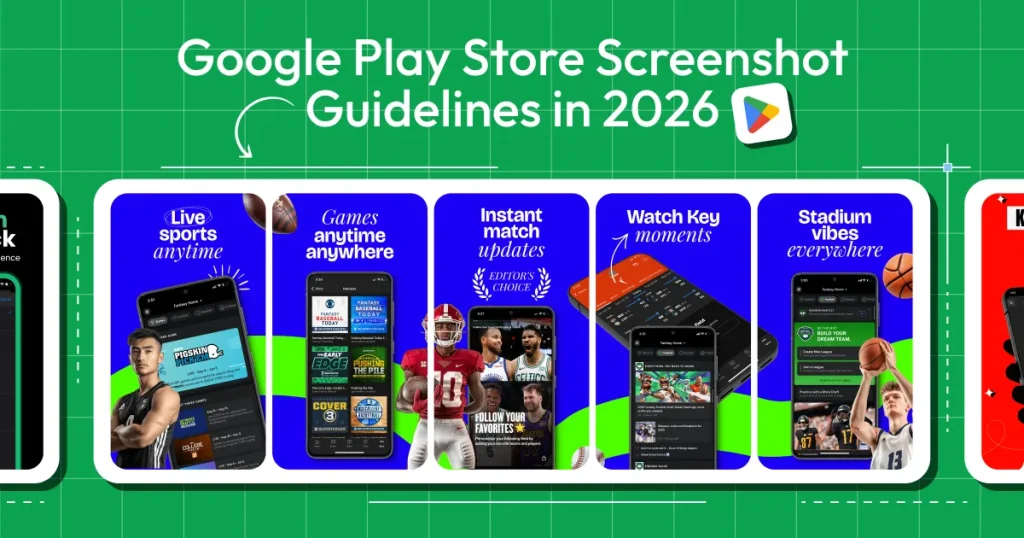

How to Create Play Store Screenshots in Figma
To stand out in a crowded marketplace, you need to know how to create Play Store screenshots in Figma that […]
Google Play screenshot requirements are the official rules that define how your app screenshots should look, including size, dimensions, formats, aspect ratios, and content standards. These Google Play Store screenshot requirements are necessary for app approval and ensure your visuals display correctly across devices on the Play Store.
We break down the exact Android screenshot size guidelines, key Play Store screenshot requirements, common rejection mistakes, and practical tips to improve conversions. We also show how AppLaunchpad helps you create Play Store-compliant, high-converting screenshots without worrying about dimensions or formatting.
Your Google Play Store screenshots must reflect the latest version of your app. They need to follow the correct dimensions, supported formats, and aspect ratios required by the Google Play Store.
Google Play Store Screenshots appear in more places than just your listing page. They show up in search results, category pages, and recommendation sections across the Play Store. These Google Play Store screenshot requirements are essential not only for approval but also for improving how users perceive your app.
You can’t just upload an endless gallery of screenshots. Google Play Store places strict limits on how many screenshots you can provide per device and on the size and aspect ratio of each screenshot. Following these Android screenshot size guidelines ensures your screenshots display correctly across all supported devices.
Each of these specifications is part of the official Google Play Store screenshot requirements for different device categories.
| Device Type | Minimum Required to Publish | Maximum Allowed | Supported Formats | Aspect Ratio | Recommended Minimum Size | Maximum Size Limit | Max File Size | Key Notes |
| Android Phone | At least 2 (across device types) | 8 | JPEG or 24-bit PNG (no transparency) | 9:16 (Portrait), 16:9 (Landscape) | 1080×1920 (Portrait) or 1920×1080 (Landscape) | Up to 3840px | 8MB | Focus on real UI; first screenshots should clearly show the core value. |
| Tablet (7” & 10”) / Chromebook | 4 recommended | 8 | JPEG or 24-bit PNG (no transparency) | 9:16 (Portrait), 16:9 (Landscape) | Minimum 1080px (short edge) | Up to 7680px | 8MB | Use tablet-specific UI; avoid extra text outside the app interface. |
| Wear OS | 1 | 8 | JPEG or 24-bit PNG (no transparency) | 1:1 | 384×384 minimum | Up to 3840px | 8MB | UI-only; no frames or added backgrounds. |
| Wear OS Watch Faces | 1 | 8 | JPEG or 24-bit PNG (no transparency) | 1:1 | 384×384 minimum | Up to 3840px | 8MB | Show actual watch face variations; no overlays or device frames. |
| Android TV | 1 (if supported) | 8 | JPEG or 24-bit PNG (no transparency) | 16:9 | 1920×1080 minimum | Up to 3840px | 8MB | Should reflect real TV UI experience. |
| Android TV Banner | 1 (required for TV apps) | — | JPEG or 24-bit PNG (no transparency) | 16:9 | 1280×720 (fixed) | Fixed | — | Separate asset; required for TV listings. |
| Android XR (VR/AR Devices) | 4 | 8 | JPEG or PNG | 8:5 | 1920×1200 (min), 3840×2400 recommended | — | 8MB | Designed for immersive apps; show real spatial experience. |
Google Play only accepts specific file formats for screenshots. Keep your file sizes under 8MB, and make sure nothing is stretched, skewed, or pixelated. These Play Store screenshot requirements help maintain consistency and quality across all app listings.
| Requirement | Details |
| Accepted Format | JPEG or 24-bit PNG files |
| Minimum Resolution | 1080px |
| Minimum Dimensions | 1080×1920 pixels for portrait mode or 1920×1080 pixels for landscape mode |
| Screenshot Ratio | 16:9 for landscape or 9:16 for portrait |
| Number of Screenshots | Minimum 4 and Maximum 8 screenshots |
Google Play Store screenshots are visual previews of your app’s interface that appear on your listing page. They give users a quick look at how the app works before they decide to install it.
Their main purpose is to help users understand your app’s value in just a few seconds. If the benefit is clear, installs go up. If it’s confusing, people will just ignore it without giving it much thought.
While Google Play Store screenshots aren’t a direct ranking factor for Google Play search algorithms, the higher conversion rates they bring can indirectly improve your app’s visibility. When aligned with Android screenshot size guidelines, these visuals become even more effective in driving installs.
Your Google Play Store screenshots must focus on the in-app experience without misleading users. Here is exactly what the Google Play Store review team looks for. Here is exactly what the Google Play Store screenshot guideline expects during the review process.
These rules are part of the broader Play Store screenshot requirements you must follow to avoid rejection.
Here are five real-life app examples that are using their Google Play Store screenshots effectively.
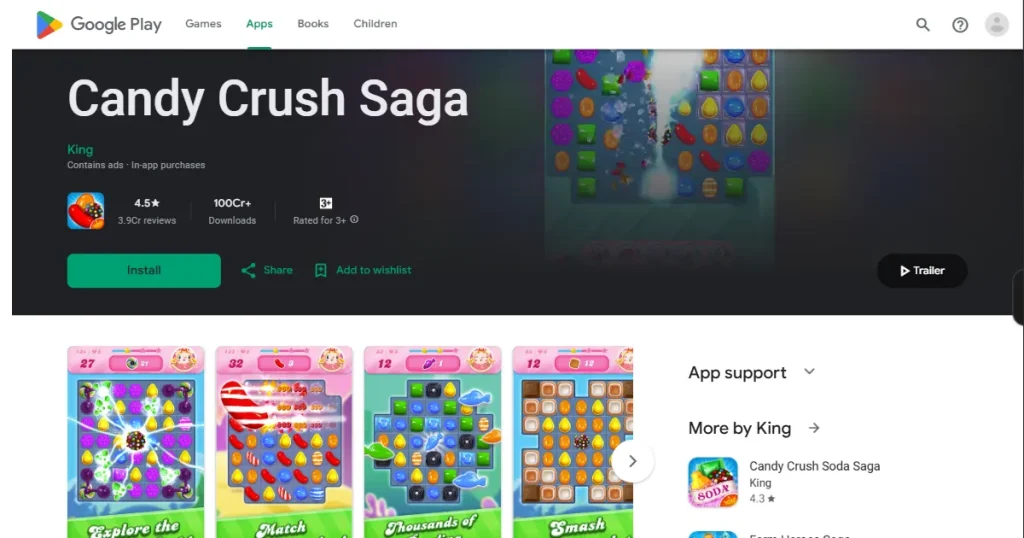
Candy Crush Saga shows the in-app game experience directly. You can immediately understand what the app offers. The UI looks clear, text captions are minimal, and the bright colors naturally draw attention to the screen.
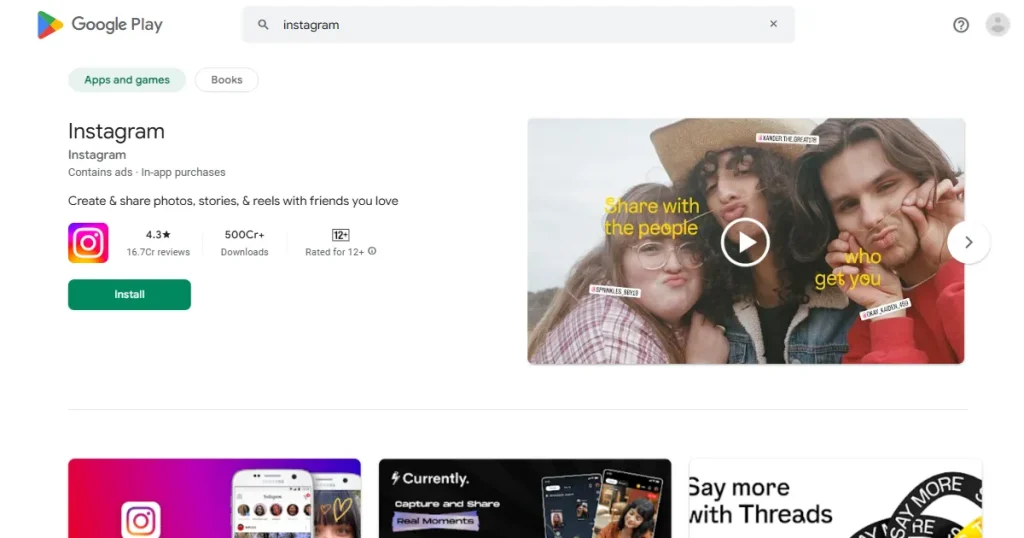
Instagram features clean and uncluttered screenshots focusing on the main outcome of the app. The screenshots highlight key features like Reels, DMs, and Stories without adding unnecessary graphics or fancy fonts. The interface speaks for itself.
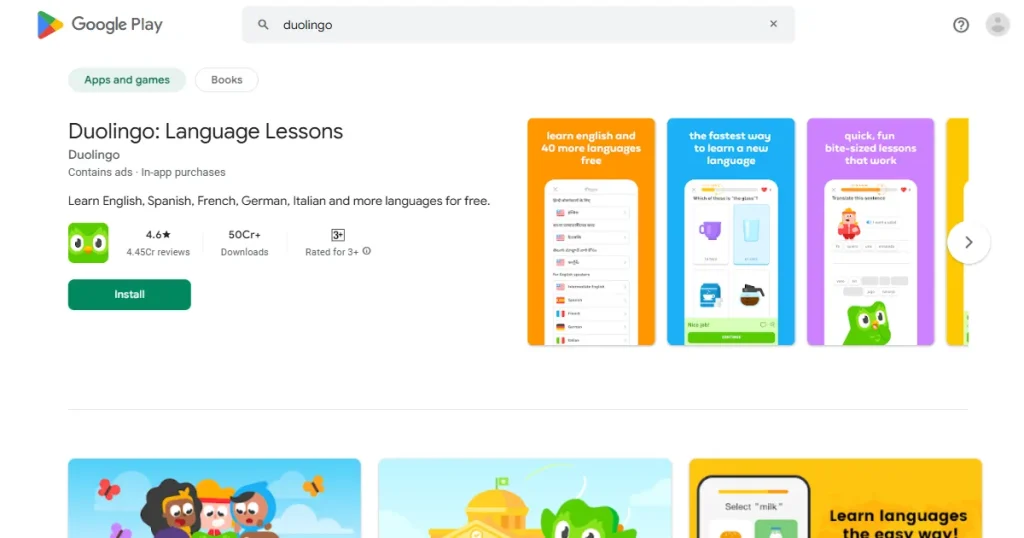
Duolingo uses bold, benefit-driven screenshot headlines that are easy to read and understand. The layout provides clean spacing around the UI, and the branding remains consistent across all screenshots.
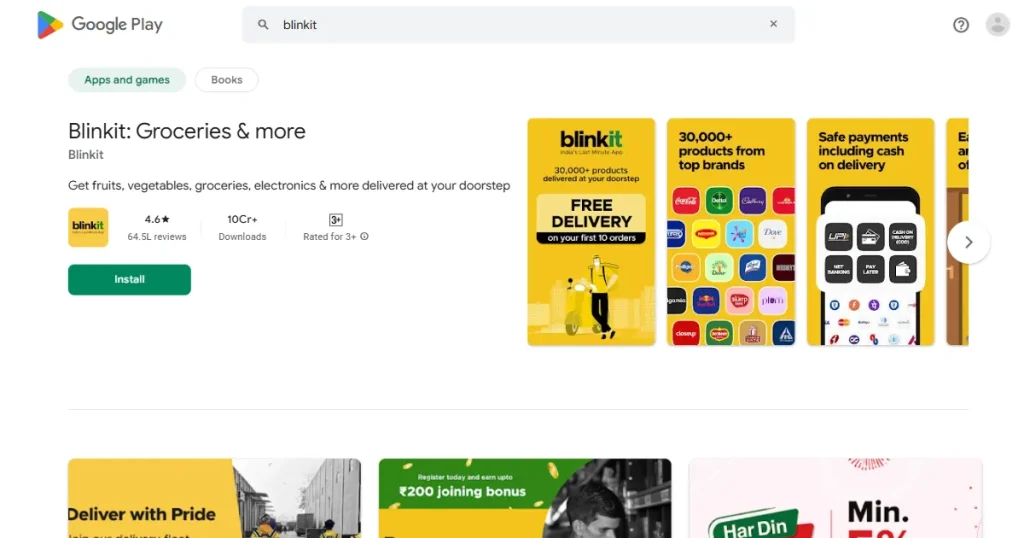
Blinkit’s screenshot messaging focuses on the main outcome of the app ‘Groceries in minutes’. It’s direct and practical. Each screenshot shows a real use case with a clear visual hierarchy.
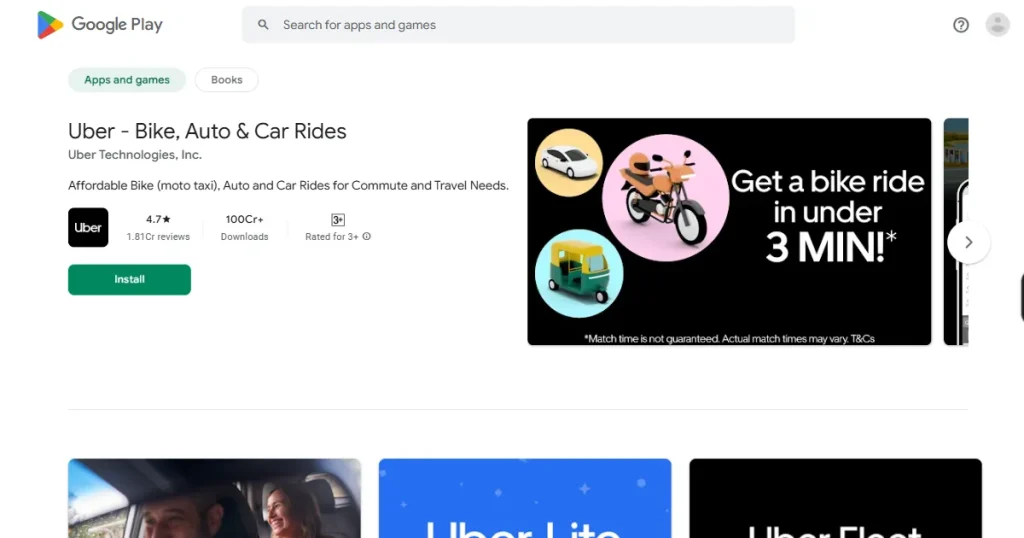
Uber walks users through the natural app flow like a story. The captions are short and benefit-focused, making the process feel simple without adding extra explanation.
Following the technical rules helps you pass the review. But installs depend on how clearly you communicate your app’s value. Even after meeting Android screenshot size guidelines, design clarity is what improves conversions.
Create Google Play Store screenshots that follow these best practices.
You have only a few seconds to hold the user’s attention. Your main benefit should be obvious right away.
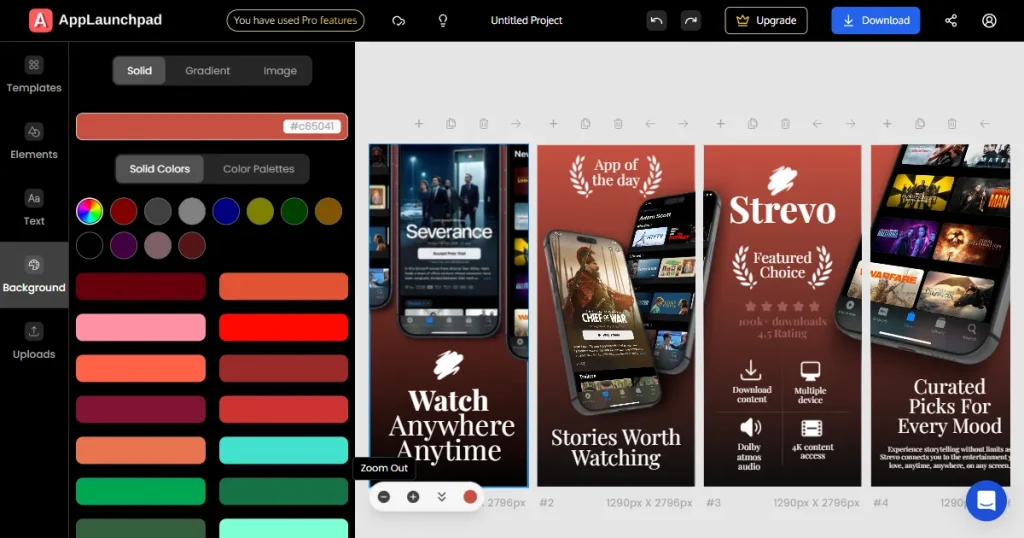
Use outcome-driven headlines that highlight a specific result. Avoid generic phrases that don’t explain what the app actually does.
If you’re building a health app, for example, don’t lead with a generic dashboard. Show the app’s key features first, so users immediately understand why it’s useful.
Stick to one clear headline per screenshot, as no one is going to read through a big paragraph.
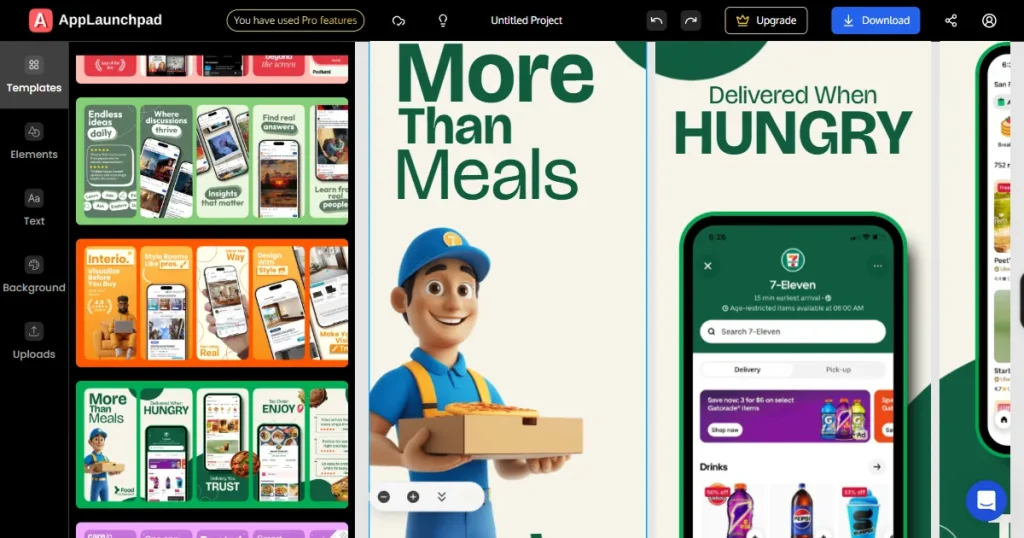
Use a strong contrast between the text and the background so it’s easy to read at a glance. If users have to squint their eyes, they’ll most likely move on. Remember that taglines cannot occupy more than 20% of your screenshot. Make every word earn its space.
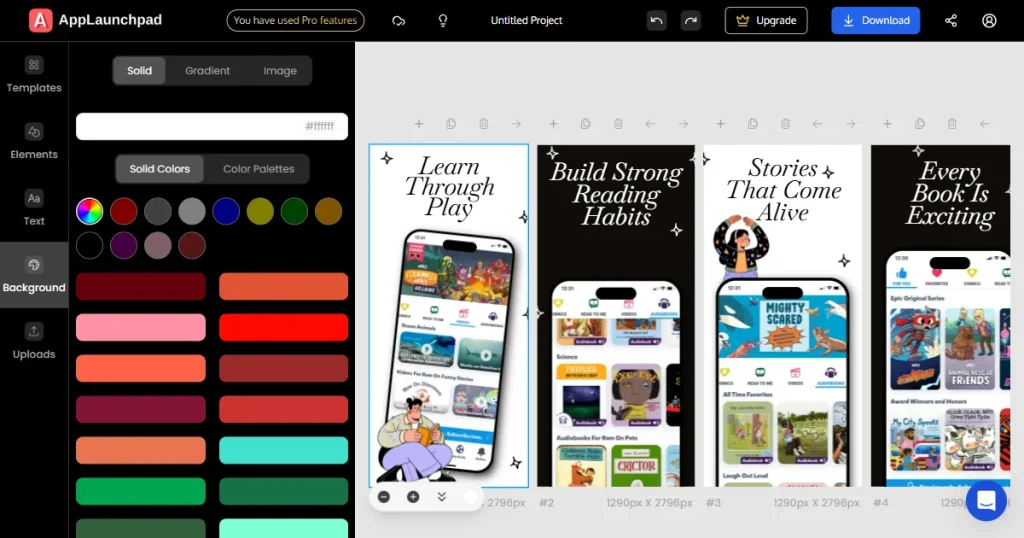
Keep the app interface as the main focus. Your screenshot background should support the UI, not distract from it.
Use clear spacing and alignment to guide the user’s eye from the headline to the app interface. Leave enough margin around the edges so text and important elements don’t get cropped on smaller screen sizes.
Capture screenshots from your current live app build. Over-designed mockups that don’t match the real app UI can create confusion.
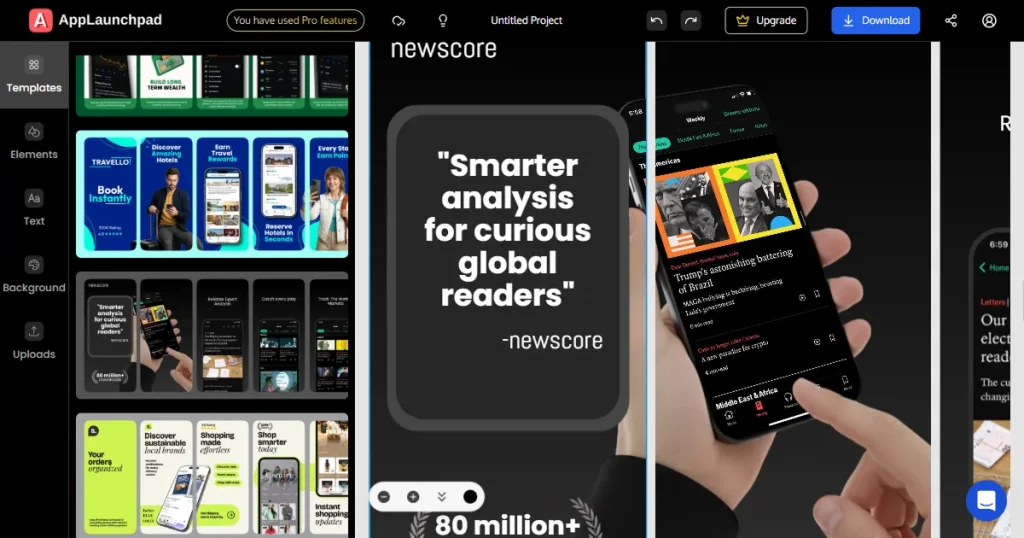
Show actual user flows such as browsing on the app, completing an action, and seeing the result. That’s what people want to understand. Before taking a screenshot, clear the notification bar. Remove alerts and make sure system icons look standard and polished.
Use the same color palette and typography across your entire screenshot set. Consistency makes everything easier to scan.
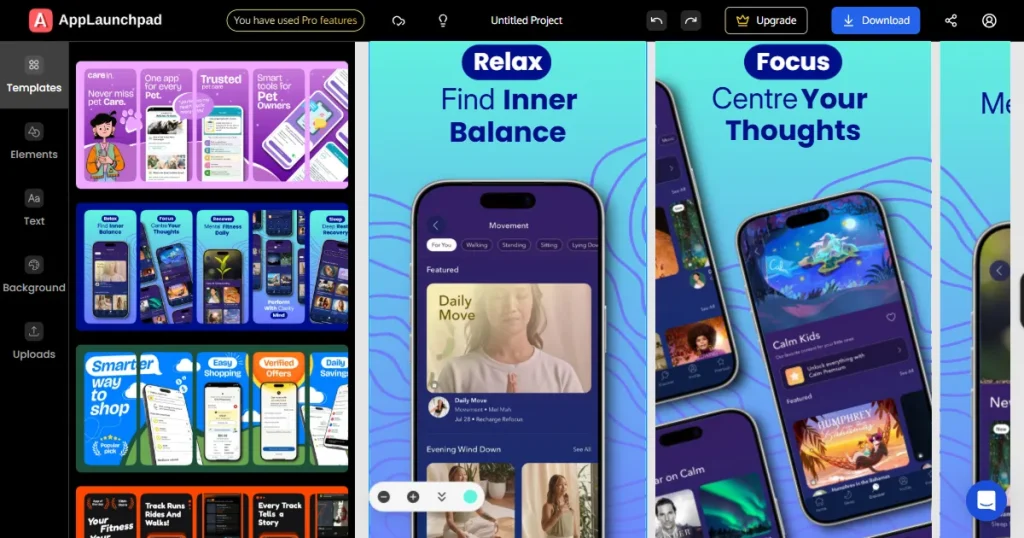
Your screenshot style should match your app icon so the entire Play Store listing feels consistent and cohesive.
Consistency makes your brand look professional and trustworthy.
Use gradients or subtle backgrounds to help the UI stand out. The focus should always stay on the app screen.
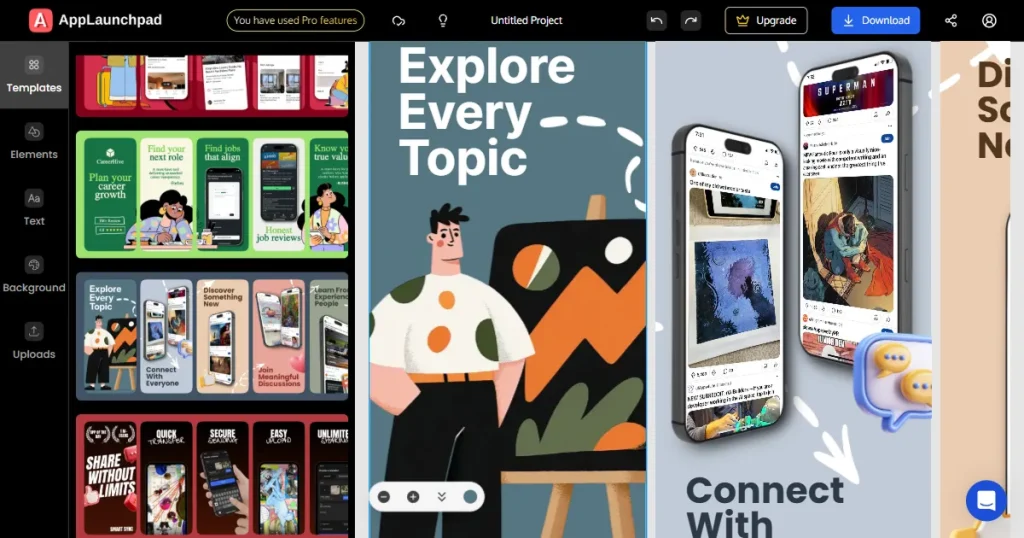
Avoid busy visuals that compete with the text captions or the interface. If users have to figure out what to look at, they won’t.
Lastly, check your Google Play Store screenshots at different brightness levels to make sure the UI and text remain clear and readable.
Localizing screenshots isn’t just about translation. It’s about making the message relevant to local audiences.
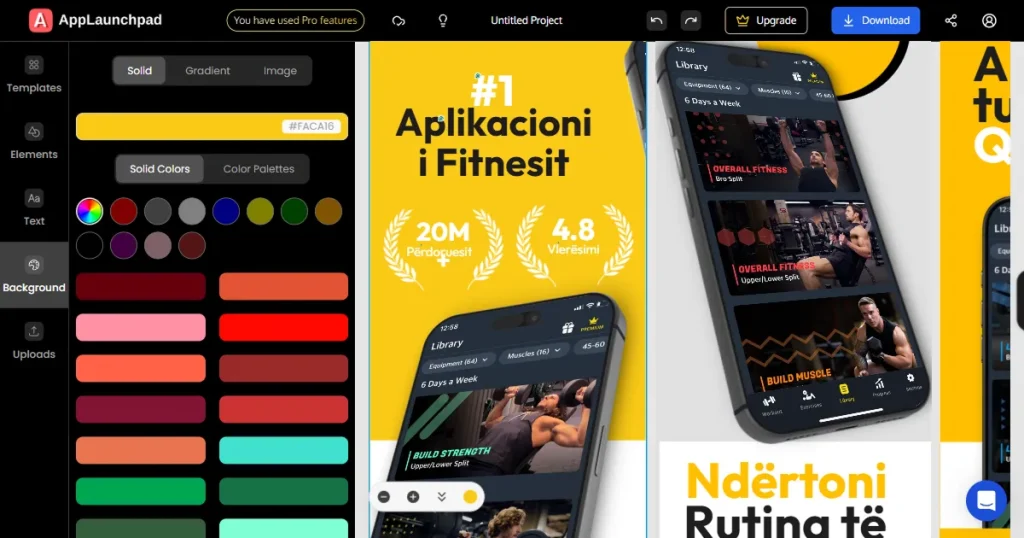
Make sure longer text translations(e.g., German or Japanese) don’t break your carefully designed screenshot layout. Always test your localized screenshot sets in the Google Play Console Experiments to see which perform better in each market.
Rejections usually happen because of small, avoidable mistakes. Here are the most common ones. Most rejections happen when basic Play Store screenshot requirements are ignored or misunderstood.
Once your screenshots meet the technical requirements, the next step is to improve their conversion rate. Staying within Google Play Store screenshot requirements while testing variations helps you scale installs.
You don’t have to build everything from scratch. There are tools designed to make this process much easier.
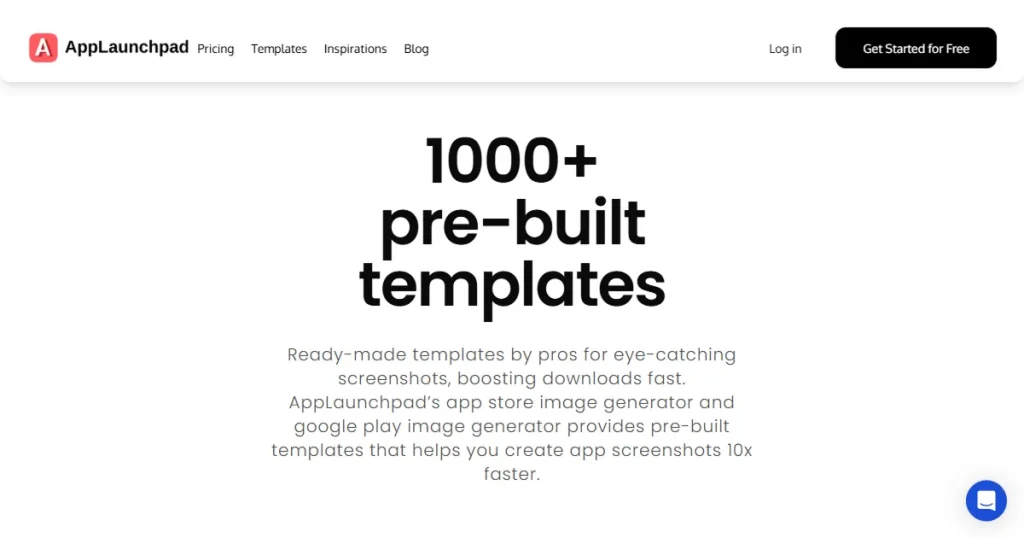
AppLaunchpad helps you create compliant Google Play Store screenshots without worrying about dimensions or aspect ratios. You can use ready-made templates, generate device mockups, and create localized versions for different markets. It’s built to save time while keeping your visuals in line with Google Play Store rules.
Create Google Play Store screenshots on AppLaunchpad: Step-by-step instructions
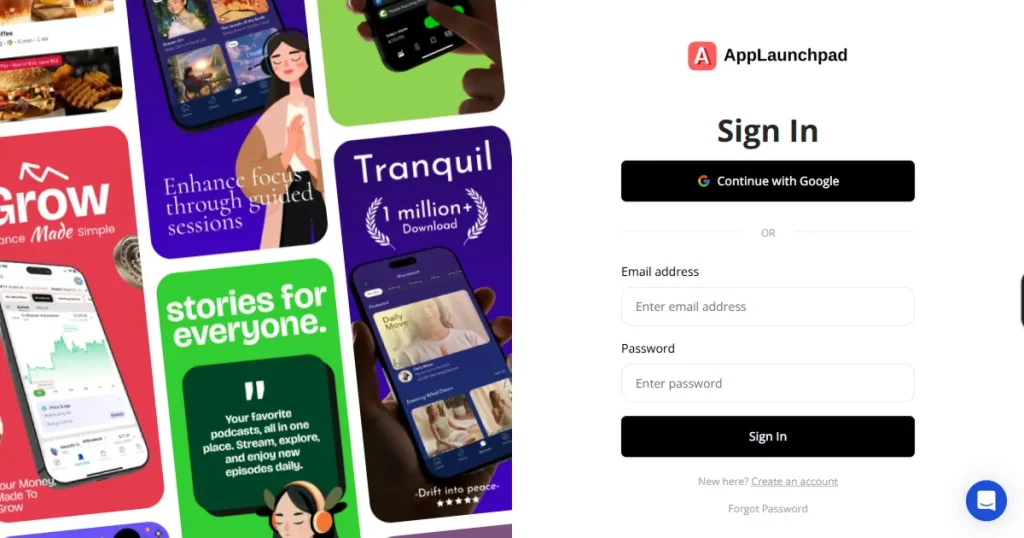
Step 1: Visit AppLaunchpad and Sign up with Google or Email. If you already have an account, log in with your saved credentials.
Step 2: Select an Android phone from the device list. This will show you screenshot templates for Android phones only.
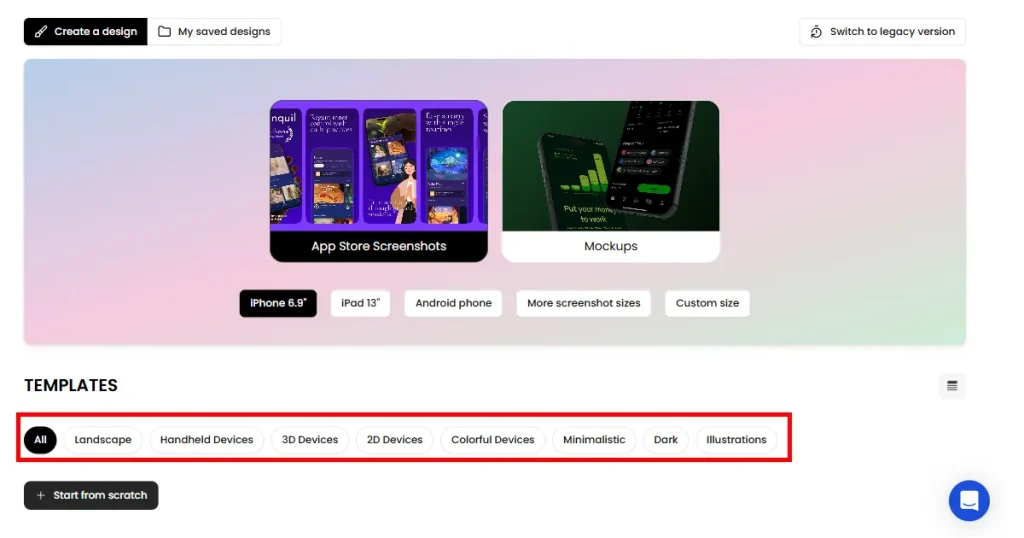
Step 3: Select a screenshot template of your choice.
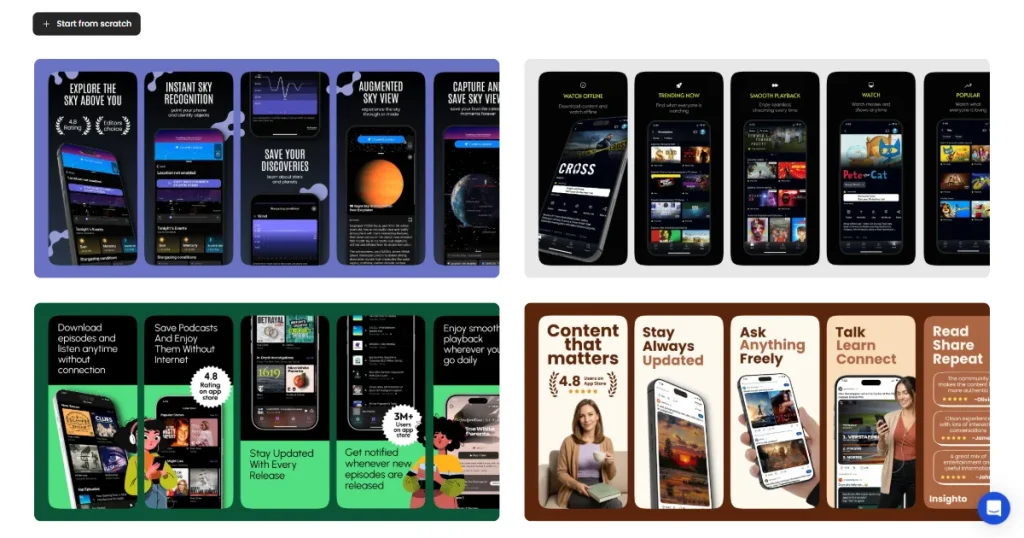
Step 4: Upload the app UI screens and add them to the device frames.
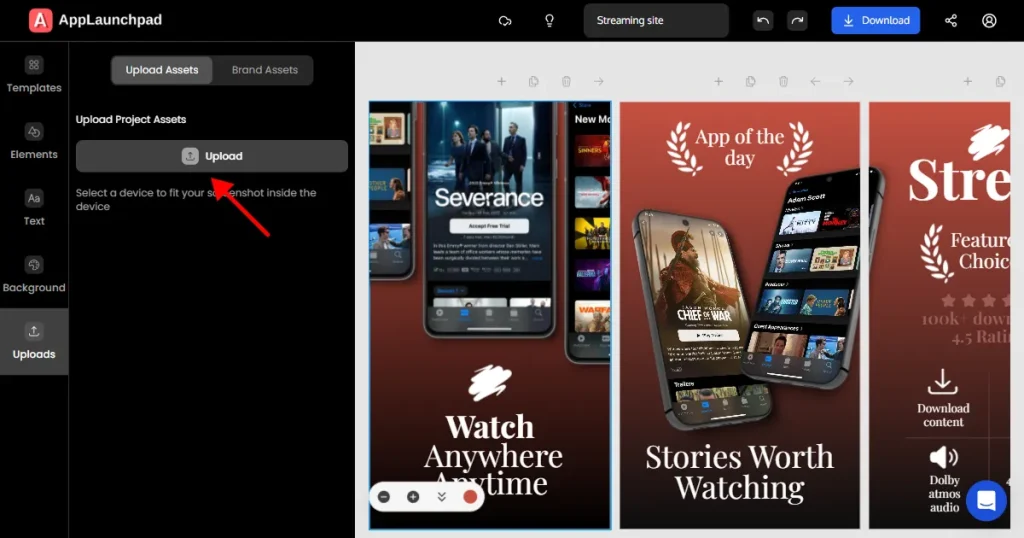
Customize the text captions. Change the background color (if needed).
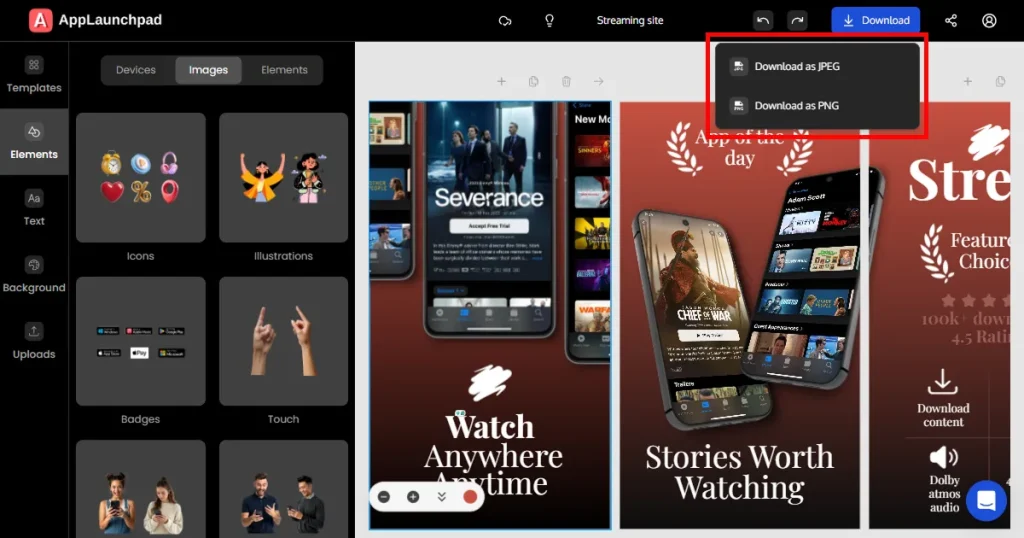
Step 5: Download final Google Play Store screenshots in JPEG or PNG format.
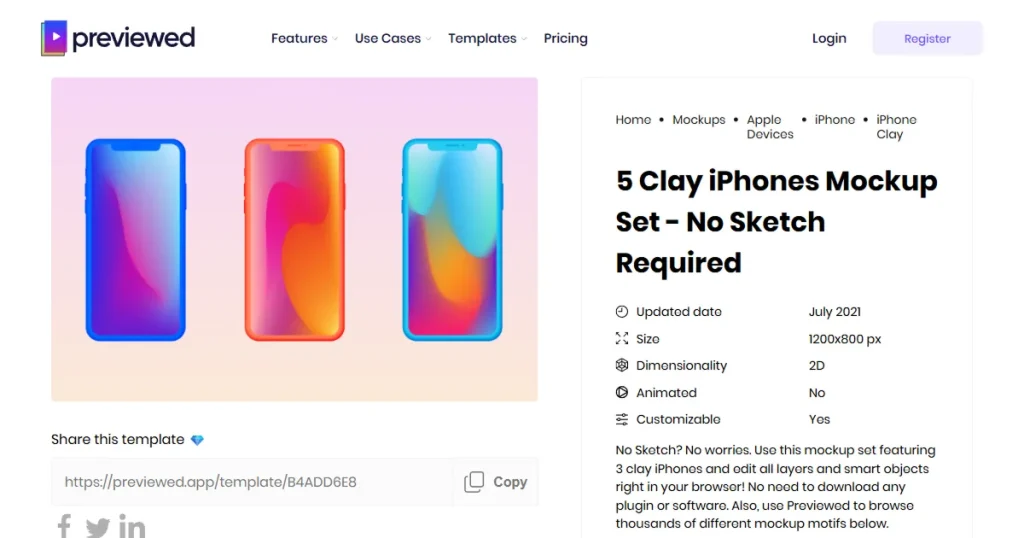
Previewed is useful for creating Play Store preview videos and animated app demonstrations. It helps you showcase how your app works without needing advanced video editing skills.
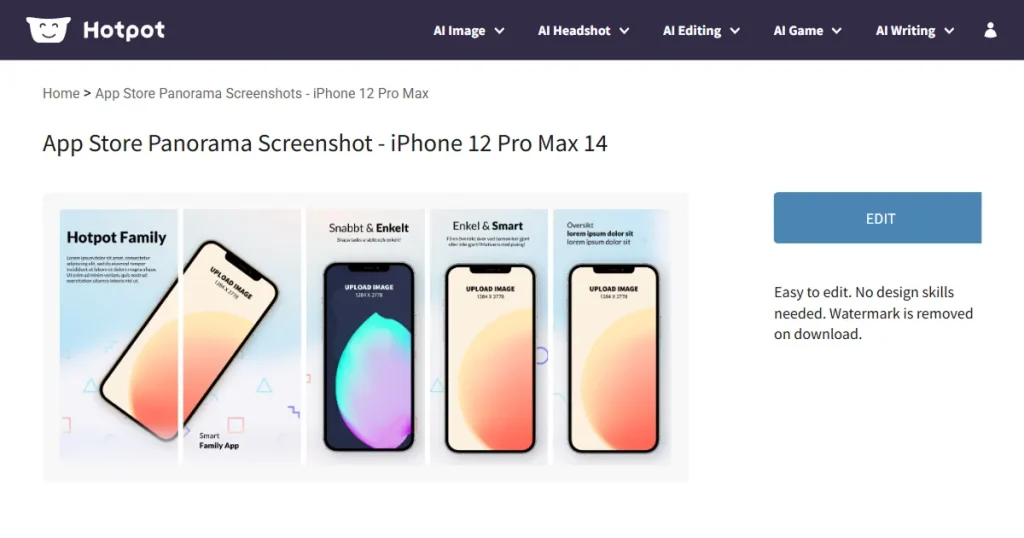
Hotpot.ai can be used to create feature graphics and promotional visuals formatted correctly for your Google Play Store listing header.
Feedough helps you draft optimized Google Play Store listing titles and descriptions so your written metadata aligns with your screenshots and overall app positioning.
Your Google Play Store screenshots aren’t just visuals. They shape how users judge your app in the first few seconds. Following Google Play Store screenshot guidelines ensures your app gets approved without delays. That’s the starting point.
After that, focus on clarity. Show the core benefit quickly. Keep the messaging consistent. Localize where it makes sense. Test what works. Improve what doesn’t. That’s how you build steady growth on the Play Store.
Quick Upload Checklist
Consistently following Google Play Store screenshot requirements helps you avoid delays and improve performance over time. At last, look at the first three screenshots and ask yourself: Can a new user understand what your app does within a few seconds?
Google Play Store screenshot requirements include using JPEG or 24-bit PNG images, maintaining correct aspect ratios (9:16 or 16:9), and ensuring a minimum resolution of 1080px. You can upload up to 8 screenshots per device type, and all images must reflect the actual app experience without misleading elements.
Play Store screenshot requirements allow only JPEG or 24-bit PNG formats with proper dimensions such as 1080×1920 or 1920×1080. These Play Store screenshot requirements help maintain consistency and prevent rejection during app review.
No. AppLaunchpad gives you preset dimensions and Google Play Store screenshot templates, so you can create compliant screenshots without advanced design skills.
Under Android screenshot size guidelines, the recommended resolution is at least 1080×1920 for portrait and 1920×1080 for landscape. Higher resolutions are allowed as long as the aspect ratio remains consistent.
Google Play accepts only JPEG and 24-bit PNG screenshots. Transparency or alpha channels are not allowed.


