App Store Connect Guidelines for App Developers and…
App Store Connect is the platform that lets you upload your app and manage all updates, including metadata, revenue details, […]
In this AppLaunchpad vs AppScreens comparison, AppLaunchpad is the better app screenshot generator. It offers an intuitive interface, larger category-based templates, AI automation, and one-click localization. AppScreens, on the other hand, follows a more manual and setup-heavy approach, which may slow down the workflow.
We will discuss how both app screenshot generator tools perform across key areas like automation, customization, and ease of use, helping you choose the right and most cost-effective platform for your workflow.
AppLaunchpad: A beginner-friendly drag-and-drop editor tool designed to create app screenshots with 1000+ app screenshot templates across multiple app categories.
It includes 20,000+ graphic elements, 150+ fonts, Unsplash image integration, custom devices, AI resizing, and one-click localization for 80+ languages. It is suitable if you are looking for speed and automation, especially when you have multiple apps to manage.
The tool also offers a wide range of 3D device screenshot templates with 20 viewing angles, helping create more realistic screenshot presentations.
AppScreens: An app screenshot tool that offers limited templates (100+) and preset layouts with device frames and localization support, but it relies more on manual setup and does not include a built-in graphics library for icons and design elements.
Due to its complex UI and steep learning curve, it is better suited for users with design experience (e.g., Photoshop) who are working on a single app or looking for a one-time-use solution.
Overall, AppLaunchpad vs Appscreens comes down to speed versus manual control.
Before we explore the feature comparison of AppLaunchpad vs AppScreens, let’s first see what each app screenshot generator tools brings to the table.
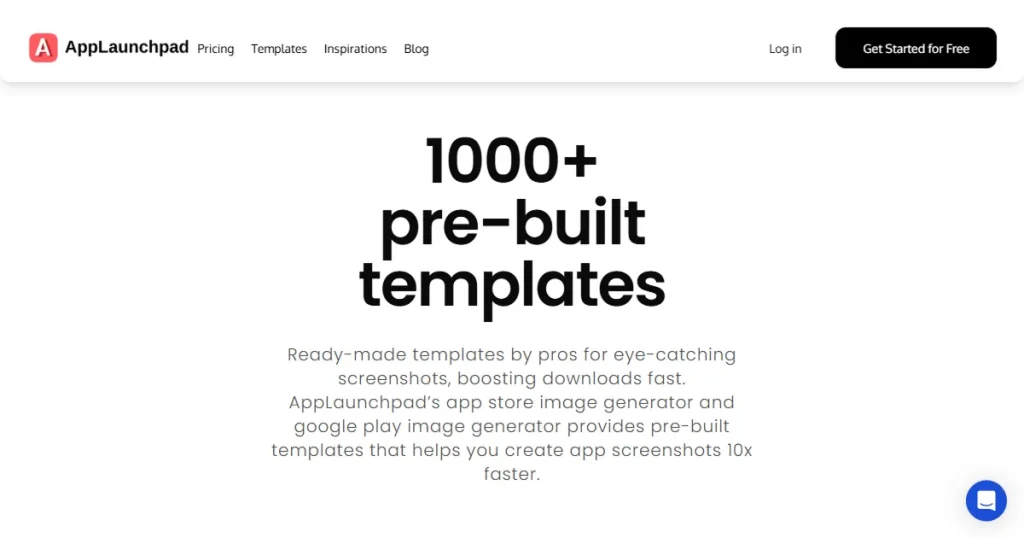
AppLaunchpad app screenshot generator tailored for developers, marketers, and designers looking to publish their apps on the App Store or Google Play.
Known for its user-friendly interface, it offers a massive library of 1000+ uniquely designed templates, all originally crafted by an in-house design team. This ensures creative diversity and safe usage without copyright concerns.
It also includes AI auto-scaling to fit screenshots to different device sizes, AI localization for different languages, and 10,000+ graphic elements to improve your designs.
Additionally, with a built-in screenshot inspiration tool and extensive support for both iOS and Android devices, it’s a powerful tool for anyone launching an app.
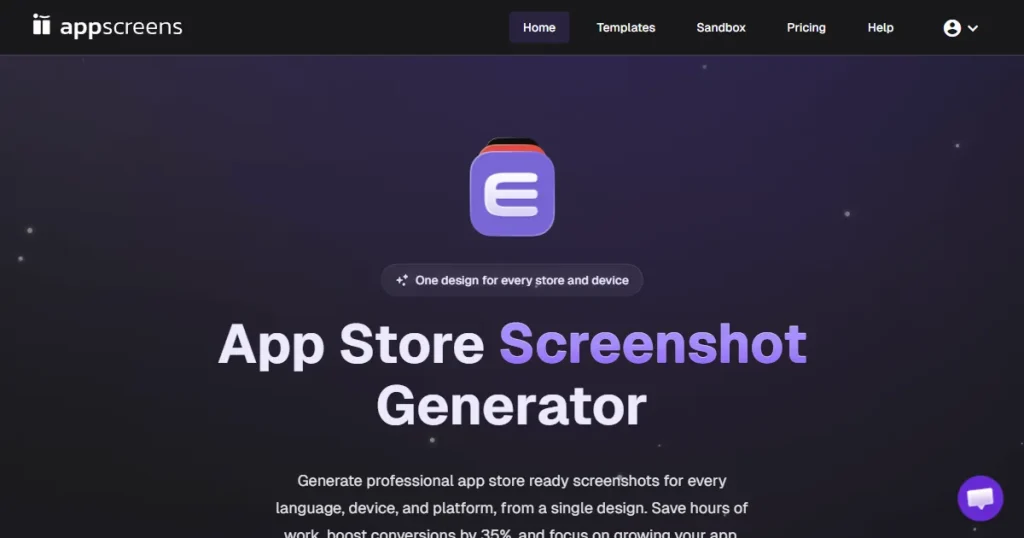
Appscreens is a web-based tool designed for app developers with Photoshop skills, as it has a steep learning curve and is hard for non-designers. With over 100 pre-built templates, the platform offers a wide range of template options for app screenshot design.
However, the editing interface is not very beginner-friendly, and even basic edits like adjusting the text color or background involve navigating multiple dropdowns and settings menus.
It may work for simple screenshot generation needs, but it falls short when advanced customization and creative flexibility are required.
| Feature | AppLaunchpad | AppScreens |
| Template Library | 1000+ pre-built templates | 100+ templates |
| Begginner-friendly | Yes | No |
| Manage Multiple App Projects | Yes | Limited |
| Latest iOS and Android Device Support | Yes | Yes |
| AI Screenshot Auto-Scaling for All Device Sizes | Yes | No |
| 3D Device Frames | 300+ variations | <10 |
| Built-in Graphics collections (icons, illustrations, stickers) | 20,000+ elements | No |
| Unsplash Integration | Yes | No |
| Custom Screenshot Size | Yes | No |
| Custom font upload | Yes | No |
| Built-in color palette presets | 3000+ options | No |
| Vision Pro & TV Device Support | No | Yes |
| Gradient background controls | Yes | No |
| Structured design panels (Templates, Elements, Text, Background) | Yes | No |
| Brand Assets Upload | Yes | No |
| AI Localization | Yes (80+ languages) | Yes |
| Drag-and-drop screenshot editor | Yes | No |
| Canvas zoom controls (zoom in / zoom out) | Yes | No |
| Supports Huawei AppGallery | No | Yes |
| App Screenshot Inspiration Gallery | Yes | No |
| Clone / duplicate screenshot projects | Yes | No |
| Free Plan | Yes | Limited to only one project |
| Panoramic Background | No | Yes |
| Pricing | $19/ month (With code APPLOVE) | $25/ month |
Now that we’ve reviewed the key features of AppLaunchpad vs AppScreens, let’s take a closer look at how each app store screenshot generator tools compare in more detail.
AppLaunchpad
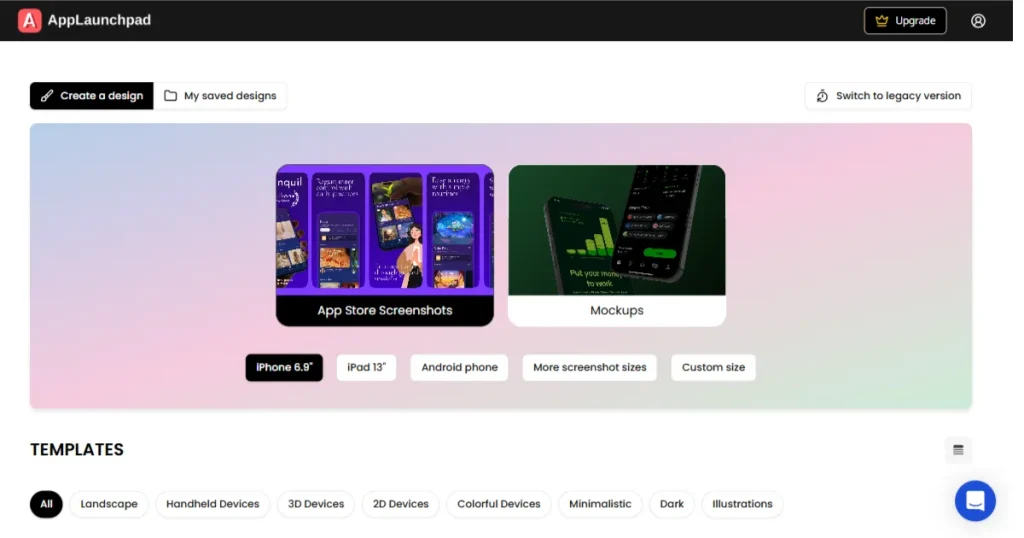
AppLaunchpad uses AI automation to clone screenshots from one device size to multiple others, including across different platforms. Instead of resizing and redesigning screenshots for every device manually, the tool automatically adapts a single design to the required screen sizes and requirements.
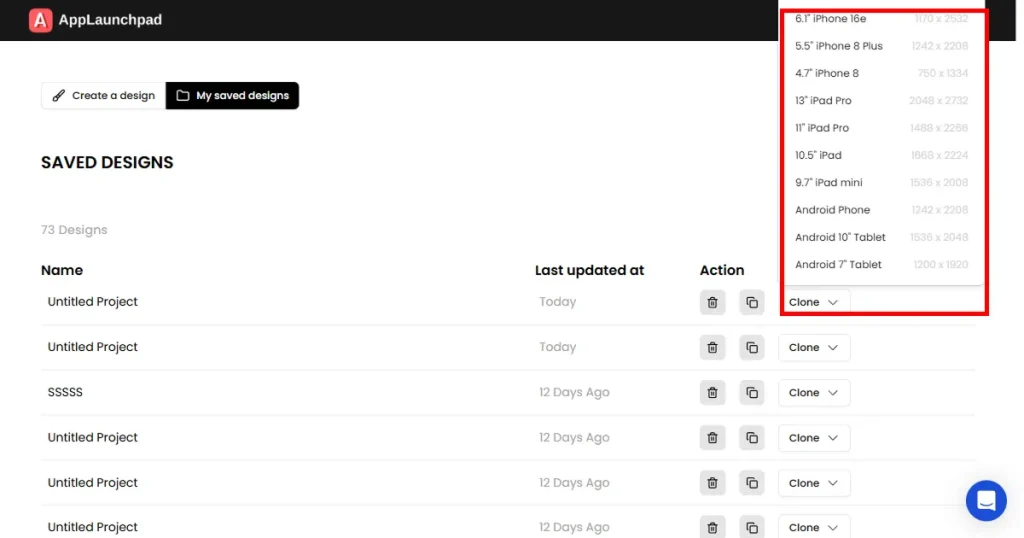
The clone feature helps teams reuse a single set of app screenshots across multiple devices and layouts without having to start from scratch.
You can simply go to the Projects page, open My saved designs, select a project, click the Clone dropdown, and choose the device you want to clone the app screenshots into.
This makes it much faster to create multiple screenshot variations. This is important when evaluating AppLaunchpad alternatives, as not all tools offer this level of automation.
AppScreens
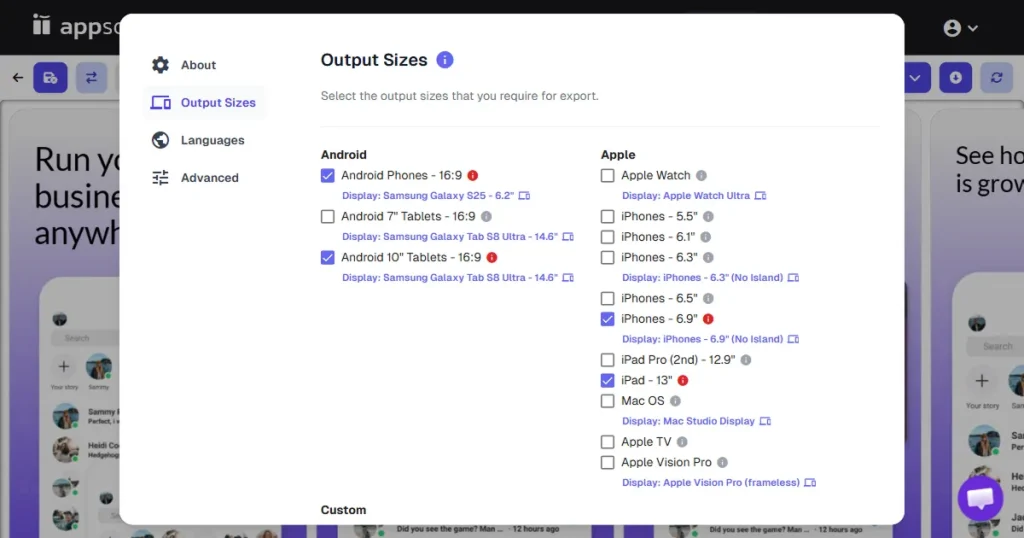
Instead of relying on automation, the customization process in Appscreens is mostly manual.
While it provides ready-made templates that can be edited and exported, users still need to manually set settings such as output sizes, text width, and layouts before downloading the screenshots.
Also, the app screenshot tool doesn’t support project cloning. Once you export a screenshot, you cannot reuse it, you have to manually re-edit and customize it for each screen size.
This is why many users start looking into AppsSreens alternatives, especially if they prefer a simpler workflow.
Verdict
In the AppLaunchpad vs AppScreens comparison, AppLaunchpad offers screenshot automation, including automatic resizing and smart cloning, reducing manual work.
AppScreens also offers features such as resizing and export format, but these must be manually set up. This is where AppLaunchpad vs Appscreens shows a major gap in workflow efficiency.
AppLaunchpad
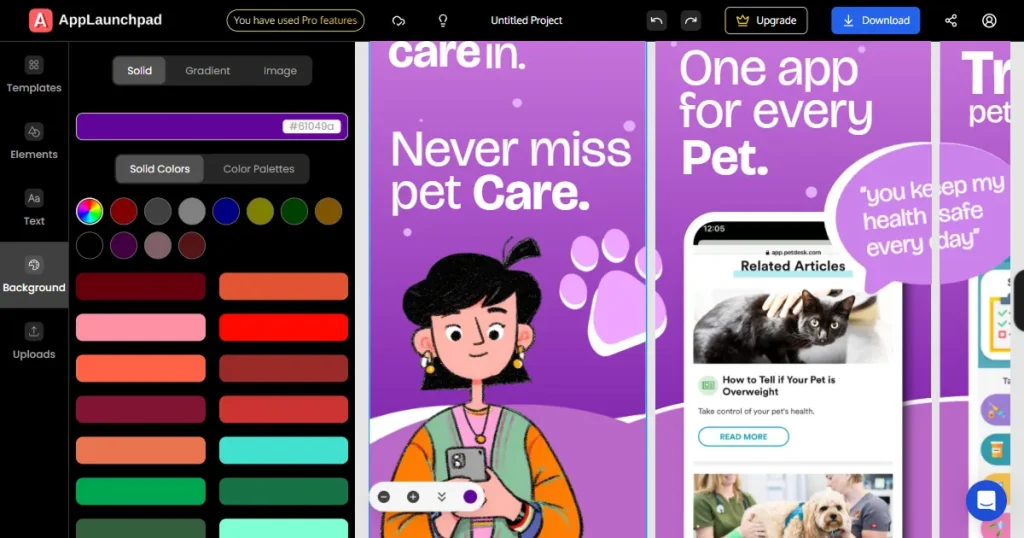
AppLaunchpad focuses on an intuitive UX that lets users create app store screenshots quickly, even without design skills.
It features an easy-to-use drag-and-drop interface and real-time previews, making it fast and effortless to create and update screenshots even for beginners.
AppScreens
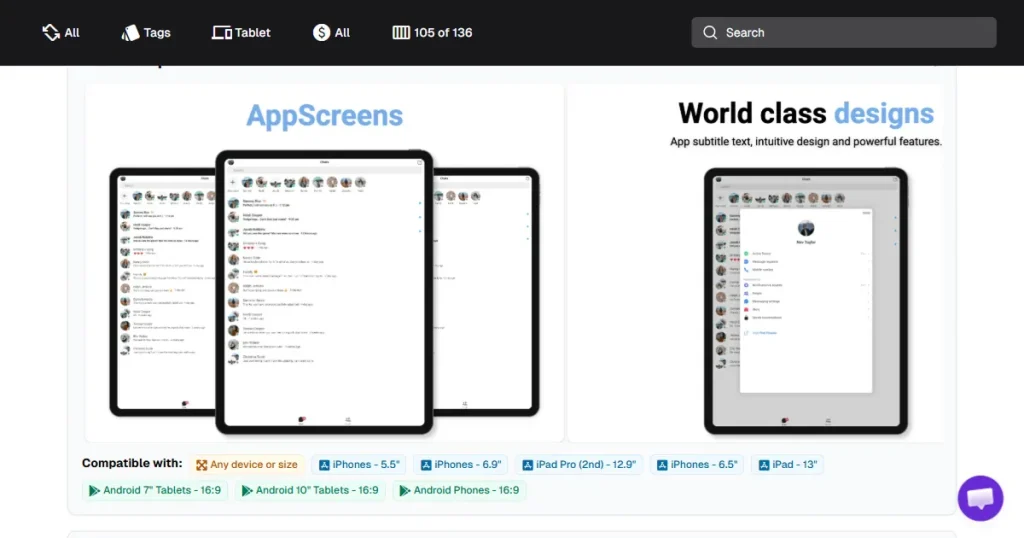
AppScreens relies more on a settings-based workflow, which can make editing slower and less intuitive for new users. Some usability limitations include:
Because of this, several AppScreens alternatives focus more on intuitive, visual editing.
Verdict
When looking at AppLaunchpad vs Appscreens, ease of use becomes an important factor. AppLaunchpad is easier to use because its drag-and-drop editor and UX intuitive interface make screenshot creation faster and simpler.
In comparison, AppScreens offers a settings-based workflow that users may find complex to learn and use, especially for beginners.
AppLaunchpad
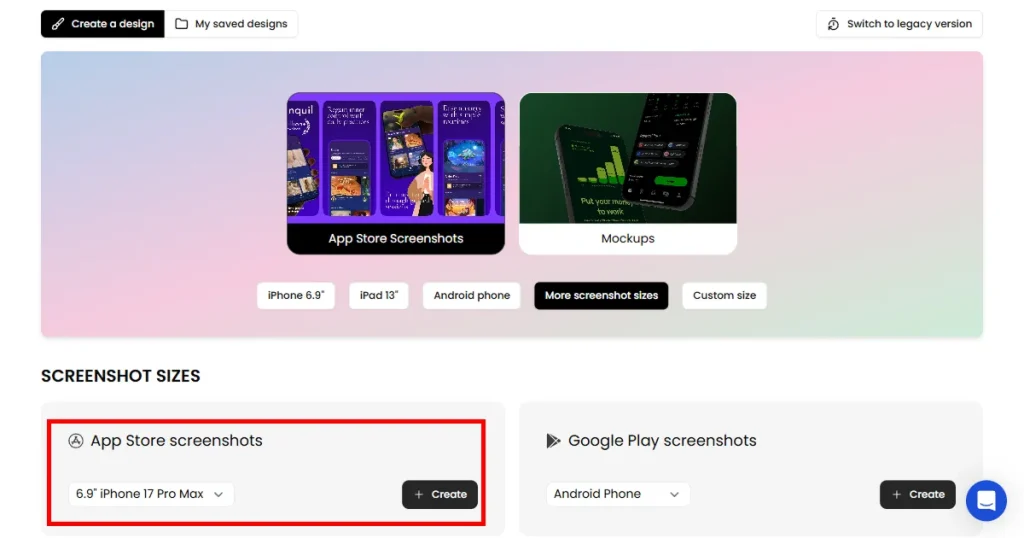
AppLaunchpad supports 150+ devices, including iPhones (from older to latest models, such as iPhone 17 Pro Max), iPads, Android phones, and Android tablets.
It also offers 80+ 3D device templates with 20 preset angles, allowing designers to present apps in highly engaging and realistic perspectives. These varied angles align with modern design trends and add a polished, professional look to screenshots.
This becomes even more noticeable when you compare it with other AppLaunchpad alternatives that require more setup.
AppScreens
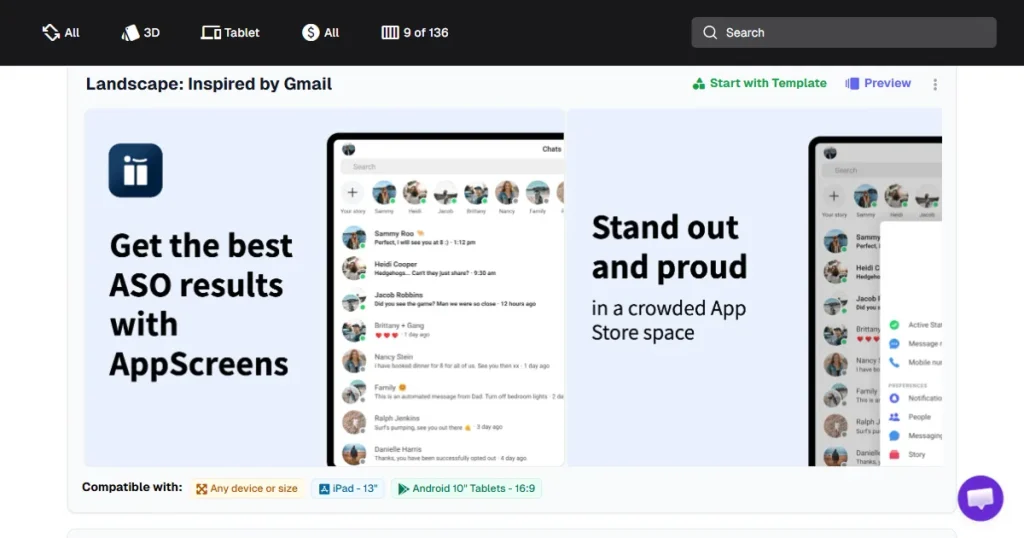
AppScreens supports many common devices, including iPhones, iPads, Android phones, Android tablets, Apple Watch, and Vision Pro. But the screenshot tool primarily supports preset device sizes, so customization beyond those formats is very limited.
The number of 3D device mockups is limited to 10+ variations at only 2 preset angles, offering very limited creative flexibility. This restricts users from experimenting with layout styles or matching current visual standards.
This limitation becomes clearer when compared with AppScreens alternatives.
Verdict
Looking deeper into AppLaunchpad vs Appscreens, customization is another key difference.
AppLaunchpad offers more 3D device templates and supports a larger range of devices and custom sizes, making it a more flexible choice.
In comparison, AppScreens offers fewer 3D device template options and relies mainly on preset device sizes and angles, limiting customization.
AppLaunchpad
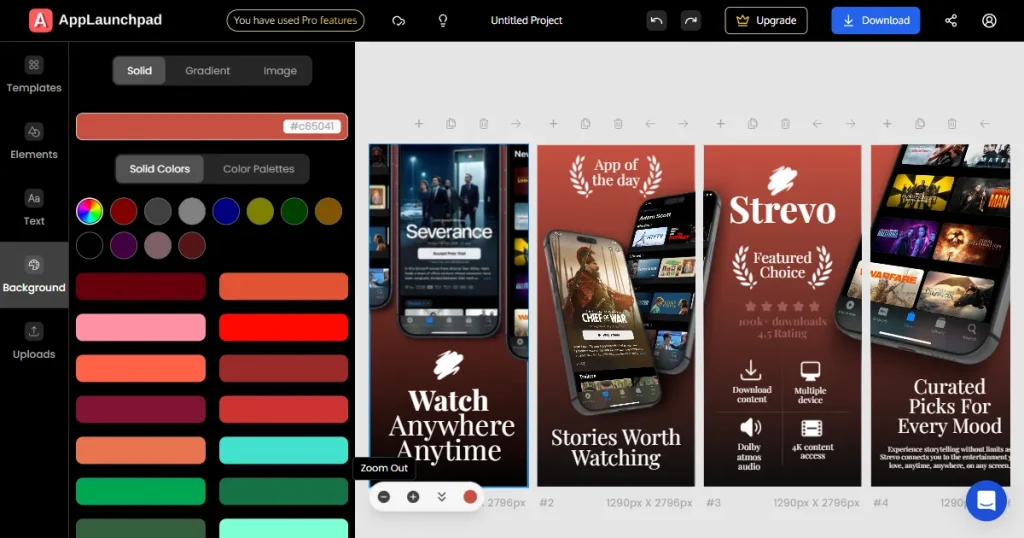
AppLaunchpad gives you complete control over your app screenshots. You can easily change text, fonts, colors, backgrounds, and layouts using its one-click drag-and-drop editor.
It also includes 10,000+ icons and SVGs, 150+ fonts, color palettes, gradients, and Unsplash image integration, helping you create screenshots without uploading external assets.
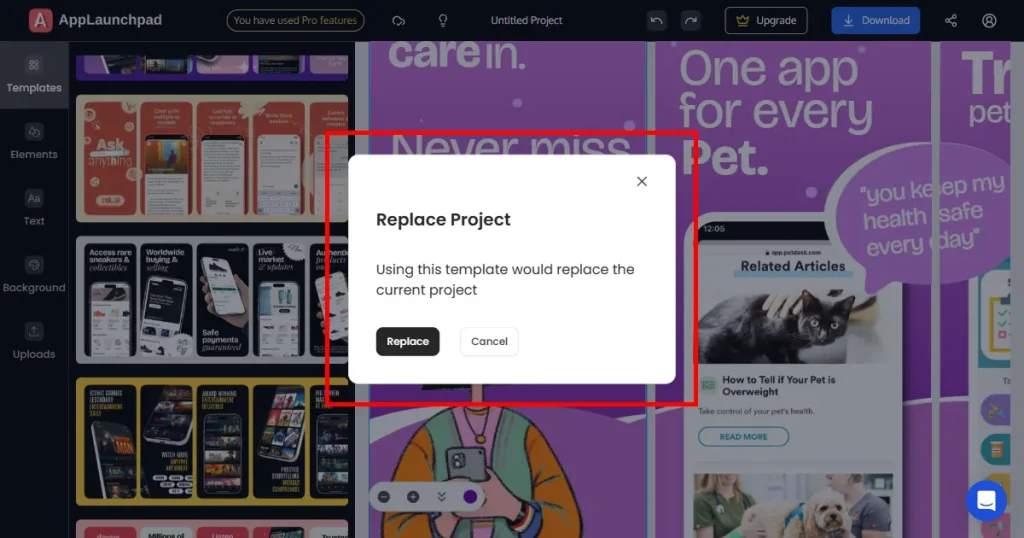
Trying different templates is also faster because you can replace them directly in the editor if you don’t like the current one, without going back and restarting the project.
AppScreens
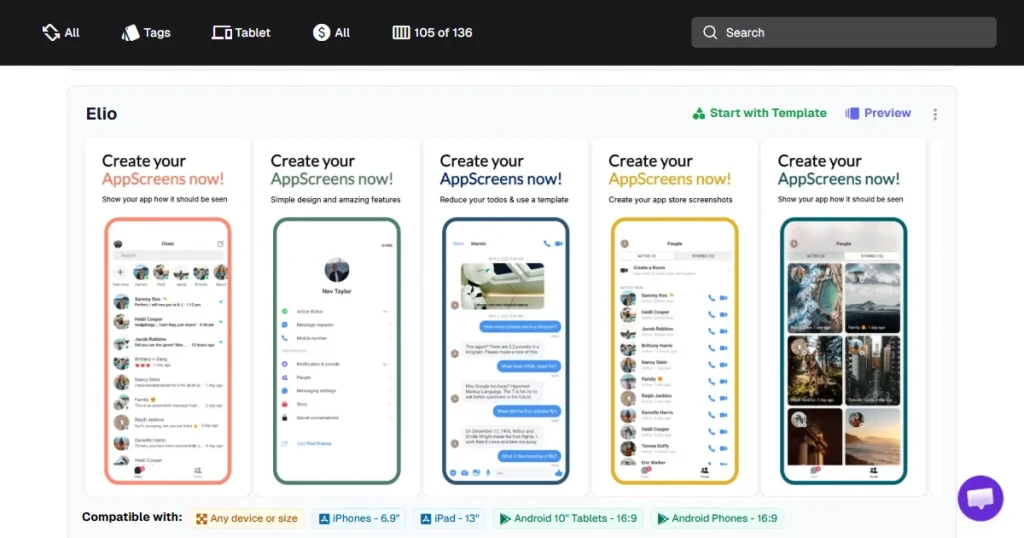
AppScreens allows users to edit templates and customize text, layouts, and backgrounds. But you need to set preset options for each project, such as output sizes, language settings, and export options.
Basic edits, such as adjusting text color or background, involve navigating multiple dropdowns and settings menus.
You can do that by following these steps.
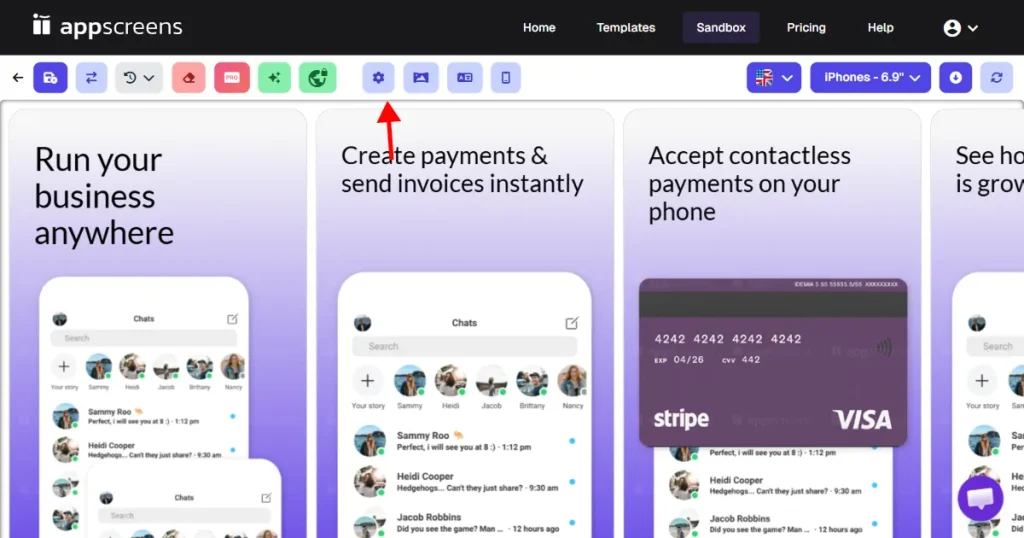
The example above highlights that AppScreens has a lengthy, setup-heavy design process due to its complex UX/UI, which slows users down.
Verdict
AppLaunchpad offers a simpler and faster customization workflow. You can edit, adjust, and design app screenshots directly in the editor with a one-click drag-and-drop interface, without going through multiple setup steps.
AppScreens also allows users to customize the templates, but the editing process can feel more setup-heavy.
AppLaunchpad
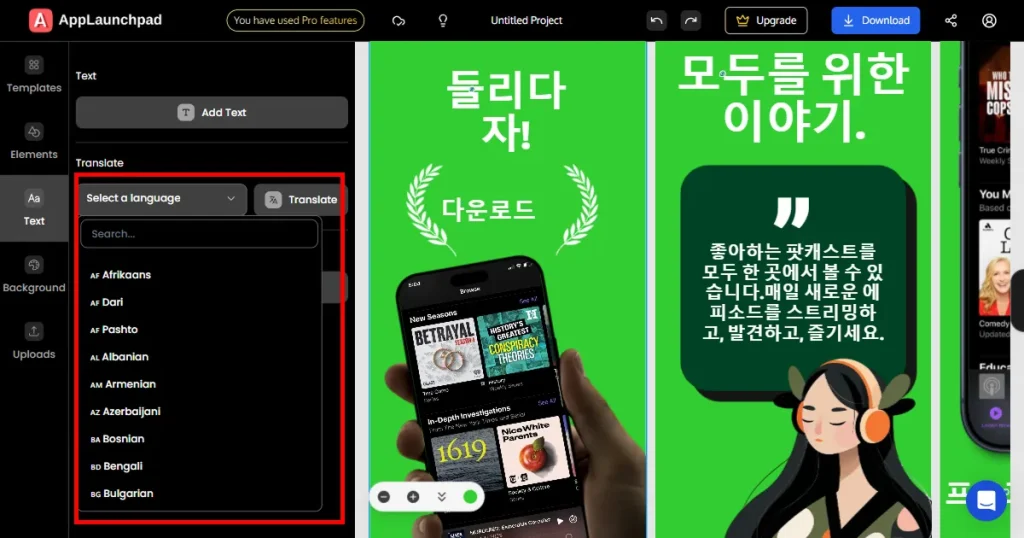
The localization feature in AppLaunchpad is very simple. You can translate your app screenshots with just one click.
Yes, it’s that easy.
All you need to do is select the preferred language from the dropdown and click on the Translate button, and it takes care of all the screenshots in one go. It also supports 80+ languages, so apps targeting global markets can generate different language versions effortlessly.
This is also one of the features missing in most of the AppLaunchpad alternatives.
AppScreens
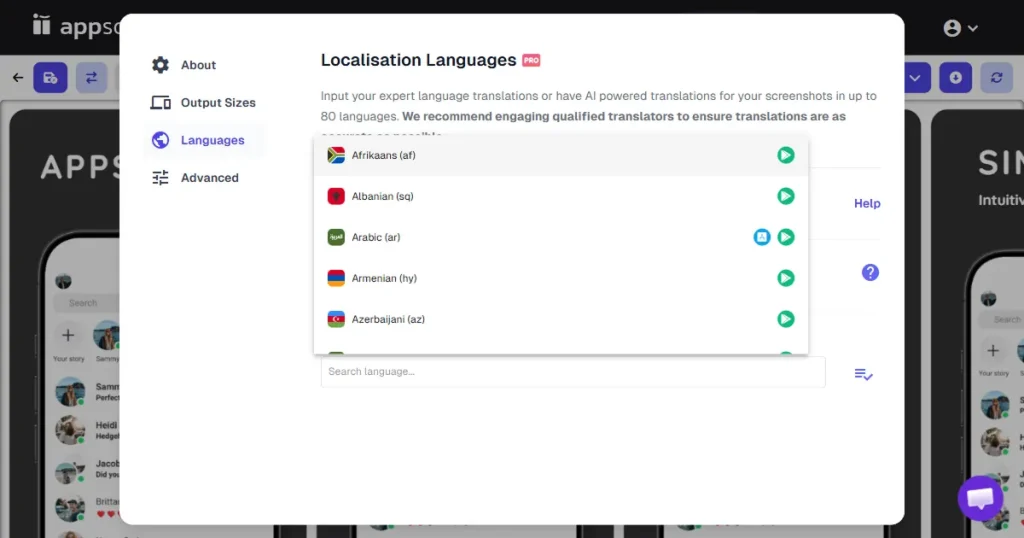
Similar to AppLaunchpad, AppScreens also supports 80+ languages, covering localization needs for most global app launches.
However, as discussed earlier, it requires a few more steps than AppLaunchpad. You need to set languages in separate settings before creating the localized app store screenshots, and there is no preview option.
In simple words, the app screenshot localization process is neither quick nor simple. This is one of the reasons why many users look for better AppScreens alternatives like AppLaunchpad for more flexible localization.
Verdict
Both AppLaunchpad and AppScreens support localization in 80+ languages, but AppLaunchpad makes the process much easier. Its one-click translation feature makes it faster to create localized app screenshots compared to AppScreens.
AppLaunchpad
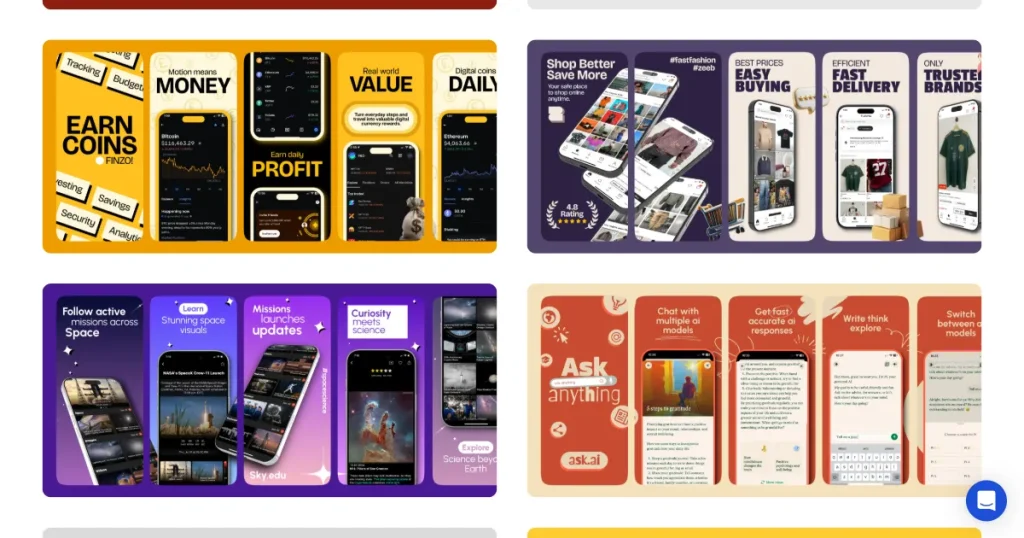
This section of AppLaunchpad vs Appscreens highlights differences in template variety.
AppLaunchpad offers 1000+ templates across 20+ popular app categories, including finance, fitness, shopping, travel, and many more. These category-based templates make it easier to find designs that match your app type. You just need to use a template, change screenshots, and export.
Template variety is another area where many AppLaunchpad alternatives fall short.
The tool also offers modern screenshot styles, such as panoramic screenshots, which are currently trending. In this style, multiple screenshots visually connect to form a single, continuous design, helping create a more engaging app store page.
AppScreens
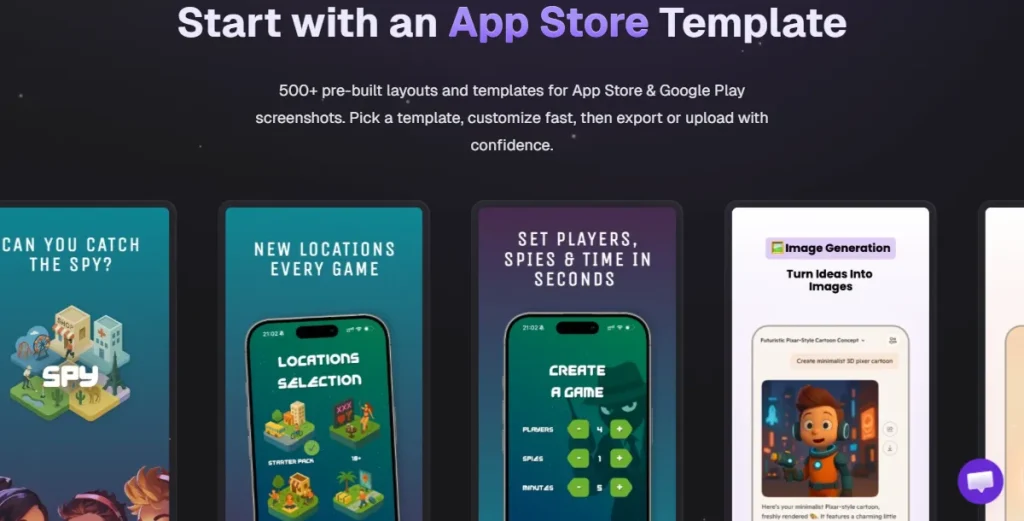
AppScreens offers 100+ templates, many inspired by real app designs, which could raise red flags for originality, especially in professional launches.
The template categories are also fewer in number, and many of the designs don’t align with current App Store trends. For instance, the platform offers very limited options for panoramic screenshot layouts, which many apps now use to create a connected look across screenshots
Verdict
AppLaunchpad offers a wider range of templates and better support for modern screenshot styles. With 1000+ templates across multiple categories, it’s easier to create engaging App Store visuals.
AppScreens also provides ready-made templates to get started, but its template library is smaller and offers fewer category options.
AppLaunchpad
AppLaunchpad provides a wide range of background options. It includes 400 hand-curated solid colors that are most suitable and commonly used by apps.
Users can also explore 10 color palette categories, such as warm, water, minimalistic, cool, bright, and nature, each with 30+ palette options.
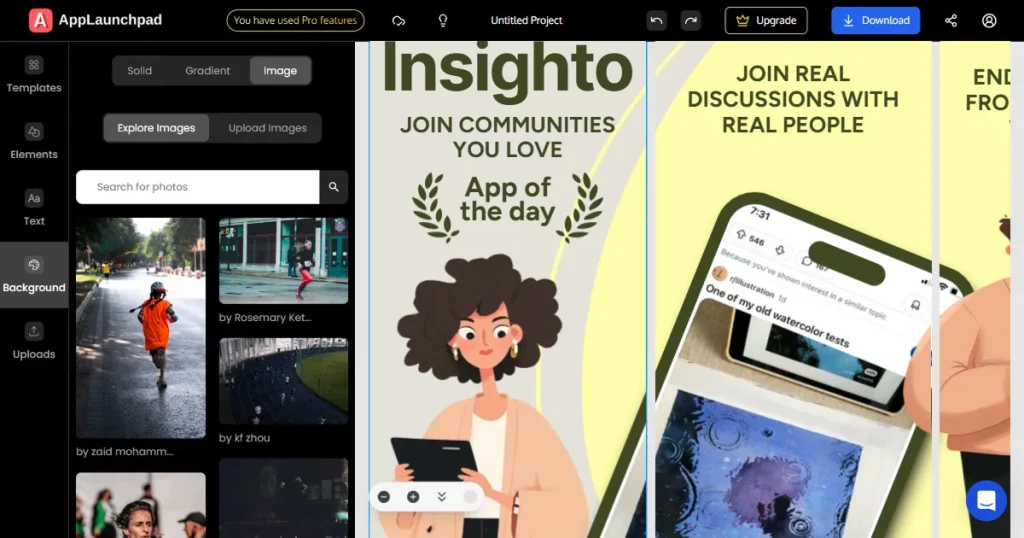
The platform also integrates with Unsplash, offering 7 million images, so you can add high-quality images as backgrounds.
AppScreens
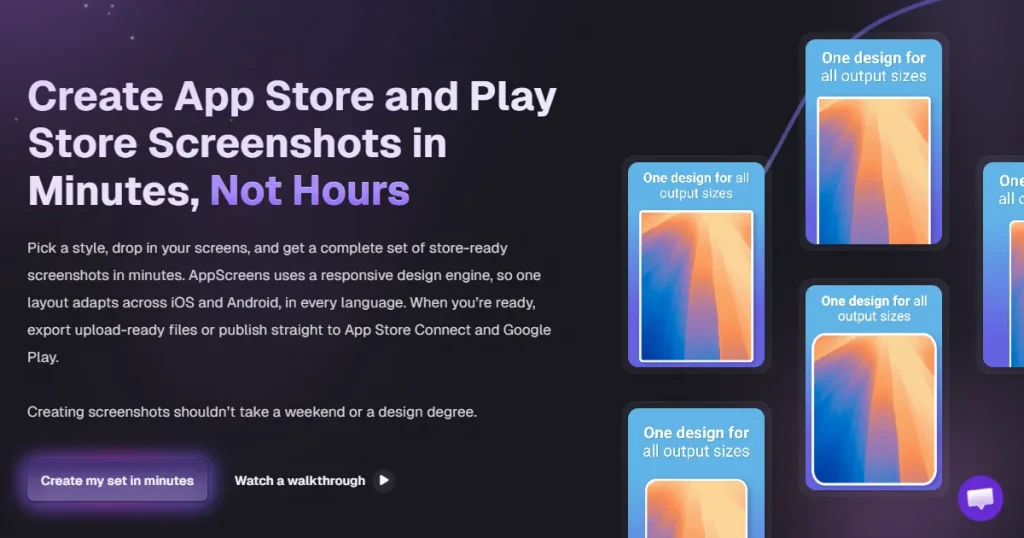
While AppScreens lets you customize backgrounds and add your own images, the background settings follow the same preset process we discussed earlier.
It also allows users to adjust gradients and panoramic backgrounds, but it does not offer predefined background color palettes or built-in image libraries.
Because of this, changing backgrounds can feel slightly more complicated, especially if you want to quickly test different styles.
Verdict
From a practical standpoint, AppLaunchpad vs Appscreens highlights differences in design flexibility.
AppLaunchpad provides more flexible and easier background customization, making it quicker to experiment with different background styles.
AppScreens also allows users to add custom backgrounds and images, but the process involves preset settings and manual adjustments, which can make A/B template testing with different backgrounds a bit slower.
AppLaunchpad
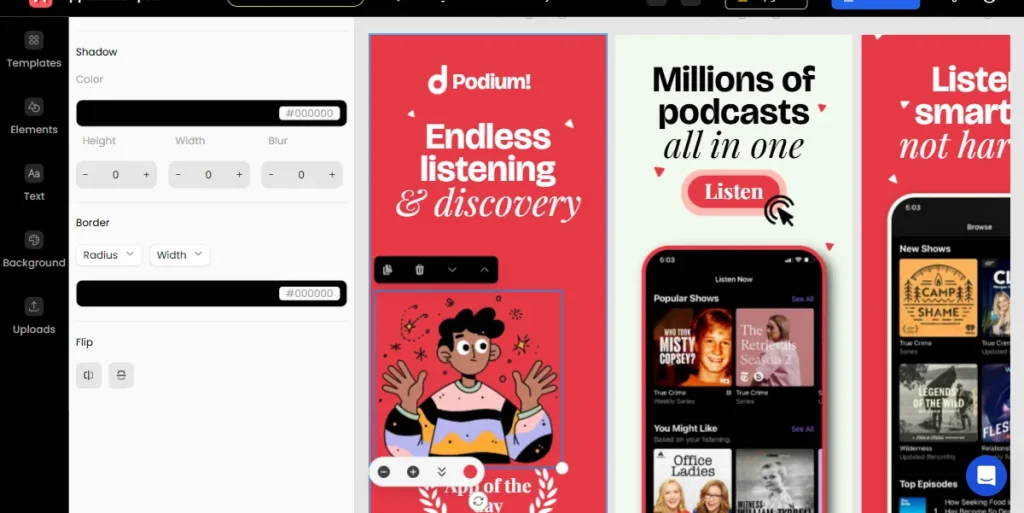
AppLaunchpad houses a large graphics library with 10,000+ design assets, including 40+ device frames, 25+ image categories, and 8 element categories.
Each category contains many options, with 500+ graphics available across icons, illustrations, shapes, arrows, blobs, stars, badges, and lifestyle images.
These graphics help make screenshots more engaging.
For example, arrows and icons can highlight key features, while illustrations and lifestyle images help tell a visual story. This makes it easier for users to quickly understand what the app does when they view the store page.
AppScreens
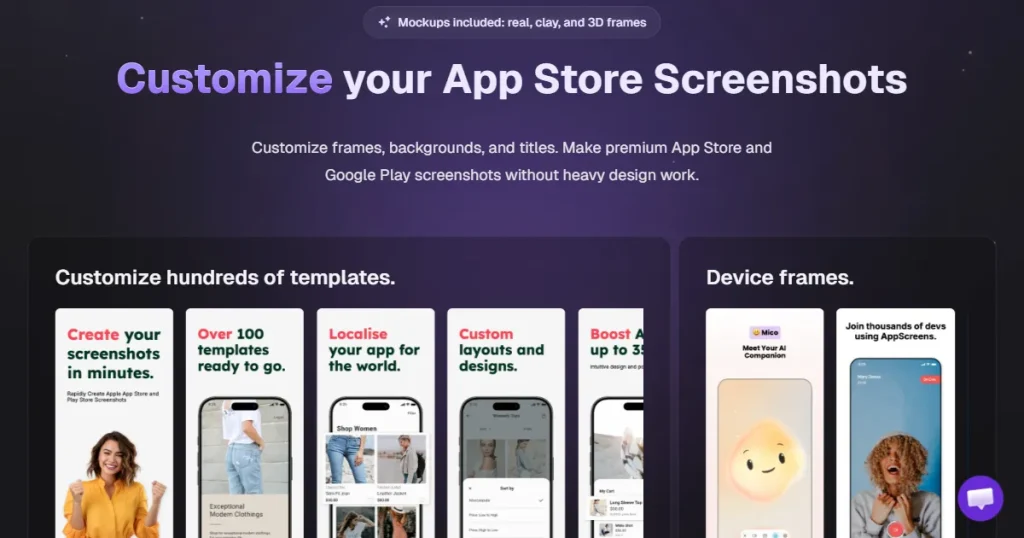
AppScreens does not have a built-in graphics collection. If you want to add icons, illustrations, or other visual and UI elements, you need to create them yourself or upload your own assets.
This requires extra effort, especially for teams without design resources.
Verdict
AppLaunchpad is the better choice for graphics. It includes a large built-in library of design assets, while AppScreens requires users to upload or create their own graphics.
This can require extra effort, especially for teams without design resources. In real use cases, AppLaunchpad vs Appscreens performs differently depending on available resources.
AppLaunchpad
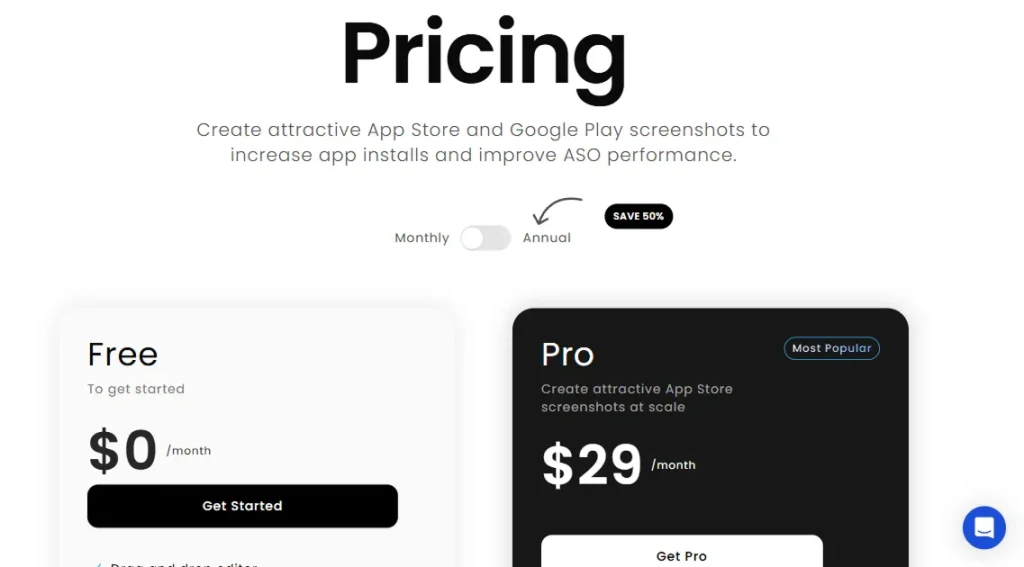
AppLaunchpad operates on a freemium pricing model (Paid Pro plan)
Only Premium devices are locked behind paid plans.
AppScreens
Verdict
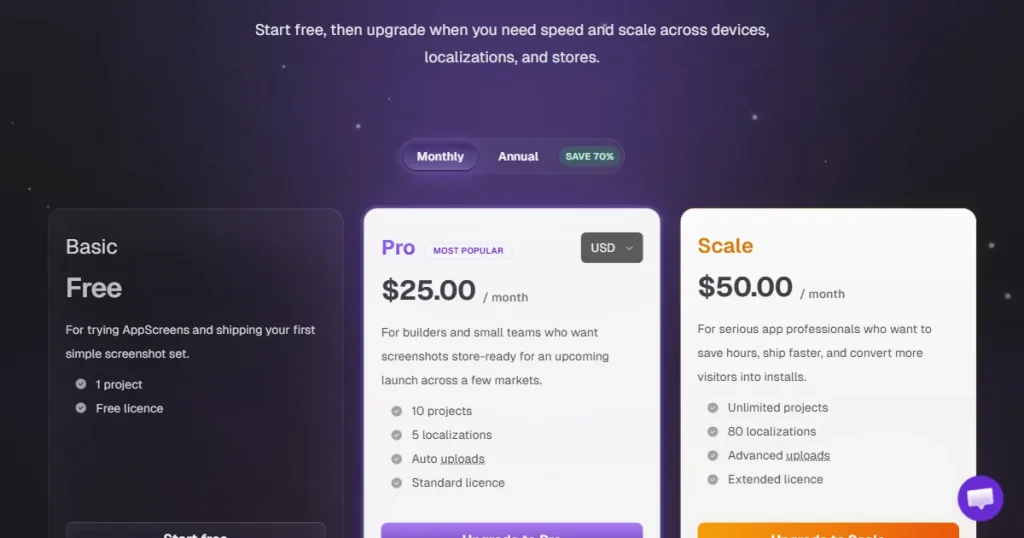
AppLaunchpad is more cost-effective overall. Its free plan includes more features with fewer restrictions, while the AppScreens free plan limits several options like templates, device frames, output sizes, and localization.
For paid plans, AppLaunchpad starts at $19 per month for new users compared to $25 per month for AppScreens, making it a better value for the features offered.
That brings us to the end of our AppLaunchpad vs AppScreens guide.
Both AppLaunchpad and AppScreens help developers create App Store screenshots, but they work in different ways.
AppLaunchpad focuses on speed and simplicity. With features like AI resizing, one-click localization, built-in graphics, and category-based templates, it makes screenshot creation faster and easier.
It works especially well for indie developers, small teams, and marketers who want an easy-to-use screenshot tool without needing design tools. The pricing is also more affordable, starting at $19 per month, while still offering a free plan with access to a wide selection of templates and visual assets.
AppScreens can still work if you prefer using templates and don’t mind setting up options manually. AppScreens is suitable for people who need specific device support, like Vision Pro or Huawei AppGallery.
However, if you want a faster workflow and more design flexibility, AppLaunchpad is the better choice.
Between AppLaunchpad vs AppScreens, AppLaunchpad is the best tool for creating App Store screenshots. It offers 1000+ templates, AI resizing, one-click localization, built-in graphics, and an easy drag-and-drop editor, making it simple to create professional app screenshots quickly.
Yes. Well-designed screenshots can improve app store conversion rates by quickly showing users what the app does and why it is useful.
Most screenshot tools support localization. They allow users to translate screenshot text and generate visuals for different countries, helping apps target global users without redesigning screenshots from scratch.
Most AppLaunchpad alternatives offer basic screenshot creation, but they usually lack advanced automation and large template libraries.
If you’re looking for AppScreens alternatives, AppLaunchpad is a strong option. It offers a simpler interface, faster workflow, and built-in templates, making it easier to create app screenshots without manual setup.