App Store Connect Guidelines for App Developers and…
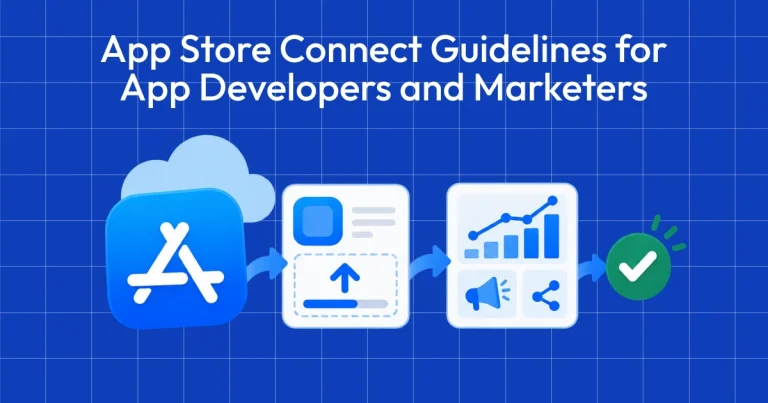
App Store Connect is the platform that lets you upload your app and manage all updates, including metadata, revenue details, […]
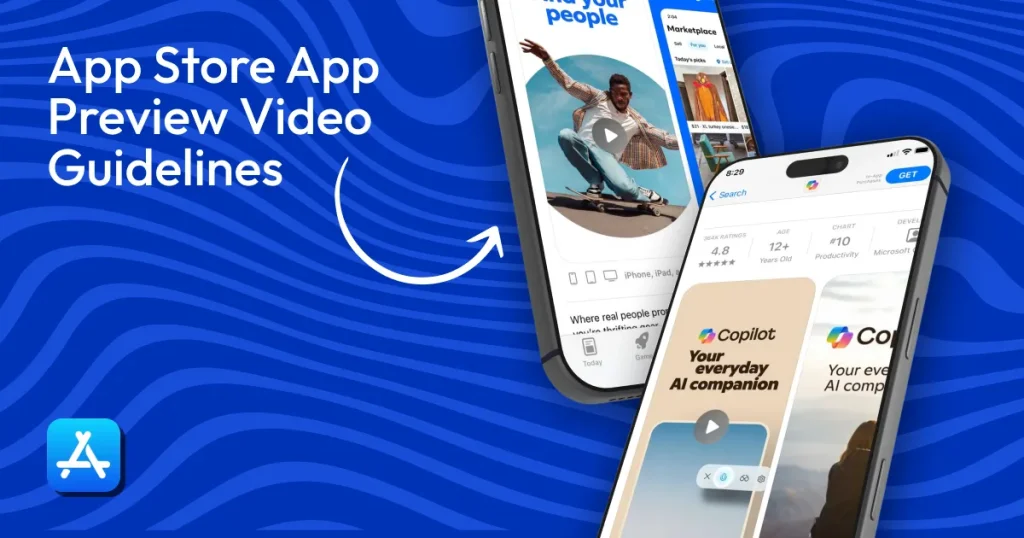
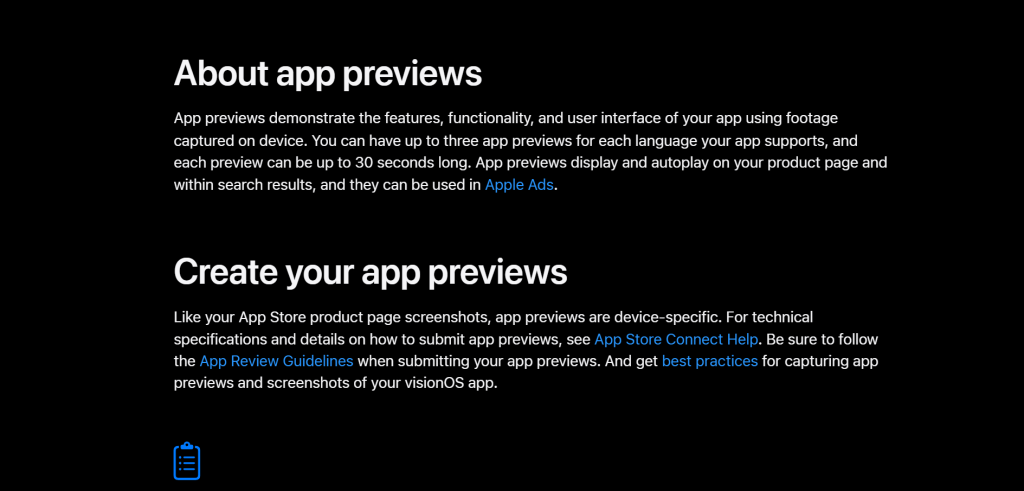
An App Store preview video is a short 15–30-second clip that shows your app in action and can increase installs by helping users quickly understand how the app works.
This guide covers official Apple App Store preview video guidelines and key App preview video requirements, including Apple’s rules on real-device-recorded footage, no promotional scenes, and strict format requirements.
You’ll also learn top App preview video best practices, such as using short text overlays, showing real UI, and keeping visuals clean and focused.
This guide breaks down everything from video specs to design, helping you create a compliant App Store preview video that improves conversions and App Store rankings.
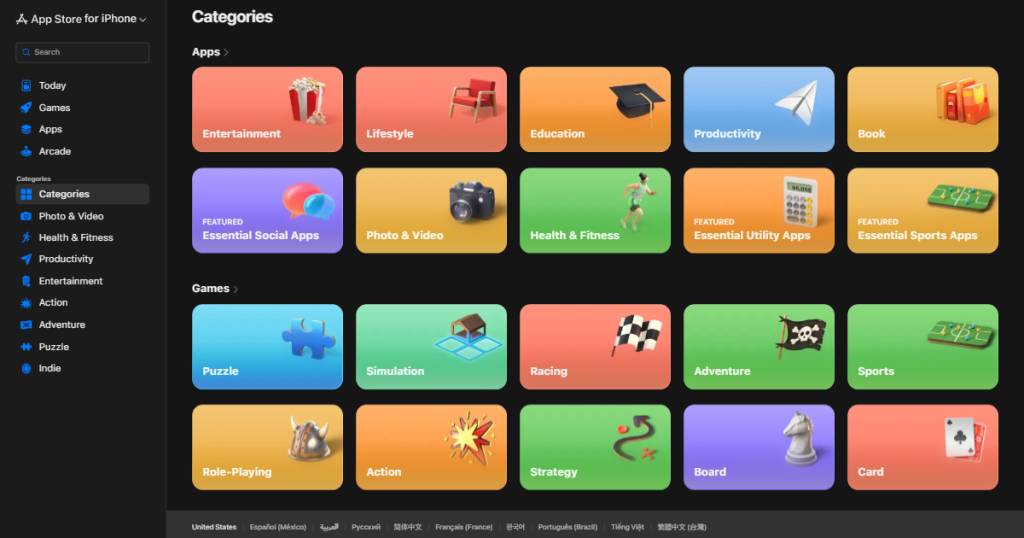
An app preview video is a short clip that showcases your mobile app’s features, functionality, and user interface before users decide to download.
Each app preview video is 15-30 seconds long and can be watched right on your App Store page. It is typically displayed as the first visual asset on your App Store product page, followed by your app screenshots.
Apart from convincing more users to download your app, a good app preview video also helps with App Store Optimization (ASO). These videos keep users on your app page longer, which signals higher user engagement to Apple’s ranking system in search results.
Additionally, users who install your app after watching the app preview videos know what to expect, so they are less likely to uninstall the app. This also helps your ASO, as better user retention can improve your app’s ranking and conversions.
You can create a great-looking app store preview video, but if it doesn’t meet Apple’s app preview video requirements, it may get rejected during review. Apple has enforced strict App Store preview video guidelines, and your video must meet them.
Let’s find out what these app preview video requirements are.
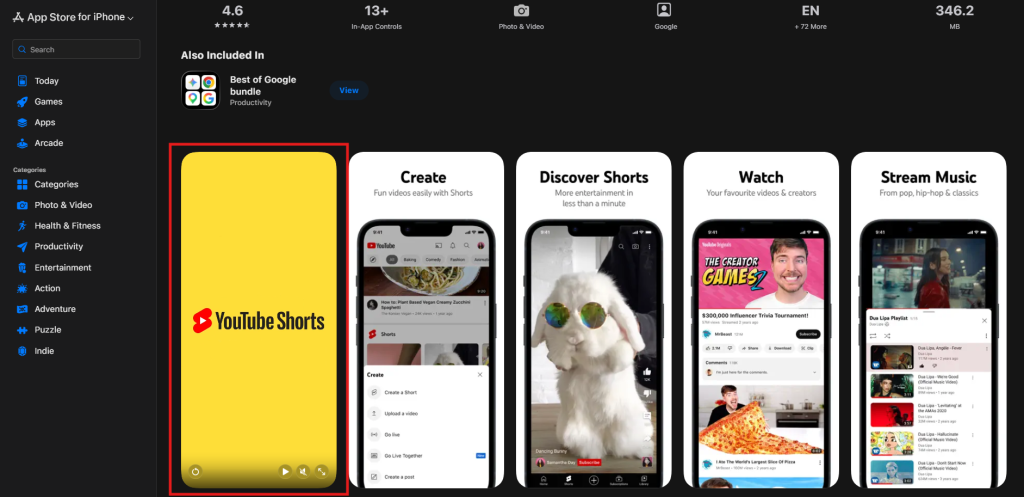
When it comes to the content, your app preview video should include only the real in-app screen recordings captured directly from the device. Do not include people, hands using the device, or any fake or recreated scenes.
Furthermore, avoid including any violent, adult, objectionable, misleading, or promotional content, as these violate Apple’s App Store preview video guidelines.
Focus on showcasing how the app works or how the gameplay looks, rather than showing the features. Only display in-app content, and do not include prices, discounts, or any calls to action, as preview videos are meant for experience, not promotion.
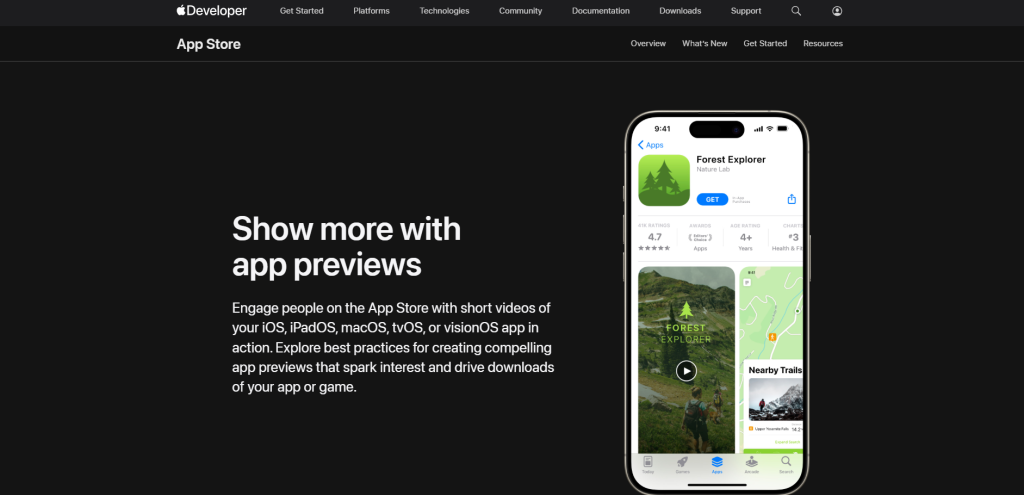
According to App Store preview video guidelines, your App Store preview video must be in MP4 or .mov format with H.264 or HEVC codecs. These are the only accepted formats, and any other format or codec may lead to rejection during App Store review.
The video must match the target device’s resolution exactly. For example, if the target device is an iPhone 17 Pro Max, the resolution should be 1290 × 2796 (portrait) or 2796 × 1290 (landscape), depending on your app’s orientation.
Also, the file size of your App Store preview video must not exceed 500 MB. App Store also requires you to add localized videos, and you can upload up to 3 App Store preview videos per app localization.
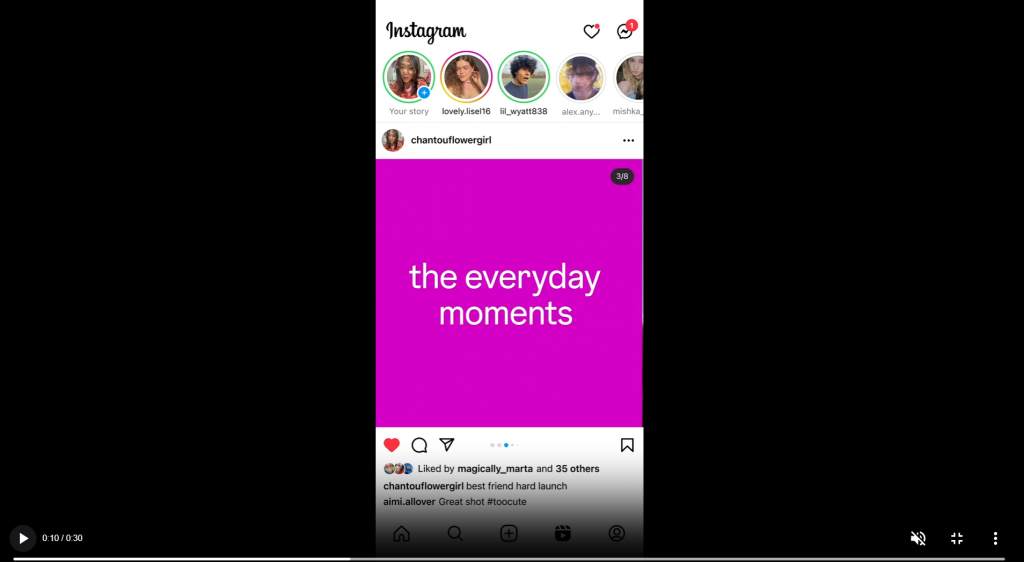
App Store previews are viewed quickly on small screens, so small text or cluttered designs can be missed.
Use zoom-ins and subtle motion to guide attention. Pan movements, tap highlights, and micro-animations help direct focus to primary actions and key screens.
Your iOS App Store preview video must stay visually consistent with your app. You can do this by using your app’s primary brand colors, the same fonts used in your UI, and a tone that matches your app’s style, whether it’s minimal, playful, or professional.
Also, every App Store preview video plays by default with the sound off. Hence, adding text overlays is essential. Keep them short, around 2-3 words, and place them in a way they don’t cover key UI elements.
Audio is optional in App Store preview videos, but if used, it must be clear and production-quality.
Use stereo sound with high-quality settings, such as AAC at 256 kbps and a sample rate of 44.1 kHz or 48 kHz. If exporting in formats like ProRes, use PCM audio for compatibility, but ensure your audio plays correctly on both left and right channels.
Use background music that supports the visuals, add subtle sound effects for interactions, and ensure voiceovers are clean and noise-free
Ensure your preview video complies with App Store preview video guidelines and licensing requirements. Use only content you’re allowed to use, including properly licensed visuals and sounds.
Additionally, make sure you have the rights for any music, trademarks, and intellectual property featured in your video. By adhering to these App Store preview video guidelines, you protect yourself from potential legal issues.
Upload your preview video in the App Preview section of App Store Connect. Here, you need to add videos separately for each device and localization, so make sure you place them in the correct slots.
You can also upload different App Store preview videos for different devices. For example, one version is for a high-end iPhone, such as the iPhone 17 Pro Max, to highlight advanced UI features.
Another one for smaller devices, like older or compact iPhones, such as iPhone SE (2nd and 3rd generation) or iPhone 8, where the layout looks different.
Once published, your App Store preview video appears first in your App Store gallery, before your app store screenshots.
When creating an app preview video, you need to follow specific App Store preview video guidelines. And if you don’t fulfill all of the app preview video requirements, your App Store preview video may get rejected.
| Paramater | Details |
| Maximum file size | 500 MB |
| Video length | 15-30 seconds |
| Accepted formats | .mov, .mp4, .m4v (H.264 or HEVC) |
| Frame rate | Up to 30 fps |
| Audio format | AAC (stereo), 256 kbps, 44.1 kHz or 48 kHz |
| Poster frame | Any frame can be selected as the thumbnail |
| Placement | Appears as the first visual in your App Store gallery |
| Upload limit | Up to 3 active preview videos |
| Orientation | Must match your app (portrait or landscape) |
| Recording | Must be real in-app footage captured on the device |
| Autoplay | Plays automatically on mute |
| Target bit rate | Around 10-12 Mbps |
As mentioned earlier, a well-made App Store preview video can directly improve your install rate. When users can see the app in action, they understand it faster and are more likely to download it than scroll past.
Clear visuals also reduce hesitation, since users don’t have to guess how the app works. In just a few seconds, your App Store preview can communicate your app’s core value in a way app store screenshots often can’t.
Your App Store preview videos also support your ASO performance, which we also briefly discussed above. When users watch your video, they spend more time on your product page, which signals your app’s quality to Apple’s algorithm.
Higher conversion rates lead to more downloads, and downloads are one of the main factors that influence ranking on the App Store.
A complete app store listing that includes App Store preview videos, app screenshots, and promo text is more likely to be prioritized by Apple App Store than one that feels incomplete.
When you’re creating your app store preview videos, it is important to understand that what works for one audience may not work for another. If your video shows a map of New York, it may not feel relevant to users in Japan.
Adapting visuals, like maps or user context, makes your app feel more familiar. Every App Store preview video should also have text overlays in the local language. Apple lets you upload different videos for each locale, making this easier to manage.
Localized App Store preview videos can increase conversion rates by 20-30% in non-English-speaking markets.
First, define the purpose of your video and identify your target audience. Understanding who will watch the video helps you tailor your message. Next, outline the key features and content you want to showcase.
This ensures you highlight the most important aspects of your app. Finally, develop a storyboard or script to structure your narrative. This will keep your video organized and focused, making it easier for viewers to follow along.
Start by capturing footage of your app. Set up your device in a well-lit area for clear visibility. Position it correctly for the best angle. Use screen recording software to document how users interact with your app.
Focus on showcasing gameplay and core functionalities. Avoid including cutscenes or unnecessary visuals that might distract from the app’s main features.
Start by importing your captured footage into a video editing software. You can use free tools like QuickTime, iMovie, or Final Cut Pro X.
Trim your clips to 15-30 seconds to align with the app preview video requirements. Arrange the clips to create a cohesive flow that highlights your app’s key features.
Incorporate graphics, such as touch hotspots, to show users how to interact with the app. Use smooth transitions, such as dissolves or fades, that match the app’s functionality. Finally, ensure the resolution meets the native app specifications for the best visual quality.
To create an engaging app preview video, start by incorporating audio. Choose a consistent musical score that matches your app’s tone. This helps set the mood and captures the viewer’s interest. Next, add sound effects that are relevant to the in-app actions you showcase.
These effects enhance the user experience and make your app more relatable. A clear voiceover can improve understanding and engagement.
Use text overlays to enhance clarity. Since videos autoplay muted, adding copy helps viewers better understand your app. Ensure the text is clear and concise, and avoid seasonal references to keep your content relevant over time.
It’s also important to disclose any necessary in-app purchases or subscriptions, so users know what to expect.
After creating your app preview video, it’s important to review and finalize it. Start by previewing the video to ensure it flows well and adheres to the guidelines. Pay attention to pacing, and make adjustments if necessary.
Check the audio balance to ensure clarity. Finally, confirm that all content (including App Screenshots) complies with App Store preview video guidelines before proceeding to submission.
Export it in the required format. Ensure the file size does not exceed 500MB and the bit rate is between 10 and 12 Mbps. Next, upload the video to App Store Connect, following all app preview requirements. Finally, set the default poster frame for your video as needed.
Once your app preview video is live, it’s important to track its performance. Pay attention to user engagement metrics. These metrics will help you understand how well your video resonates with viewers. Gather user feedback to identify areas for improvement.
Use this information to enhance your future app preview videos. By continuously monitoring performance, you can create more effective content that better meets user needs.
Creating an App Store preview video is not a one-time task. The first version is rarely the best-performing one.
A/B testing different video variants can help you understand what actually works. You can test changes like the opening scene, text overlays, pacing, or even the order of features shown. Small changes often lead to noticeable differences in conversion.
To measure impact, track how your App Store preview videos affect your click-to-install rate. If users are watching but not downloading, the message may not be clear or strong enough. If they drop off early, your first few seconds need improvement.
Use this data to iterate by replacing weak sections, shortening slow parts, or showing your key feature earlier in the video. Over time, these updates can significantly improve your overall app’s performance.
You don’t have to rely on a single tool, but you can use a mix of tools for editing, layout, and assets required to create your app store preview videos.
Here’s a simple breakdown by category.
Video Editing Tools
These help you turn raw screen recordings into a polished App Store preview video.
These tools let you trim clips, add motion, include text overlays, and export in the correct format.
Screenshot and Preview Generators
These tools help you create layouts, mockups, and device-specific visuals for your App Store preview videos.
Asset Libraries and Templates
These help you speed up design and keep your App Store preview consistent.
Templates are especially helpful if you don’t have a design team. They give structure without starting from scratch.
Before you upload your App Store preview video, take a few minutes to review everything.
Make sure your video follows Apple’s App Store preview video guidelines, including format, length, and resolution. Double-check that your file exports correctly and plays without glitches or audio issues.
Also, ensure consistency across devices and localizations. Your messaging, visuals, and branding should feel aligned, even if the layouts differ slightly for different screens or regions. A quick final check can save you from rejection or poor performance after launch.
Between 15 and 30 seconds, with 15–20 seconds being the sweet spot for most apps to hold user attention.
Yes, the Apple App Store preview video guidelines allow you to add voiceover or background music to your app preview videos, but do not rely on them, since videos autoplay with the sound off. Use text overlays to convey your core message.
Yes, you should upload dedicated videos for iPhone, iPad, and Mac to showcase device-specific features and optimize conversion.
Update whenever you release a major UI redesign, a significant new feature, or if conversion rates decline.
No, they are optional, but listings with videos typically convert better than those without.