Google Play Store Optimization: Complete Guide for…
Google Play Store Optimization is the process of optimizing your app listing to improve its visibility on the Google Play […]
Published May 8, 2026
Learn Google Play preview video requirements, best practices, and examples to create high-converting app videos that boost installs and engagement.
19 min

A Google Play Store preview video is a short YouTube-hosted video embedded in your Play Store listing that shows your app in action. It helps increase conversions by making it easier for users to quickly understand what your app does.
Today, in this blog, we will cover Google Play Store preview video guidelines and key Google Play Store preview video requirements, like using a YouTube link, keeping videos under 30 seconds, and showing real app UI.
You’ll also learn Google Play Store preview video best practices, such as adding captions for mute playback, highlighting value early, and focusing on the real in-app experience.
It gives you a clear, practical way to create videos that meet Play Store rules and drive more installs.
A preview video is essentially a YouTube video added to your Google Play Store app listing. It appears at the top, just before the Play Store screenshots, and shows how your app actually works.
Instead of reading the app description or screenshots, users can quickly understand your app’s interface, features, and overall experience by watching the preview video.
| Google Play Store preview video requirements | Details |
| Platform | YouTube videos only (no direct uploads) |
| Video type | Public or unlisted (not private videos) |
| Ads | Must be disabled throughout the preview video |
| Age restriction | Not allowed in the preview video |
| Number of videos | Normally, one video per app listing |
| Duration | Up to 30 seconds (muted by default) |
| Orientation | Landscape or portrait orientation |
| Required Resolution | Minimum 1080p |
| Feature graphic | Required (1024 × 500 px) |
| Content rule | Show at least 80% real app experience |
| Localization | Recommended for global reach |
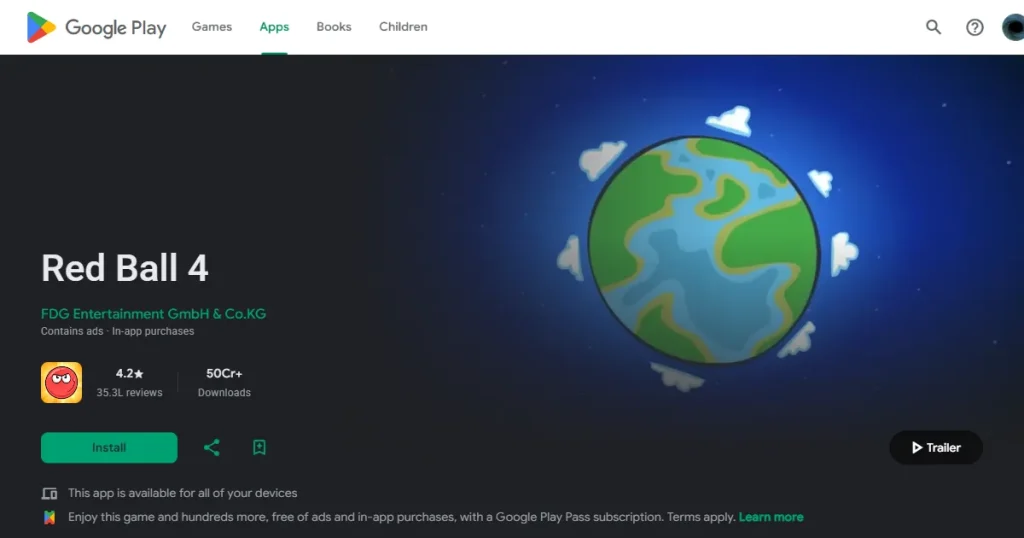
A preview video is a YouTube video added to your Play Store listing that shows how your app actually works.
It sits at the top of the page, above your screenshots, and gives users a quick way to understand your app interface and core features. Instead of trying to explain your app, you’re just showing it in action. That’s the main difference.
Here is exactly what a preview video does for your listing:
If your app needs even a little bit of explanation, the answer is yes.
For games, productivity apps, or anything with multiple features, a video makes it easier for users to understand what they’re getting.
A well-executed video removes confusion and builds immediate confidence and trust, which naturally spikes your install conversion rates. If your app is extremely simple and obvious, like a basic calculator or flashlight app, a video won’t add much value.
Also worth noting, a bad video can do more harm than good. If it feels rushed, confusing, or misleading, users will notice it. In that case, clean screenshots are the better option.
Preview videos show exactly how the app works, which helps ASO. Instead of relying on polished screenshots or app marketing copy, users see the real app interface and flow. That makes it easier to judge whether the app is worth trying.
It also speeds things up. People don’t want to read through long app descriptions, they want a quick sense of what they’re getting. A good Google Play Store preview video does that in a few seconds.
Indirectly, yes.
If your Google Play Store video improves user engagement and conversion rates, it signals that users find your app useful, which in turn can lead to better overall performance in the Play Store. Preview videos are also a key ranking factor on the Google Play Store.
Plus, having a strong, high-quality Google Play Store preview video improves your chances of getting featured in premium app discovery placements.
The video is positioned at the absolute top of your Play Store listing, making it physically impossible for a user to miss.
In many cases, they autoplay on mute, which draws attention immediately. Before a user scrolls or reads anything, they’ve already seen part of your app in action.
That first few seconds often decides whether they stay or move on.
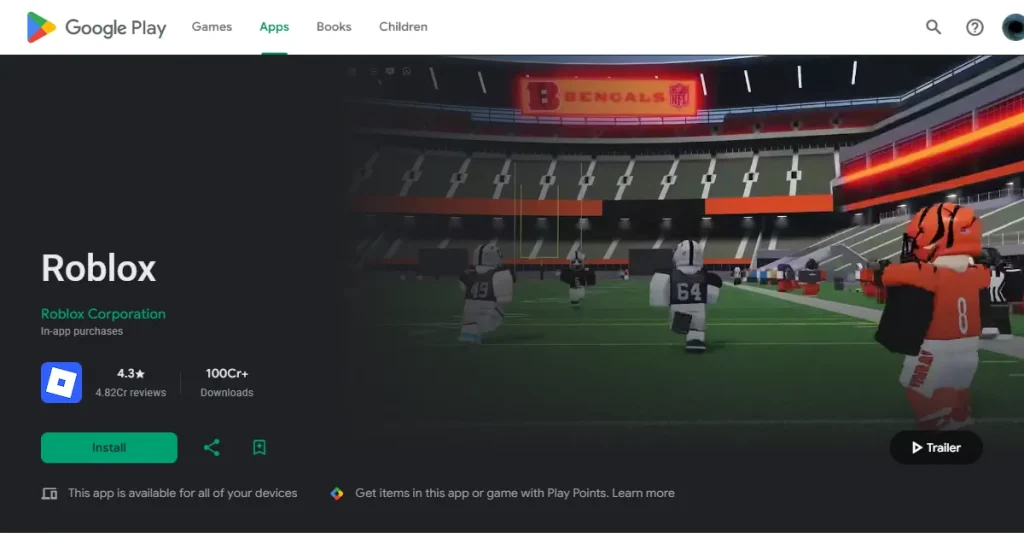
Preview videos aren’t limited to your app page. They can show up in search results, recommendations, and browsing sections, especially for gaming apps.
Depending on the device and connection, it often autoplays on mute the moment it appears on the screen.
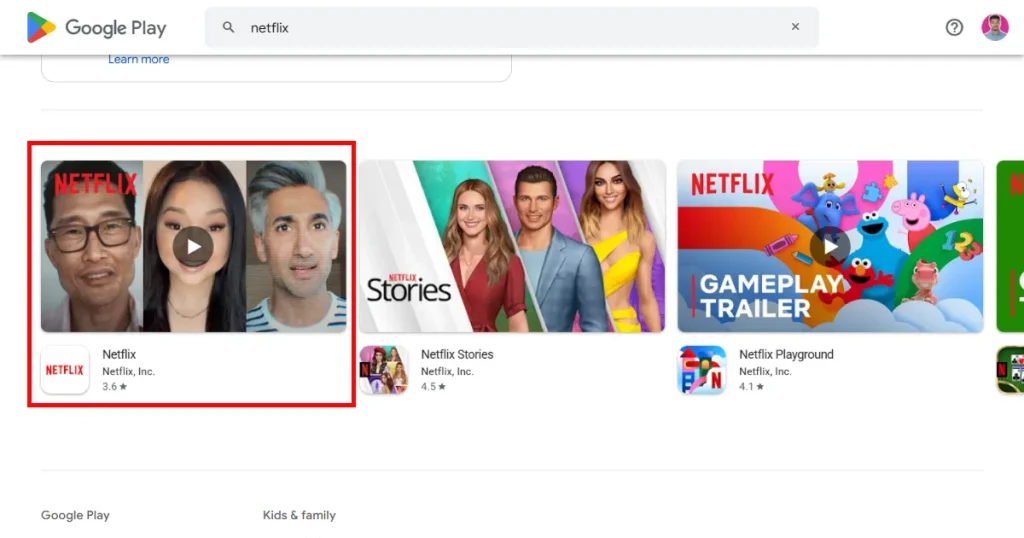
You cannot just upload any MP4 file directly to the Google Play Store console. Google Play Store preview video guidelines strictly require you to use a clean YouTube URL.
Keep your videos extremely short and cut to the chase. According to the Google Play Store preview video guidelines, the ideal length for a Google Play Store preview video is 15-30 seconds.
High-quality video production is the bare minimum today. Google Play Store preview video guidelines expect a minimum resolution of 1080p for an effective Google Play Store preview video.
A feature graphic of 1024 x 500 px is absolutely mandatory for your app listing.
Localized videos significantly improve your engagement when targeting multiple regions.
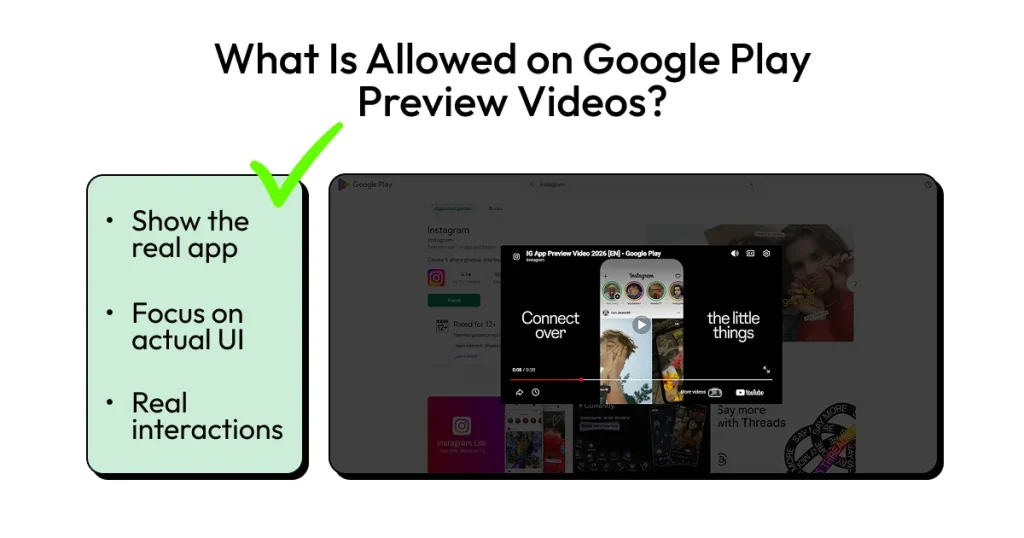
The main rule is simple, show the real app.
Your video should focus on actual UI, real interactions, and how the product works in practice. That’s what Google expects, and it’s also what users trust.
Take Duolingo as an example. Their preview shows real lessons, real screens, and the familiar gamified flow. Nothing feels staged, which makes the product easy to understand.
Same with Google Drive. The video walks through everyday actions like uploading files and sharing documents. It’s straightforward and practical, which is exactly what users are looking for.
You can still use animations or transitions, but they should support the UI rather than replace it. Ideally, your main features should appear within the first few seconds.
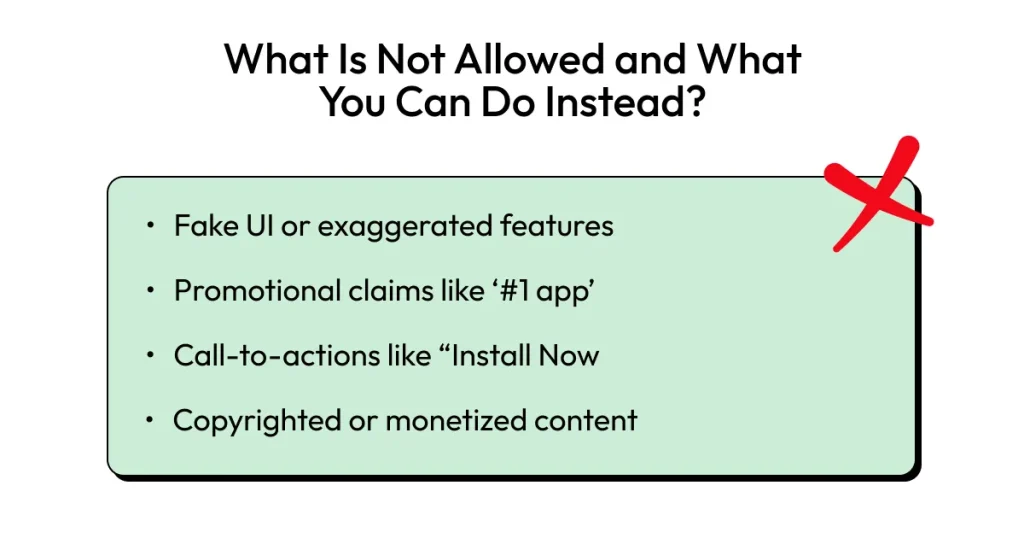
Fake UI or exaggerated features
If the video shows something that doesn’t exist in the app, users will notice. It might get installs in the short term, but it leads to quick drop-offs.
What to do instead? Stick to real recordings of your actual app.
Promotional claims like ‘#1 app’
These kinds of claims violate the Google Play Store preview video guidelines and don’t add much value anyway.
What to do instead? It’s better to let the app speak for itself through the visuals.
Call-to-actions like Install Now
Preview videos aren’t meant to feel like ads. Adding CTAs makes them feel pushy and out of place.
What to do instead: Focus on showing how the app works instead of telling users what to do.
Copyrighted or monetized content
If your video triggers ads on YouTube, those ads can appear in your listing, breaking the experience.
What to do instead: Use original assets or royalty-free music to avoid this completely.
Check out the key Google Play Store preview video best practices to create high-converting app preview videos.
Start with the strongest feature of your app immediately. Avoid slow logos or quiet branding intros at the start.
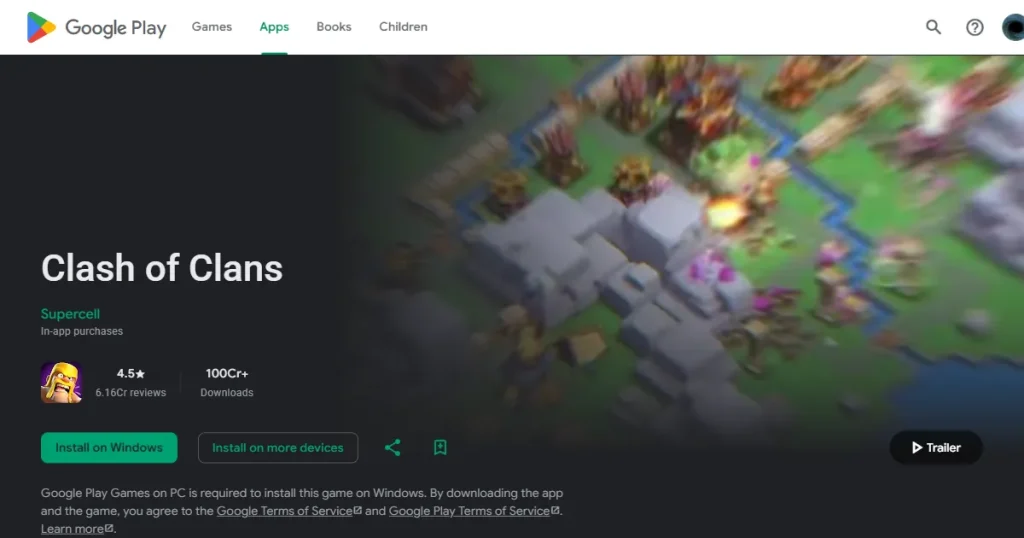
Clash of Clans follows these Google Play Store preview video best practices perfectly by dropping users straight into chaotic, engaging gameplay instantly.
Show the actual transformation your user will experience, not just how a specific button works.
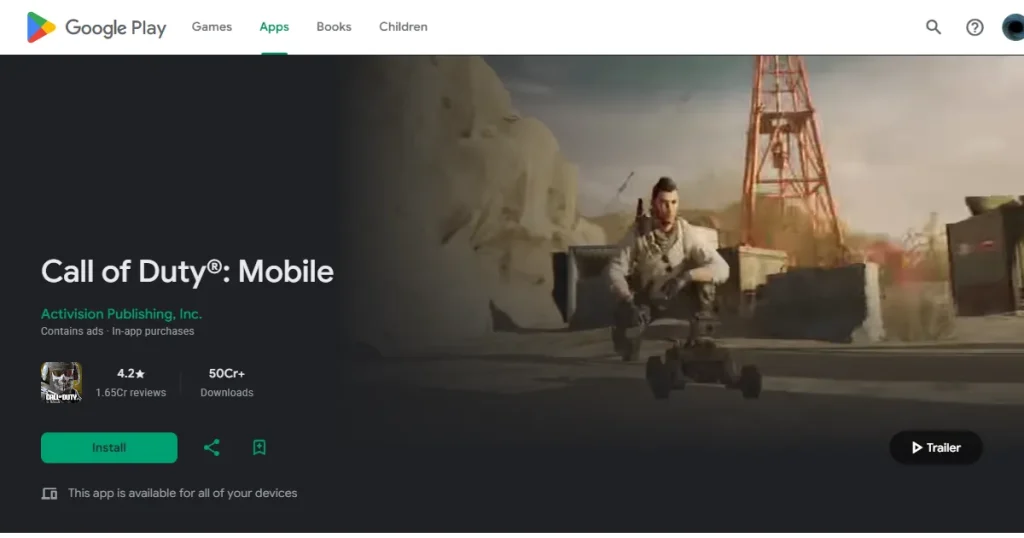
Call of Duty focuses entirely on the adrenaline and competitive intensity that players actively seek.
Ensure that at least 80% of your Google Play Store preview video shows the app’s real UI to comply with Google’s Play Store preview video guidelines.
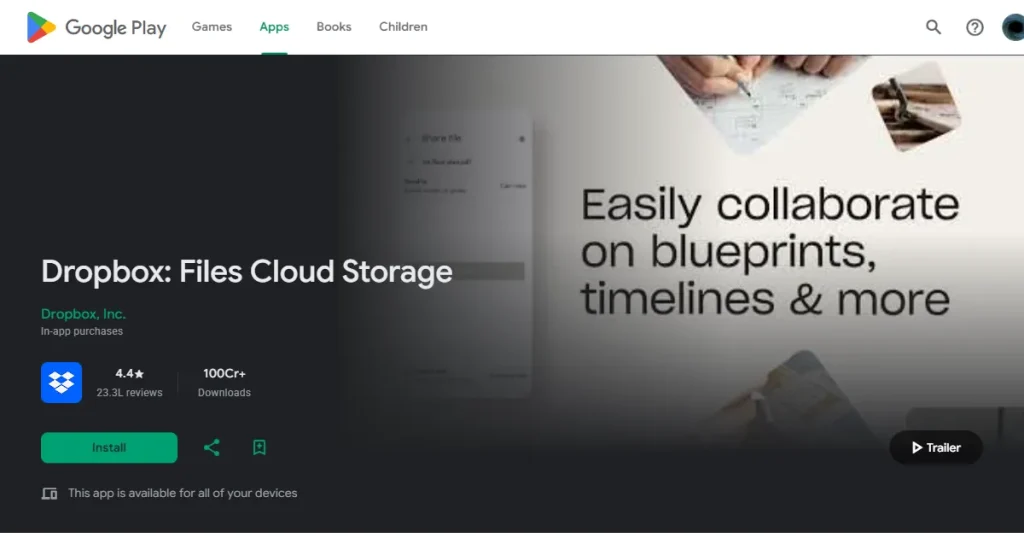
Dropbox succeeds here by implementing one of the most important Google Play Store preview video best practices and showing exactly what its file management interface looks like.
Remove anything that doesn’t add immediate value to the user’s understanding.
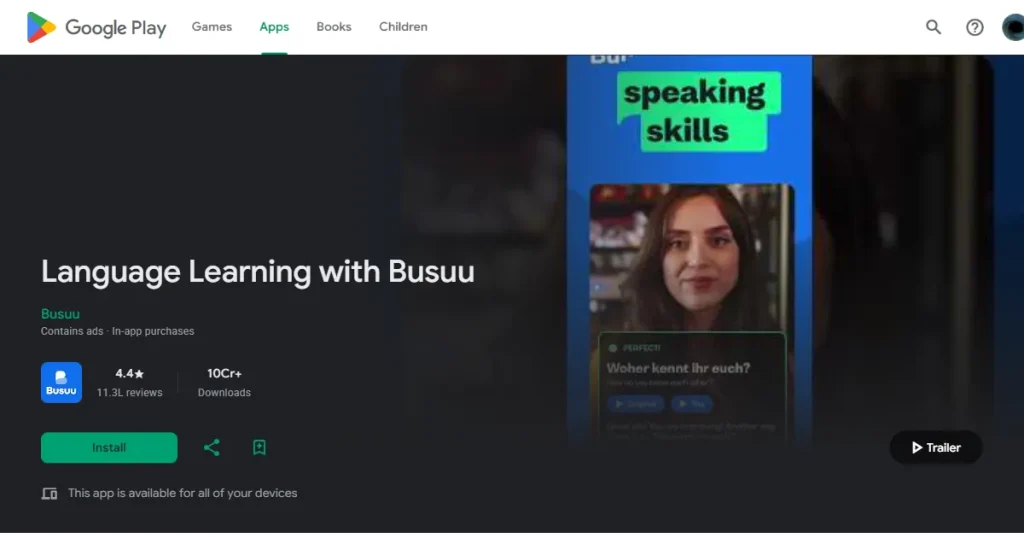
Busuu keeps it incredibly simple by highlighting quick lessons and building daily user streaks.
The vast majority of Google Play Store preview videos are completely muted when users first see them on the store, which makes using short captions highly beneficial as the main focus will stay on the screen.
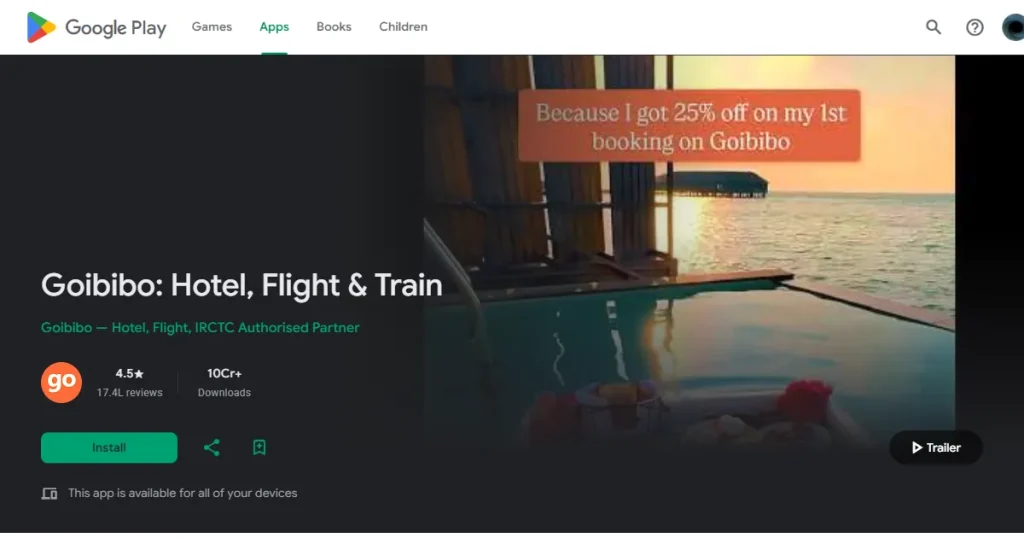
Goibibo uses beautiful, bold typography to guide the narrative and explain the on-screen action.
You need to clearly communicate your core benefit within the first 5-8 seconds.
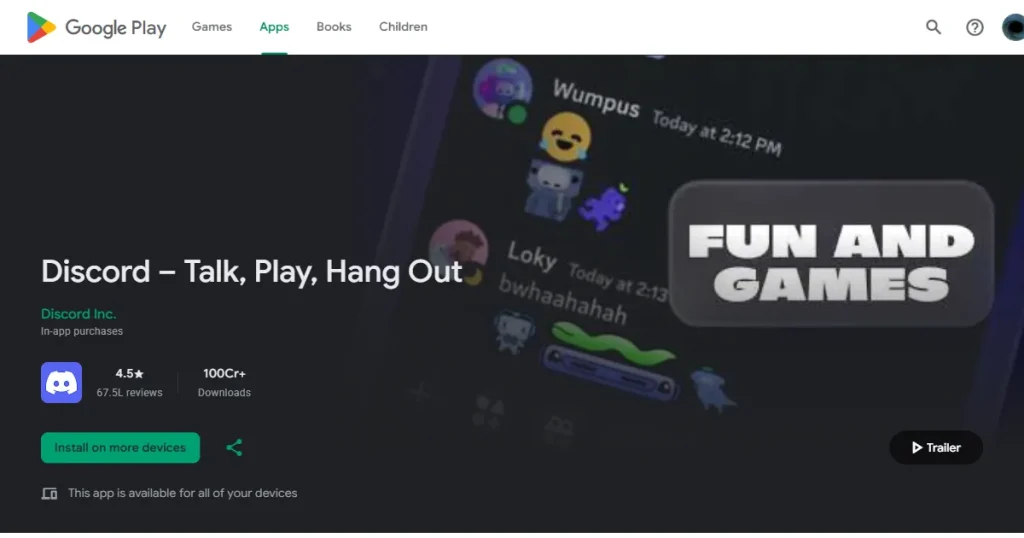
Discord establishes the benefit of instant connection with people and reinforces it multiple times.
Guide the user’s attention with subtle motion, high-contrast colors, and smart camera framing.
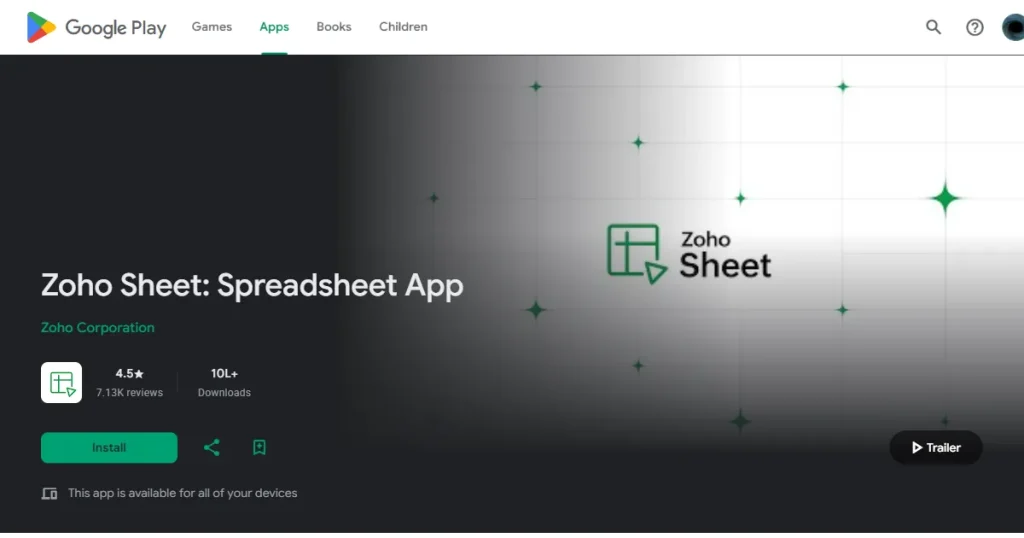
Zoho Sheet does an excellent job of keeping complex database workflows clean and easy to digest.
Align your video perfectly with your Google Play Store screenshots, app UI, and overall brand identity.
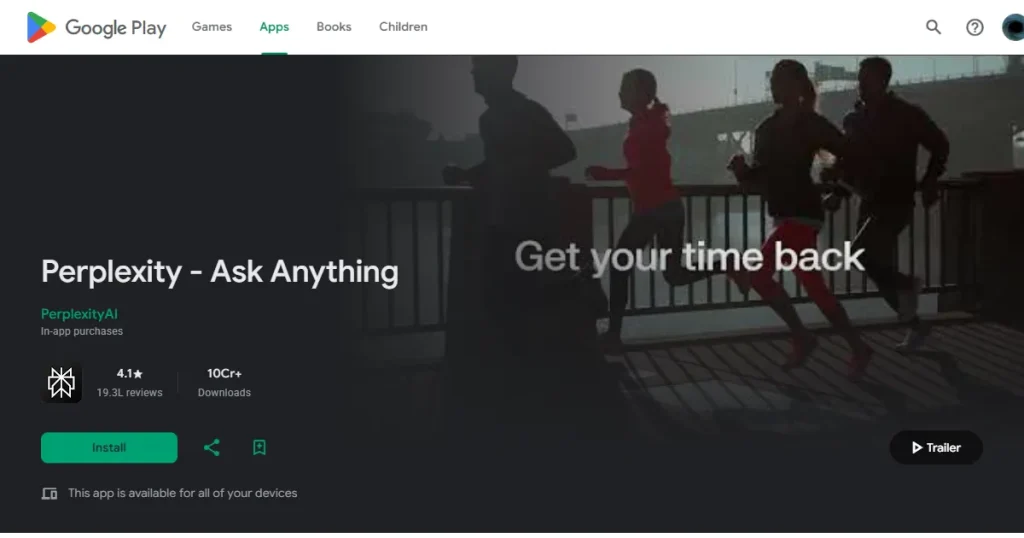
Perplexity uses the exact same distinct color palette and typography across the whole video.
Ensure your text overlays and crucial UI elements are easily readable on smaller mobile devices.
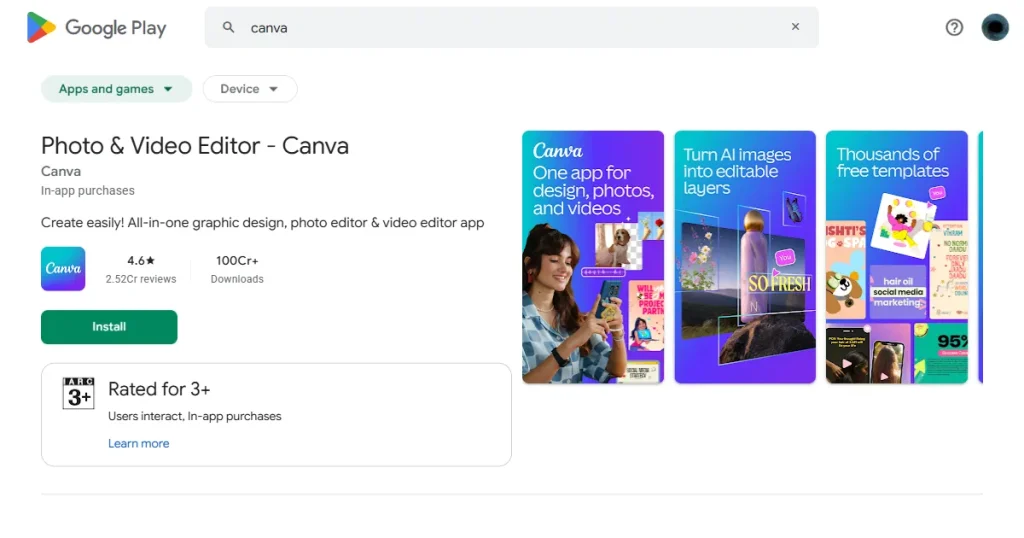
Canva handles this beautifully by zooming in closely on specific design tools to avoid visual clutter.
Analyze your user retention data in the Play Store console to find exactly where viewers get bored and drop off.
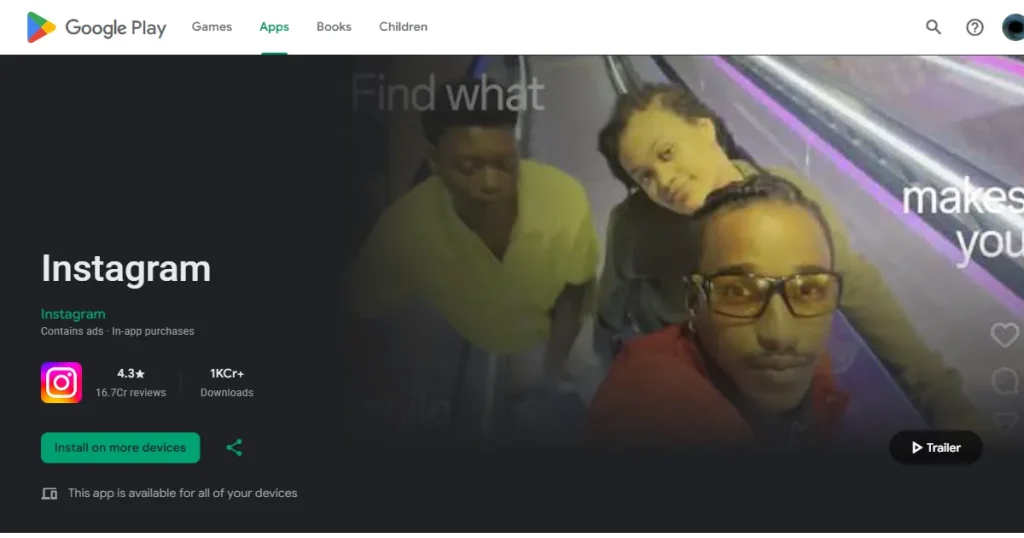
Instagram constantly iterates its store assets, testing different hooks based on real user behavior.
Clash of Clans
Call of Duty: Mobile
Dropbox
Zoho Sheet
Udemy
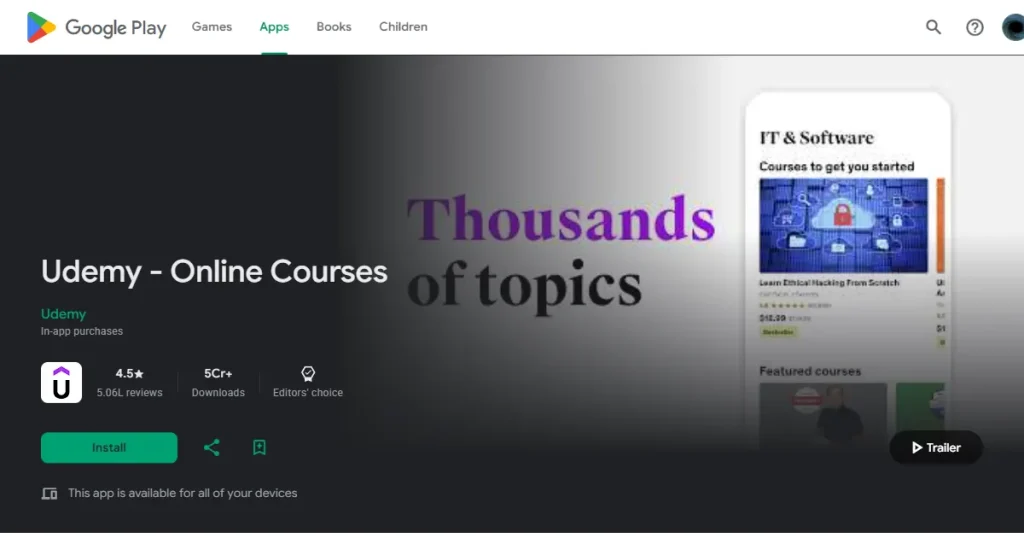
Mimo coding app
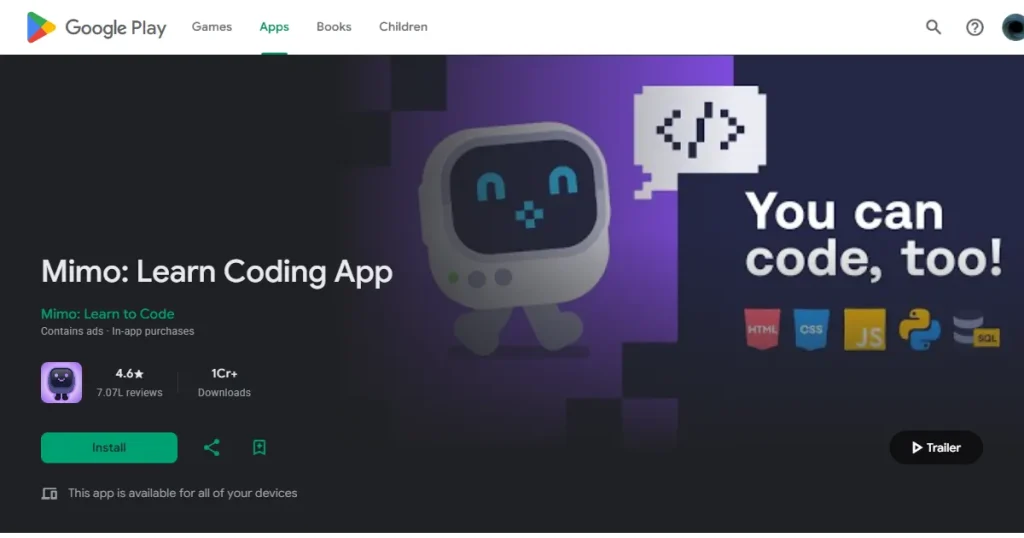
Goibibo
Discord
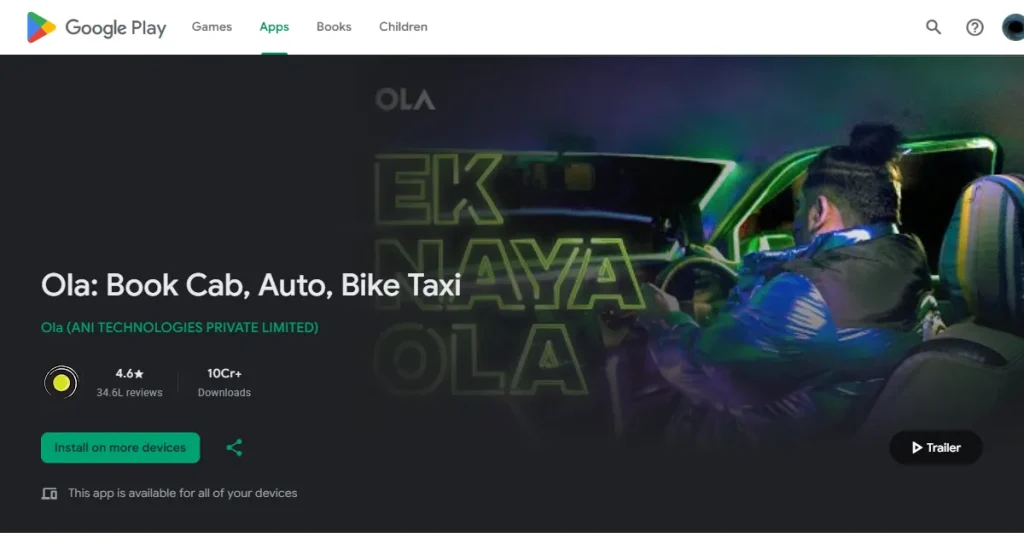
Ola
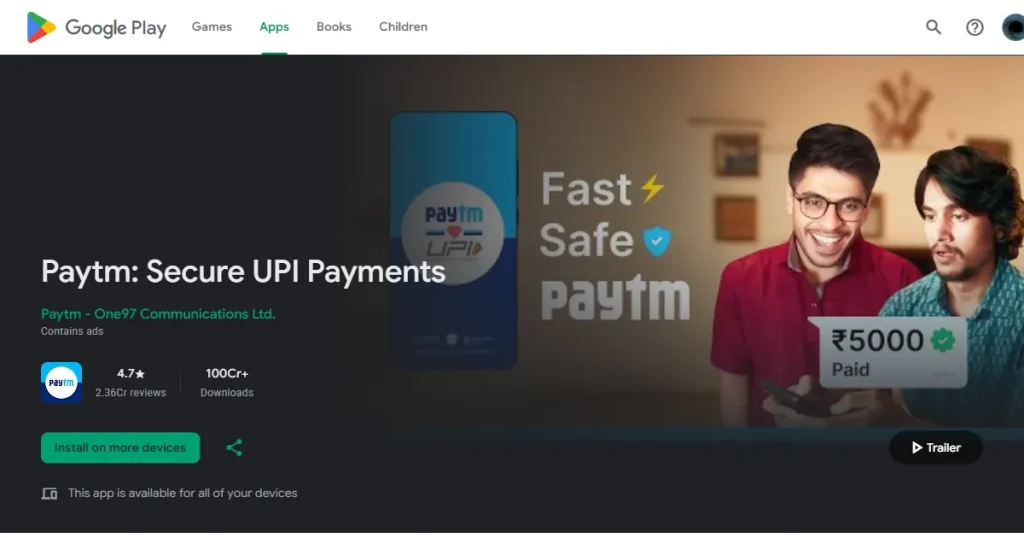
Paytm
When someone checks out a game, they’re not looking for explanations; they want to see if it’s fun.
Focus on gameplay right away. Show the core action, the game loop, and what keeps users engaged. Skip menus, tutorials, or story build-up.
Show clear workflows. Walk through a real use case to show users how the app fits into their day. Keep the interface clean and easy to follow.
With anything related to money, trust matters more than anything else.
Use your video to show clean, stable flows such as sending money, checking balances, and completing transactions. The goal is to make the app feel reliable and safe.
These apps are usually about outcomes, not the interface itself.
Focus on what the user gets. Travel experiences, inspiration, connections. Let the result take center stage, and keep the UI in the background.
Utility apps are judged on how quickly they solve a problem.
Keep it simple. Show how fast the task gets done and how little effort it takes. No need to over-explain.
Step 1: Upload your final video directly to YouTube with monetization and ads completely disabled.
Step 2: Set the video’s visibility status to either public or unlisted so it can be accessed by the Google Play Store.
Step 3: Ensure the Allow embedding option is enabled in YouTube settings.
Step 4: Copy the correct YouTube URL, removing any extra tracking parameters or timestamps.
Step 5: In the Google Play Console, navigate to your Play Store Listing and locate the Preview Video field.
Step 6: Paste the clean URL into the preview video field and upload the required 1024 x 500 px feature graphic.
Step 7: Publish your changes and manually test the live listing on multiple Android devices.
Step 8: Verify that the autoplay behavior works as expected and the thumbnail displays correctly.
Step 9: Monitor your early performance metrics and conversion rates closely for a few weeks after launch.
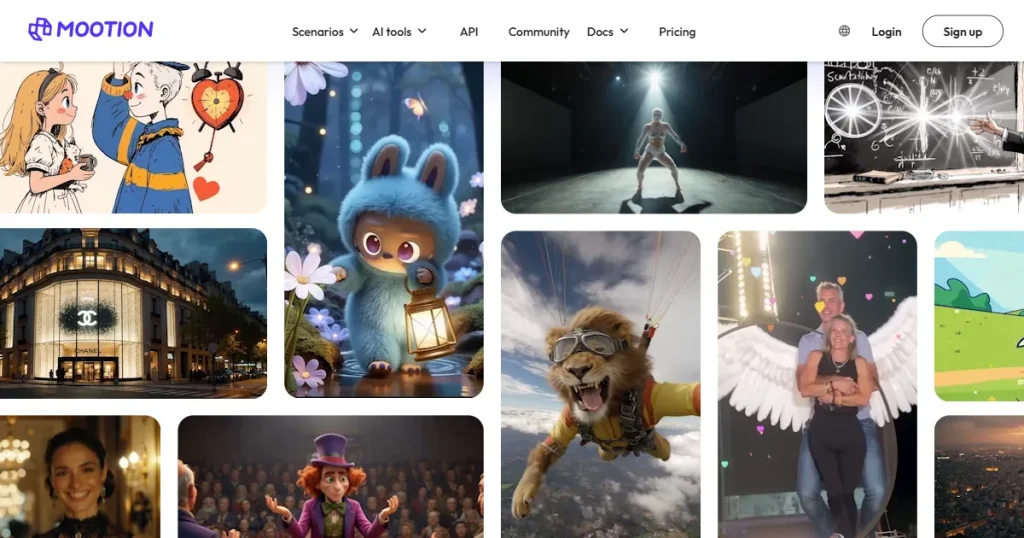
Mootion quickly generates video drafts with AI, ideal for rapidly testing different conceptual hooks. It drastically reduces initial production time, making it a great tool for early-stage development teams.
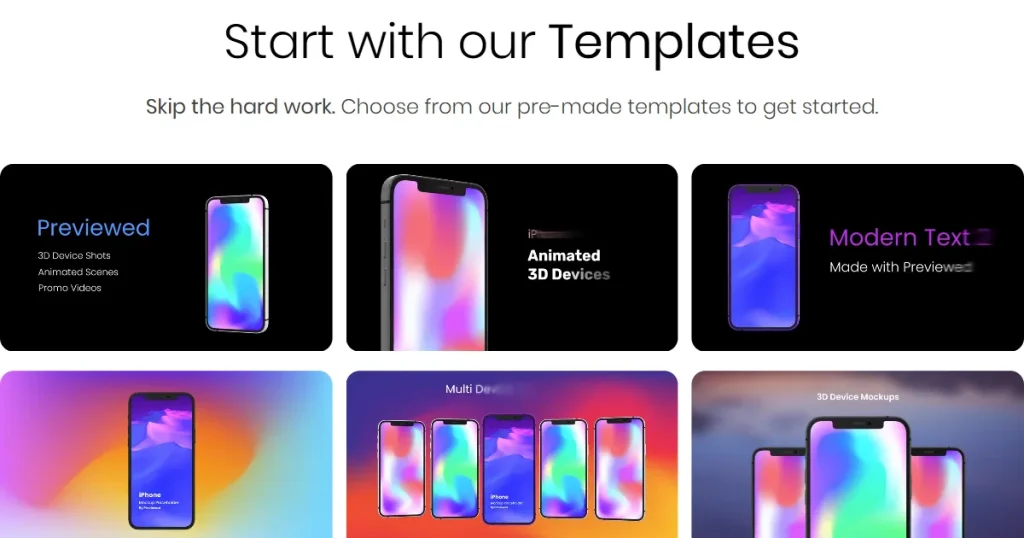
Previewed helps you present your raw app UI inside polished, highly realistic device frames. It is incredibly useful for combining raw screen recordings with clean visual backgrounds to improve production quality.
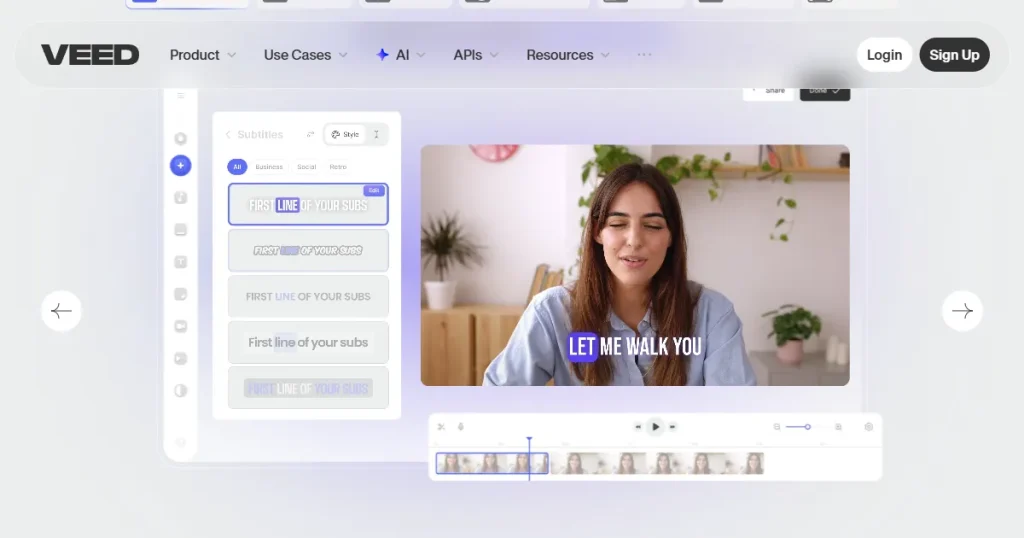
VEED.io browser-based video editor packed with automated captioning tools. It is fantastic for optimizing your video for sound-off viewing without needing a heavy desktop editing setup.
Strategies to Test and Improve Performance
You should constantly test different hooks and opening scenes to see what actually stops the user from scrolling.
Compare different video lengths. A punchy 15-second video often significantly outperforms a slower 30-second one.
Experiment with different text messaging and core value propositions in your on-screen captions.
Analyze viewer drop-off points in your analytics to find out exactly where people get bored and leave.
Tools You Can Use for A/B Testing Google Preview Videos
Google Play Console already gives you a way to run experiments on your listing, so that’s the first place to start A/B testing.
For deeper insights, Firebase helps you understand user behavior and engagement patterns.
If you want more controlled testing, SplitMetrics is built specifically for store listing experiments and provides more structured comparisons.
Screenshots and preview videos serve different roles, but they should communicate the same core message. When they align, users understand your app faster. When they don’t, it creates confusion.
Localization helps your listing feel relevant in different markets.
How to localize Google Play Store screenshots with AppLaunchpad?
AppLaunchpad is a web-based screenshot generator designed for App Store optimization. It supports one-click text localization across all required App Store locales (all 80+), making multi-language screenshot creation faster and easier to scale.
Follow these steps to localize your App Store screenshots using its AI localization feature:
Step 1: Create an account on AppLaunchpad or log in with your saved credentials.
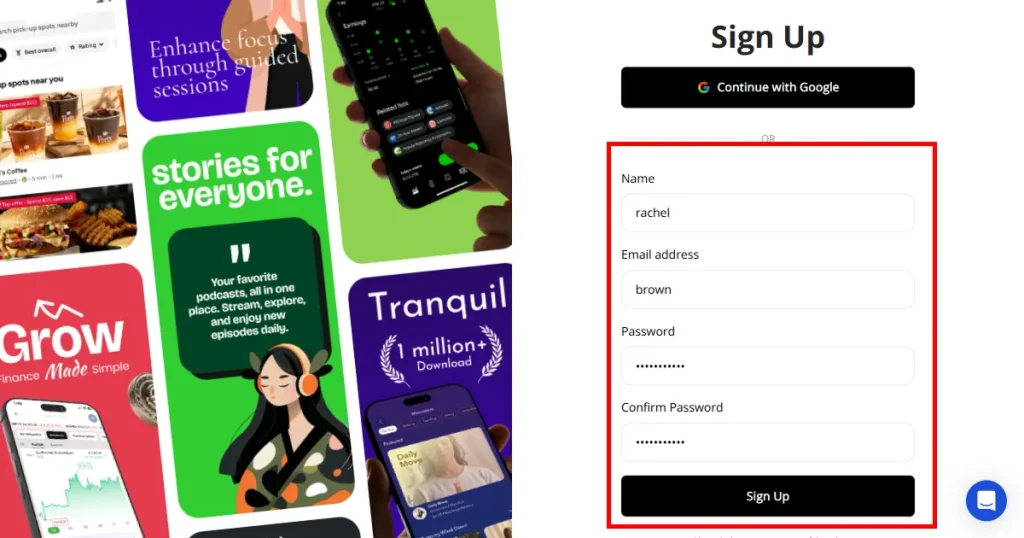
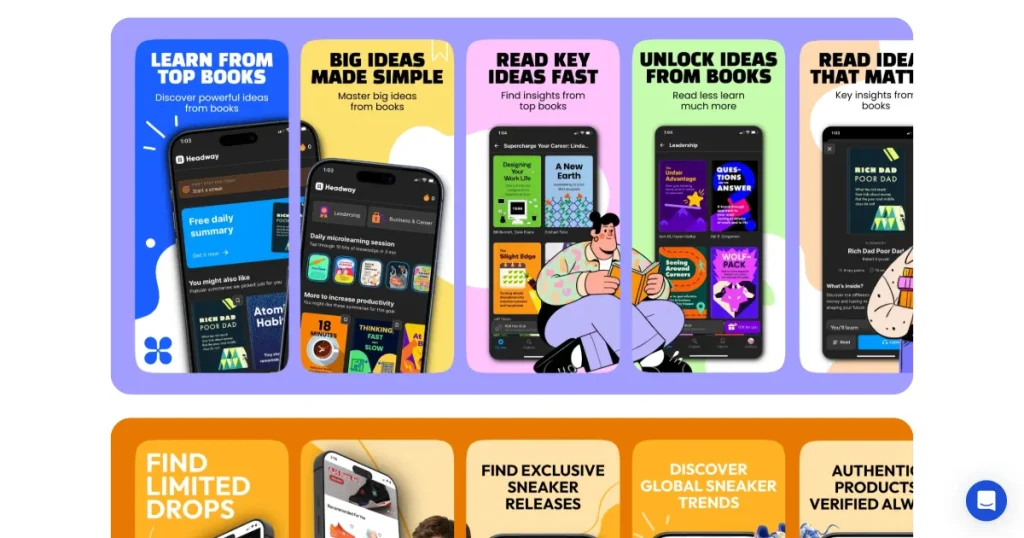
Step 2: Select a screenshot template that matches your app’s branding.
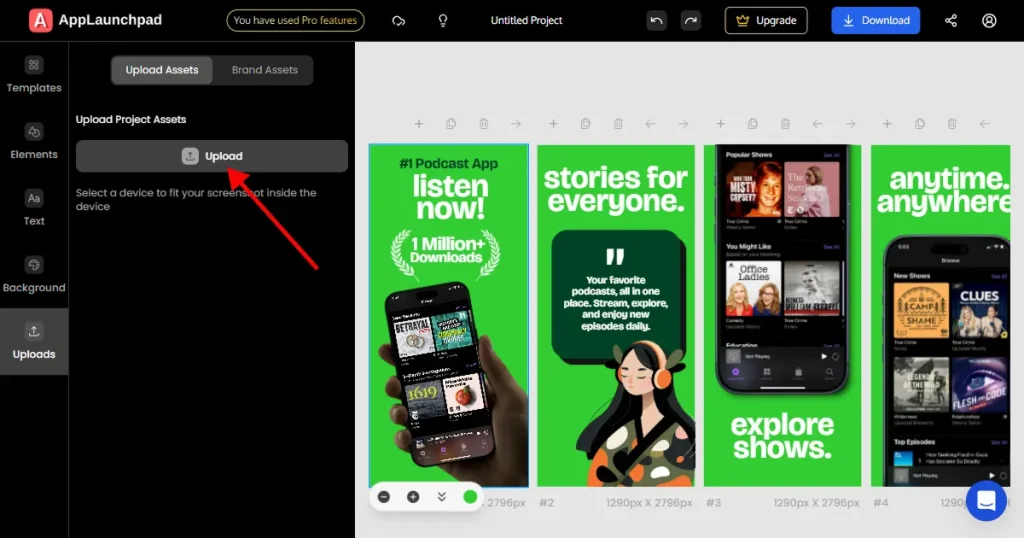
Step 3: Upload your app UI screens and add base text captions in your primary language.
Step 4: Open the Text section, choose your target language from the dropdown, and click Translate.
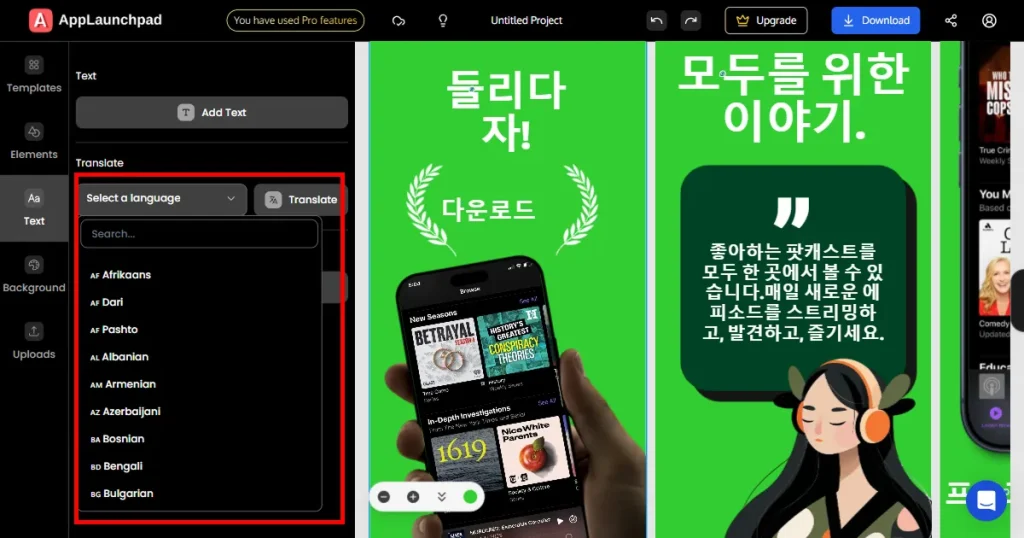
Step 5: Review the translated text and Adjust the layout if needed.
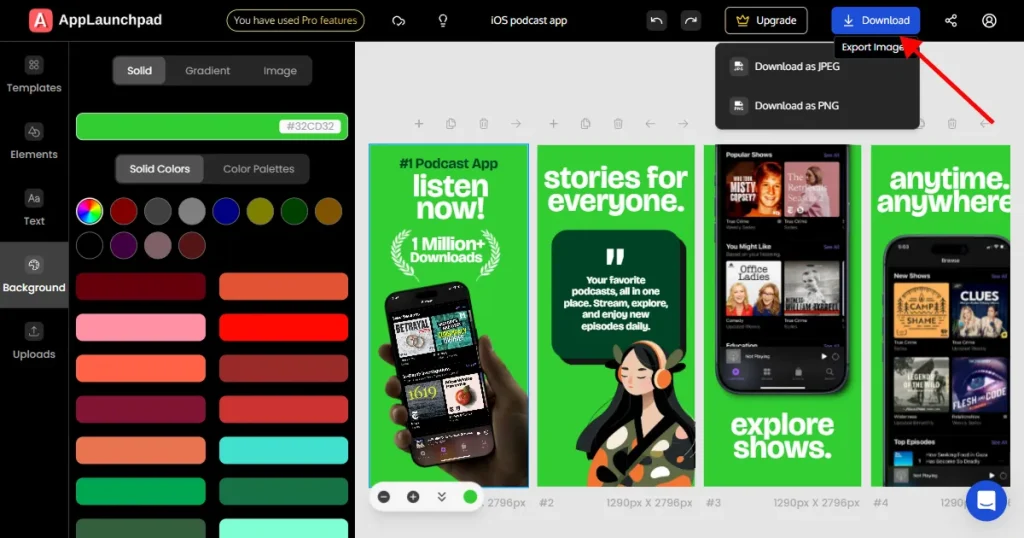
Step 6: Download the final screenshots in JPG or PNG format.
Step 7: Upload the localized screenshots to the Google Play Store console.
Google Play Store preview videos are an absolute essential for modern, highly competitive Play Store listings today.
Clear, simple, outcome-focused preview videos consistently outperform complex, overly cinematic trailers.
Ultimately, a well-optimized, honest Google Play Store preview video simply helps users make faster, more confident install decisions.
Fake UI, misleading visuals, or showing features that don’t exist in the app are not allowed. Promotional claims like ‘#1 app,’ direct call-to-actions, and any copyrighted or age-restricted content that triggers ads should also be avoided.
No, it’s not mandatory. But it’s strongly recommended, especially in competitive categories where users expect to see the app in action.
Most rejections occur due to misleading content, the use of copyrighted assets that trigger ads, or incorrect video settings, such as private visibility or ads being enabled.
It’s better not to. Comparative claims can lead to policy issues, so it’s safer to focus only on your own app and how it works.
Yes. Since most videos autoplay without sound, captions make it easier for users to understand what’s happening and stay engaged.
Google Play Store preview video guidelines require you to show real app usage, avoid misleading content, and use a YouTube link. Videos should be clear, simple, and focused on how your app actually works.
Google Play Store preview video requirements include using a YouTube video link, keeping it under 30 seconds, disabling ads, and ensuring at least 80% of the video shows real app experience in high quality.
Google Play Store preview video best practices include showing your app’s value in the first few seconds, using captions for mute playback, keeping it short, and focusing on real user flows instead of over-editing or adding distractions.